Results
View all saved test results using this tab.
Saving FaultScout Results
Configure Autosave in the Setup screen or save results manually in the Results screen. The Autosave options can also be configured from the Results screen. See Autosave Parameters for more information about Autosave options.
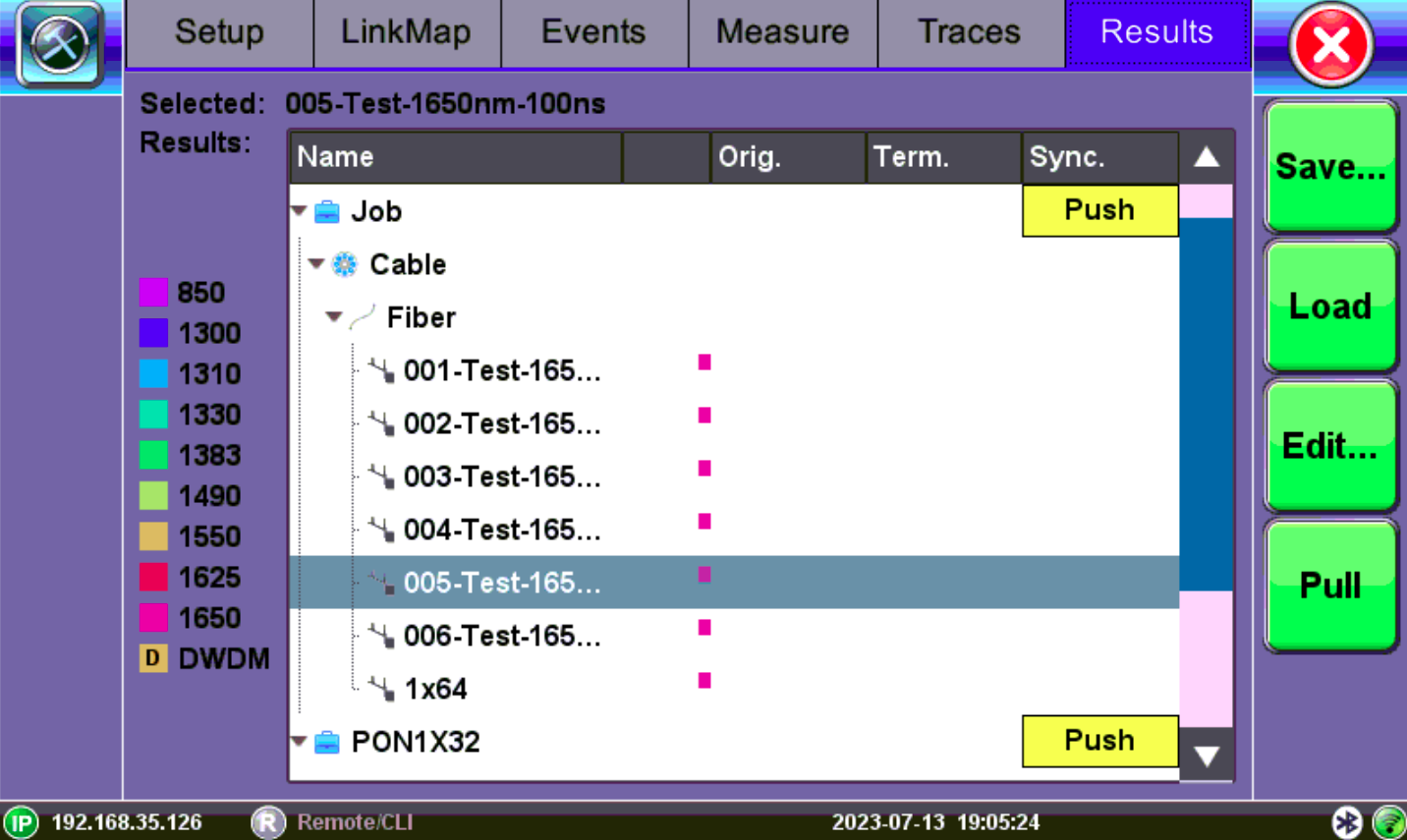
Results: Save options
The tests are saved in the following folder directory hierarchy:
-
Job ID
-
Cable ID
-
Fiber ID
-
Results – Traces
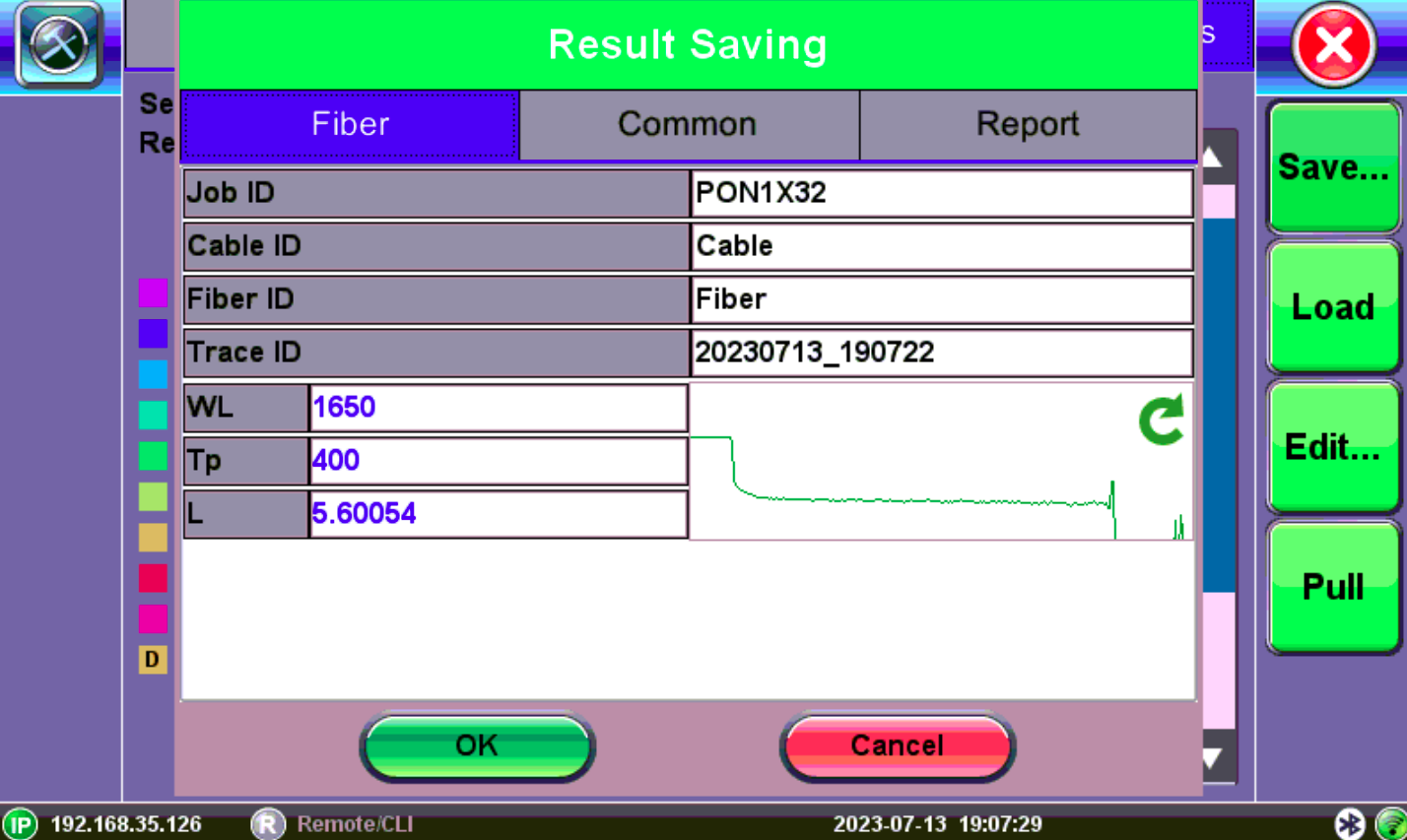
 The JobID/CableID/FiberID/TraceID fields determine the location to which the trace is saved. If these settings are not set accurately, the trace will not save to the desired location.
To save the current/active test:
-
On the Results tab, click the Save button.
-
Select Save to enter the filename manually (shown below) or AutoSave to use pre-defined filename format and auto increment test number counter.
-
If desired, enter additional details using the General, Other or Report tabs before tapping the OK button.
To view or print reports, use the File Management feature or one of the Fiberizer software applications.
Third Party Viewers
When third party viewing is checked, the unit will save filtered .sor results so that third party software will display any trace identical to how it appears on VeEX test sets.
 Once saved in using 3rd party format, unfiltered data cannot be viewed afterwards.
To manually save a trace for third party viewing:
-
In the Results tab, tap the Save button, then tap Save again. The Result Saving window appears.
-
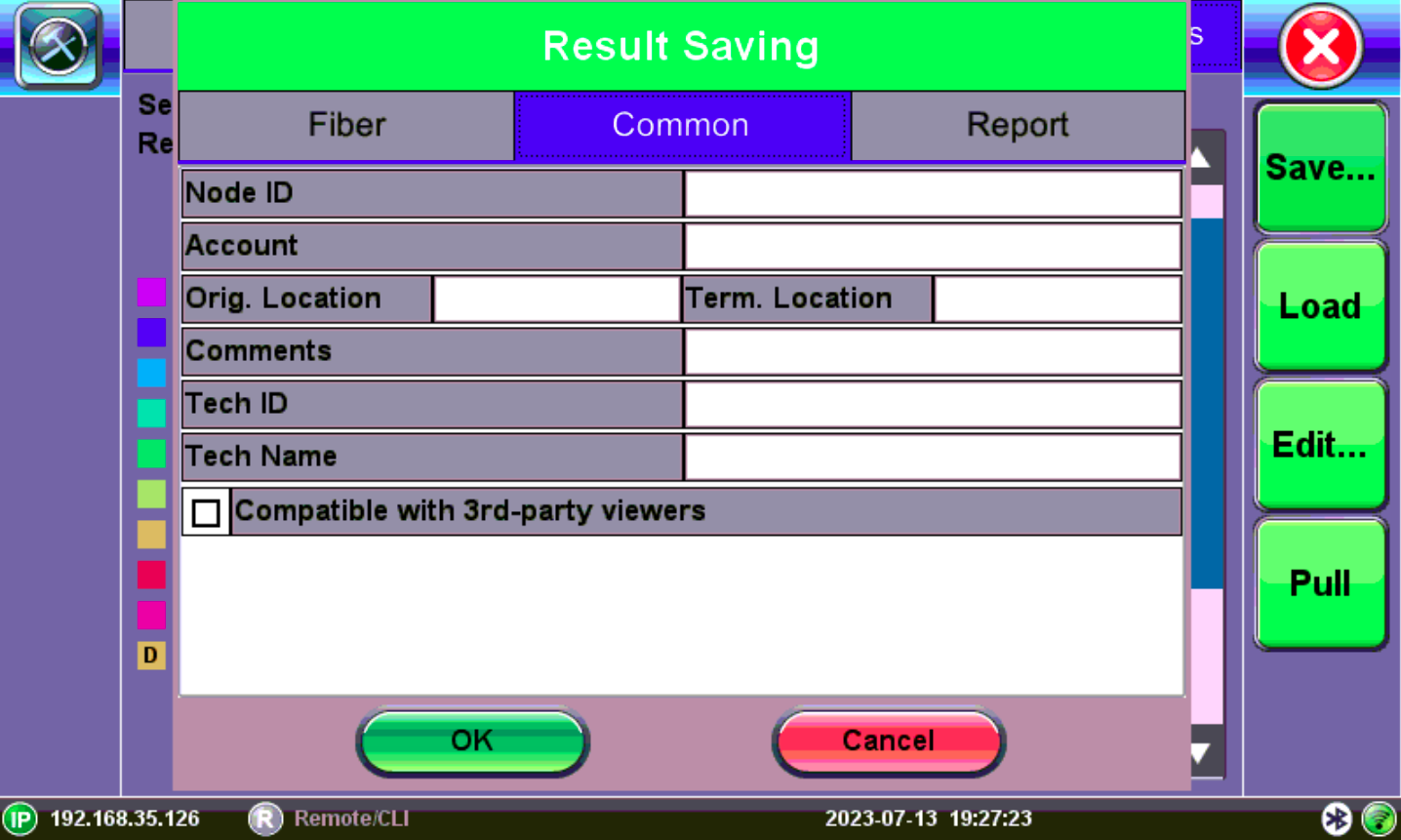
Select the Common tab, and then check the Compatible with 3rd-party viewers checkbox.
-
After making any other changes (especially Fiber tab) as needed, click OK.