Splitter Analysis
The optional splitter analysis feature works by connecting to a splitter panel and monitoring all ports simultaneously, allowing technicians to verify actual field connections against documented records and detect discrepancies due to undocumented changes (e.g., a port reassigned or incorrectly patched). The process is secured with libraries and graphical display, limiting the risk of errors and helping sync field results with network documentation.
The panel type profile can be selected so the FX120 knows the expected splitter configuration. Technicians can use splitter analysis results to correlate with optical power levels and activity.
The splitter analysis feature is useful for:
-
Field Verification: Confirms whether splitter connections match design records.
-
Troubleshooting: Identifies undocumented changes that could cause service issues.
-
Efficiency: Provides a quick way to audit splitter panels without manually tracing every fiber.
-
Accuracy: Captures ONT/OLT identifiers to ensure correct mapping of subscribers to splitter ports.
Process
A connection from the FX120 OLT port to a free port (any) on the Splitter Panel allows the FX120 to monitor a copy of all signals happening on all ports. The test set listens to see if there is a signal (capturing the SSN/PID), no signal/mismatched, or an empty port.
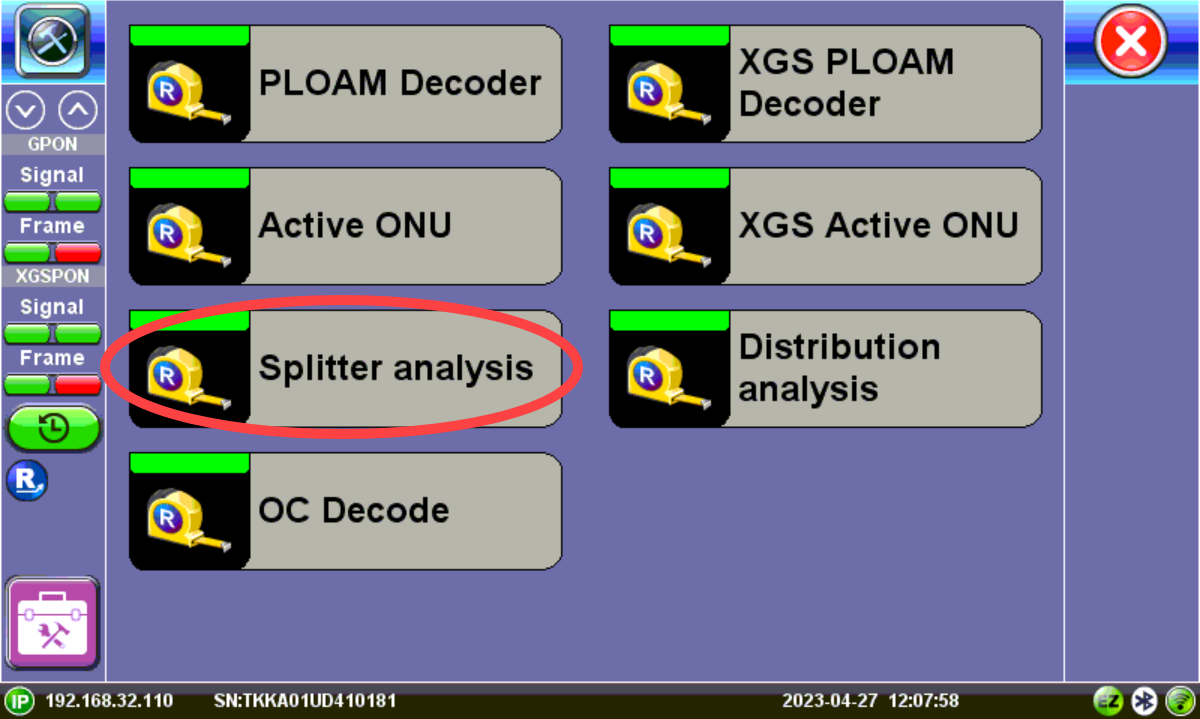
Using the Advanced Splitter Analysis feature
Before starting the Splitter Analysis on the test set, connect one end of the incoming patchcord to the FX120 To OLT port and the other end of the patchcord to any free port on the Splitter panel.
-
On the FX120, press Tools to access the Advanced menu, and then tap Splitter analysis.
-
After entering a location, select the Panel Type profile being audited.
 If the Panel Type is not listed, speak to your regional sales team about importing a custom profile first before beginning the auditing process.
 -
On the FX120, press Start.
-
On the Splitter panel starting at position A01, disconnect and reconnect the customer ONT port after 1-2 seconds. While the connection is under test three dots
 are displayed.
  Do not disconnect the patchcord to the FX120 at any time so each port signal can be continuously scanned during the audit process.
 -
Wait until a letter is displayed, then move to the next port on the splitter. If the port has an ONT connected, it will mark the port as "O" with the SN. If the port is empty, mark it "Empty" until the next occupied port is reached. If the port has a patchcord but no letter, mark the port as "No SN". The FX120 will listen to and collect information associated with that port. It may take up to ten seconds for the OLT/ONT to restart the connection and the FX120 to detect the information exchanged between them. Use the table below for a description of all actions.
Check all positions to avoid incorrect information being captured. -
Select a color for the cable connected to the port. The color will be reflected on the table. Skipped ports will not require a color selection on subsequent passes
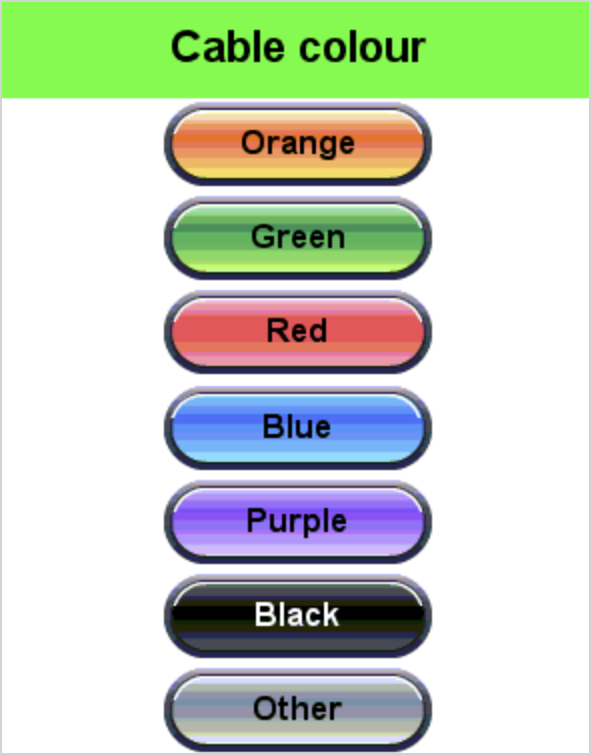
-
After the scan is complete, press the Stop button to end the test and mark any remaining cells in the table with "L". Then, select Okay at the prompt. This generates a CSV file containing the information collected from the port scanning process, including Rack, Position (Port), SSN (if captured), and/or PON ID (if captured). This file can be used to compare to the PON network database. See Working with Saved Results, Profiles, Images for details on exporting the CSV file.
At any point during the test, a restore point can be set by pressing the orange Save button  . The analysis can then be resumed from the point at which it was saved. In the event of low battery or reboot, the unit will automatically create a restore point in which the analysis may be resumed as long as the location and panel type match.
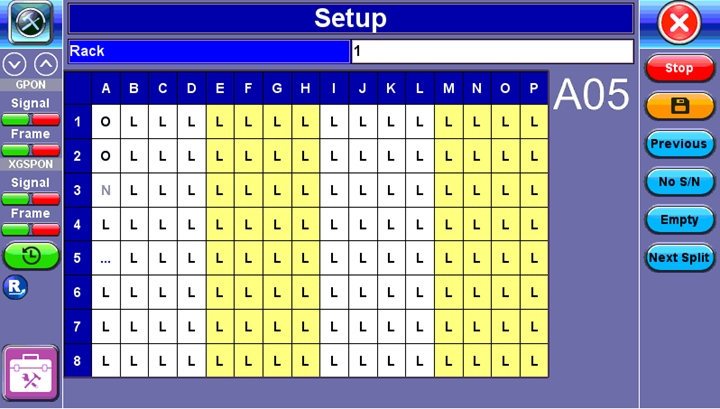
Splitter Analysis
The test set will beep when action is needed, such as when:
-
Pre-check is complete.
-
To move to the next port.
-
To move to the another splitter.
-
LOS is detected.
| Description | Action |
| To re-test the previous port |
Press Previous to go back one port at a time. If multiple ports are skipped back, the scan process restarts from that point.
|
| To jump to the next splitter bank (in splitter analysis) |
Press Next Split. The unit will mark all skipped positions in the current splitter bank L (empty) automatically and move to the next splitter bank.
|
|
To jump to the next port (in distribution analysis e.g. belongs to another operator) |
Press Skip. The unit will move to the next port automatically. |
| If no SSN (ONU) is detected |
Press No S/N. |
|
If there is no patch cord connected |
Press Empty. |
| To stop analysis |
Press Stop. All ports not analyzed will be marked Empty ("L") automatically. |
|
To manually create a restore point |
Press the orange "Save" button. The analysis can then be resumed from the point at which it was saved. In the event of low battery or reboot, the unit will automatically create a restore point in which the analysis may be resumed, as long as the location and panel type match. |
|
To save results to a CSV file |
Press Stop to end the test, then OK at the prompt. This file can be used to compare to the PON network database. |
| Port Position Indicator | Meaning | Action |
| ... | The FX120 is waiting to detect a change in the received signal for that position. | Disconnect and reconnect the patchcord from the port position on the ODP panel after 1-2 seconds. It may take up to ten seconds for the OLT/ONT to restart the connection and the FX120 to detect the information exchanged between them. |
| O | The SSN Serial Number and/or PON-ID has been captured. | No action needed. The unit will move to the next port automatically. Duplicate SSN Serial Numbers will be ignored. |
| N | No SSN Serial Number was detected. | After a few seconds, press No S/N. The unit will then move to the next port automatically. |
| L | Empty port. This could be the default or manually set. When scanning ports for the first time, all positions are L by default because the unit assumes they are all empty. | Press Empty. The unit will then move to the next port automatically. |
| X | Skipped port | If needed, skip a port and recheck later, so no misinformation is collected. |