Wi-Fi Test Application

Swipe down from the top, to open the System & Tools menu, then tap the Wi-Fi button to select the Wi-Fi WLAN interface for testing. Scan for available networks and view all access points’ (AP) detailed information along with SSID, signal strength, channel allocation, supported Wi-Fi types, Max PHY Rates.
The test set can connect to Access Points with WEP, WPA, WPA2 and WPA3 encryption and run Ookla® Speedtest® or iPerf3 to verify the wireless network’s speed test performance and confirm that it has been properly installed and provisioned.
-
Access Points scan with signal level and additional AP details allow wireless coverage tests to identify weak spots.
-
Supports 2.4 GHz, 5 GHz and 6 GHz bands, for 802.11a/b/g/n/ac/ax.
-
Discovers Clients and Channels in table or graphical format.
-
Supports WPA3, WPA2, WPA1 and WEP encryptions.
-
Provides Wi-Fi WLAN management access (local and remote) to the test set (e.g. R-Server, EZ Remote Control).
AP Scan
After selecting the Wi-Fi Test mode, the screen shows the Wi-Fi Access Point (AP) Scan results page or swipe left/right to find it. A list of available access points is displayed with basic information.
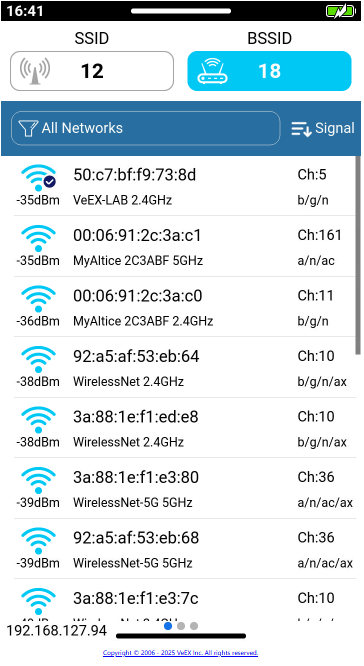
Tap the  SSID (Service Set IDentifier) button to consolidate all access points belonging to a wireless hot spot network and sharing the same name or tap the
  BSSID (Basic Service Set IDentifier) button to display all the individual access points available. Modern Wi-Fi routers can be provisioned to host multiple hotspots for each of the wireless bands.
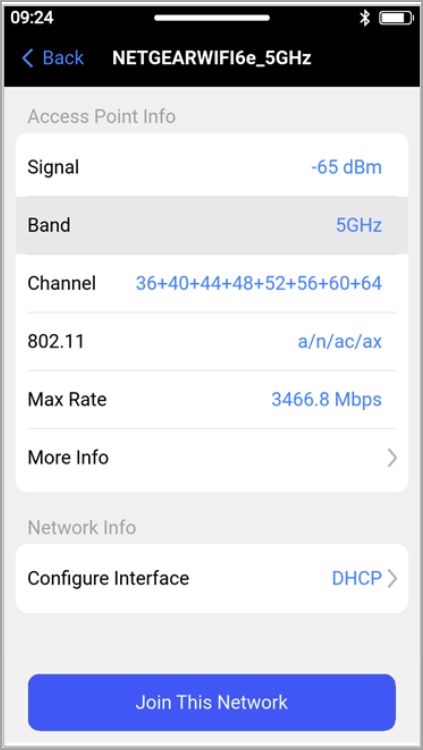
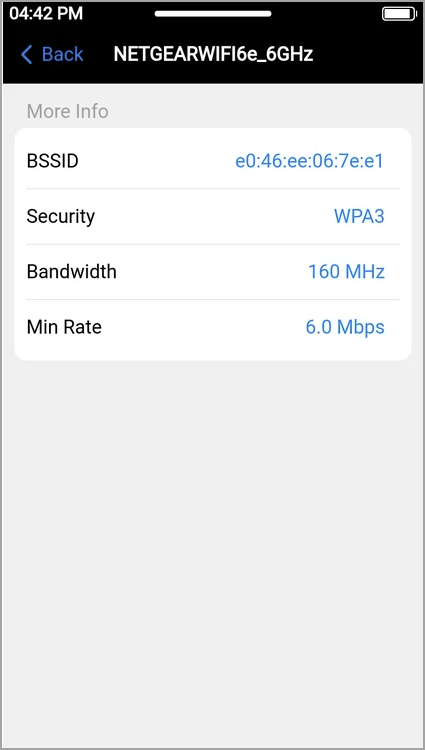
Tap the AP of interest to get its details. Tap More Information to get more details about the AP.
By default, Wi-Fi normally runs on dynamically assigned IP Address mode (DHCP), however you may tap the Configure Interface field to set it to a specific Static IP Address.
To save the details of all access points detected during the current scan, go to the AP Scan page, swipe up from the bottom to reveal the Functions menu, and select  Save.
Save.
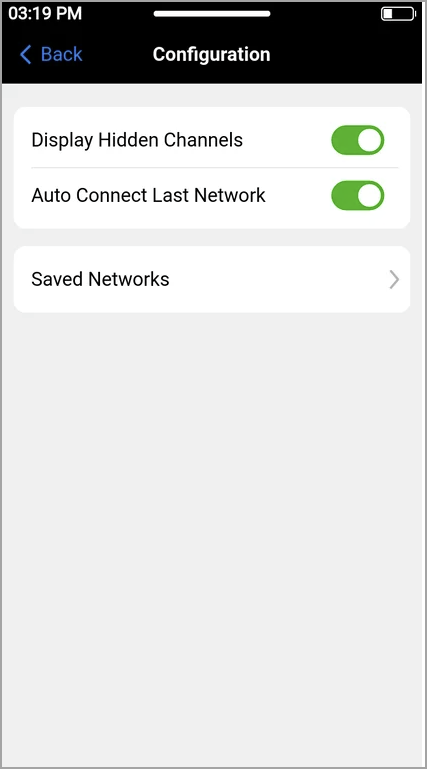
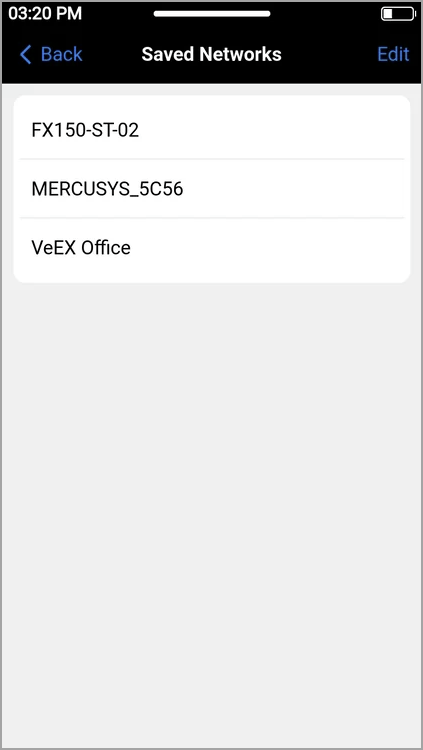
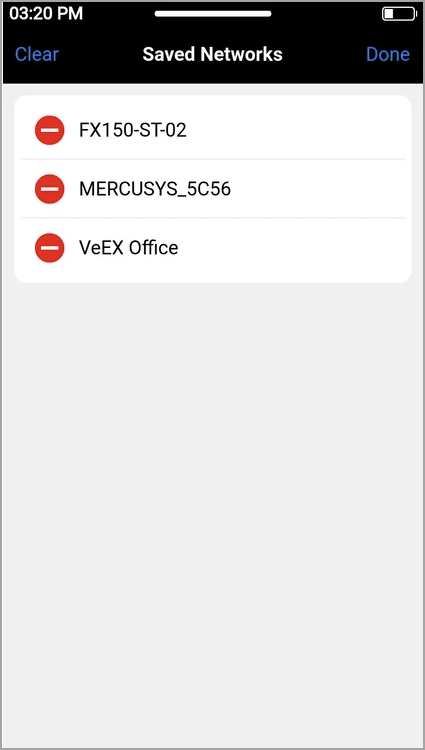
The  Config setup menu, accessible by swiping up from the bottom, allows adjustments to Wi-Fi scanning and connection parameters. To view previously stored Access Points, select Saved Networks. Tap Edit to remove any access points that are no longer required for regular use.
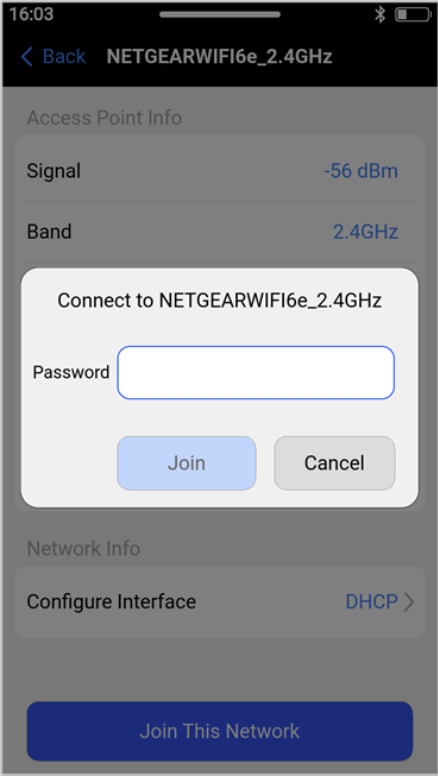
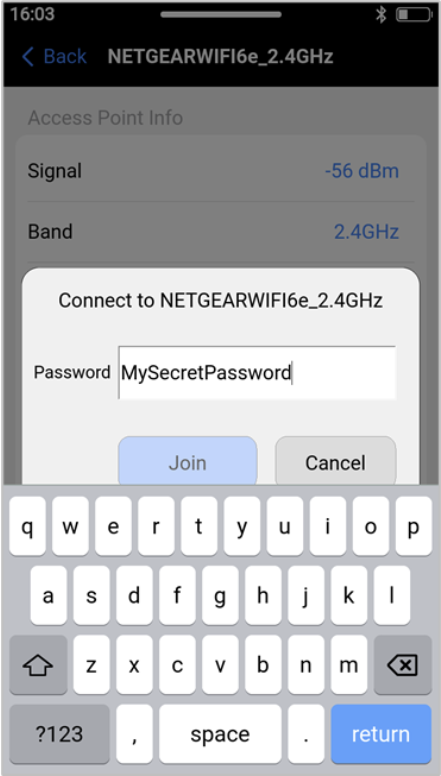
To connect to the selected Access Point, tap the Join This Network button, tap the Password field, enter the password, tap Return and then tap the Join button.