About/SoftwareOptions
 |
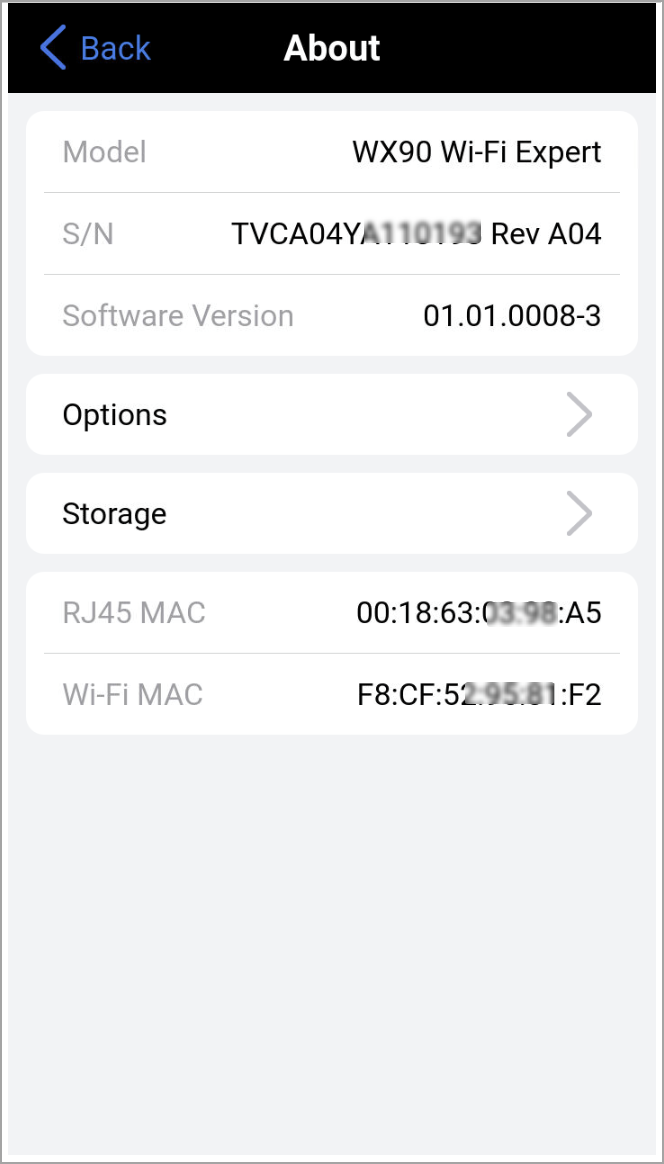
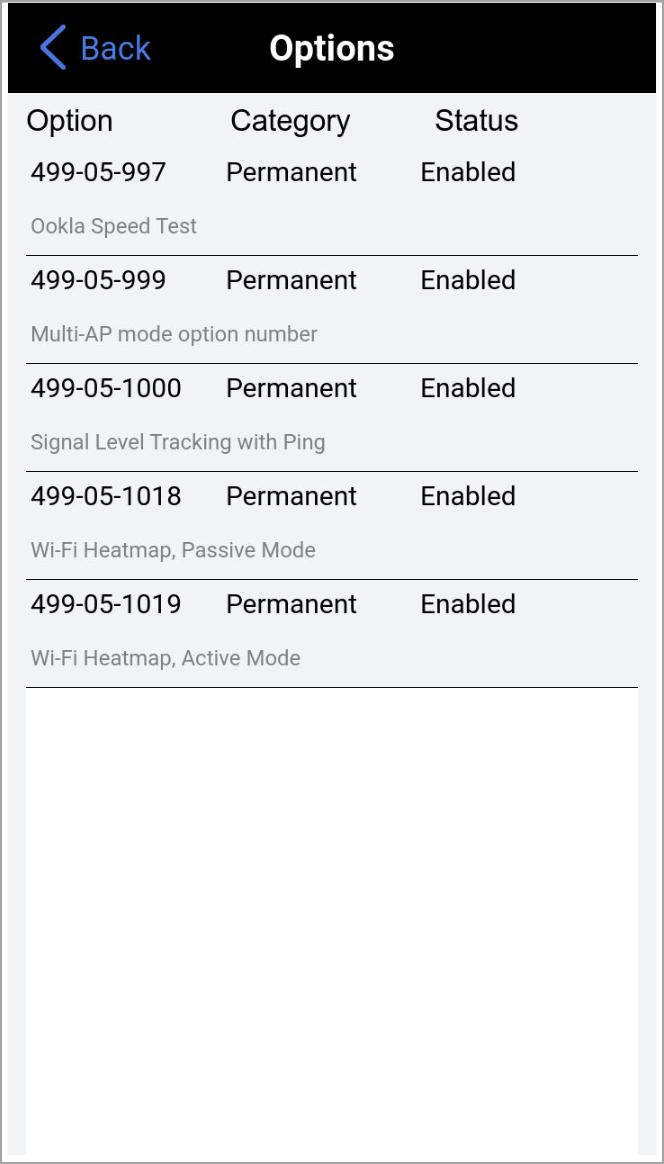
Select About to see the test set's serial number, information, software version, licenses/options, and system's internal storage details. This information may be required when contacting Customer Support. |
Activate Options/License
If company policy doesn’t allow access to the public internet or the test sets are used within a secured network, request License Keys for manual activation. License keys must be requested at the time new options are purchased.
To activate new features, select the option and enter the activation code received from VeEX, VeEX partner or manager. Select Activate to complete the licensing process. Each activation code is specific to a test set and a feature.
If multiple features are ordered, individual activation codes will be sent for each of them. Manually activated features are specific to a test set and can’t be shared with other test sets.
Storage
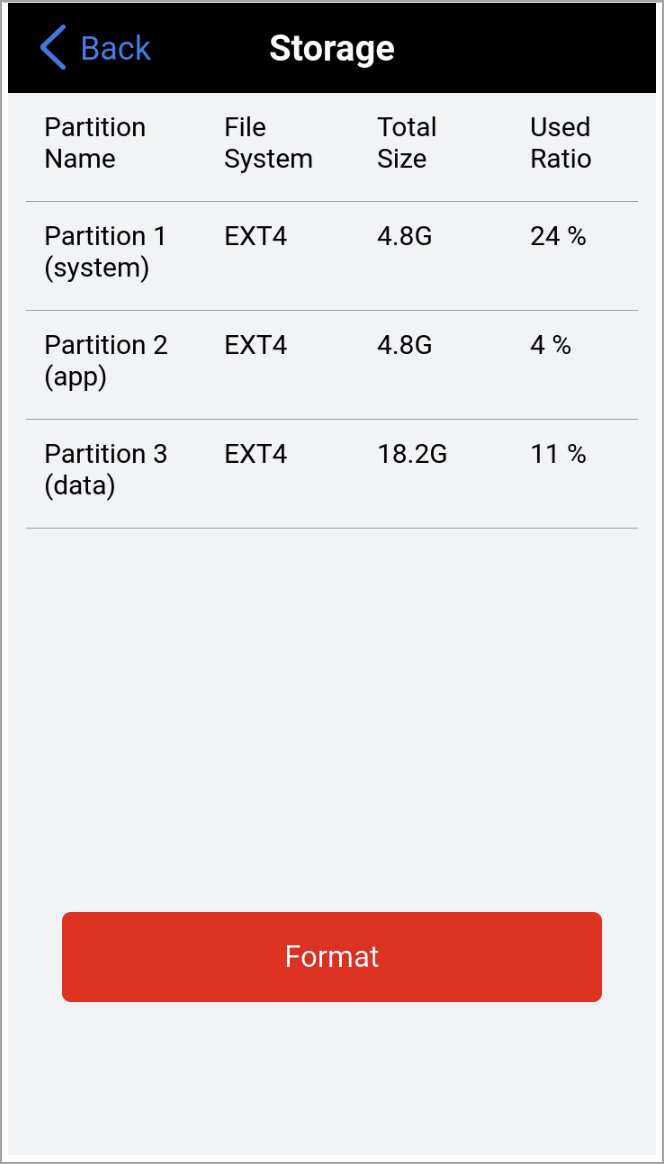
The Storage screen shows the test set's partition capacity where all saved files, such as profiles, test results, and screen shots, are stored. If the flash storage is nearly full, use the File Manager to backup files to external storage, such as a memory stick, then delete the individual files from the test set.
The internal storage contains the operating system, test application software, and all user stored data. Do not attempt to remove or reformat the storage outside of the test set.
|
|
 The Format function is exclusively a maintenance tool. Use ONLY when instructed by a VeEX Customer Care representative. It erases ALL of the information stored in the test set!