Date and Time
|
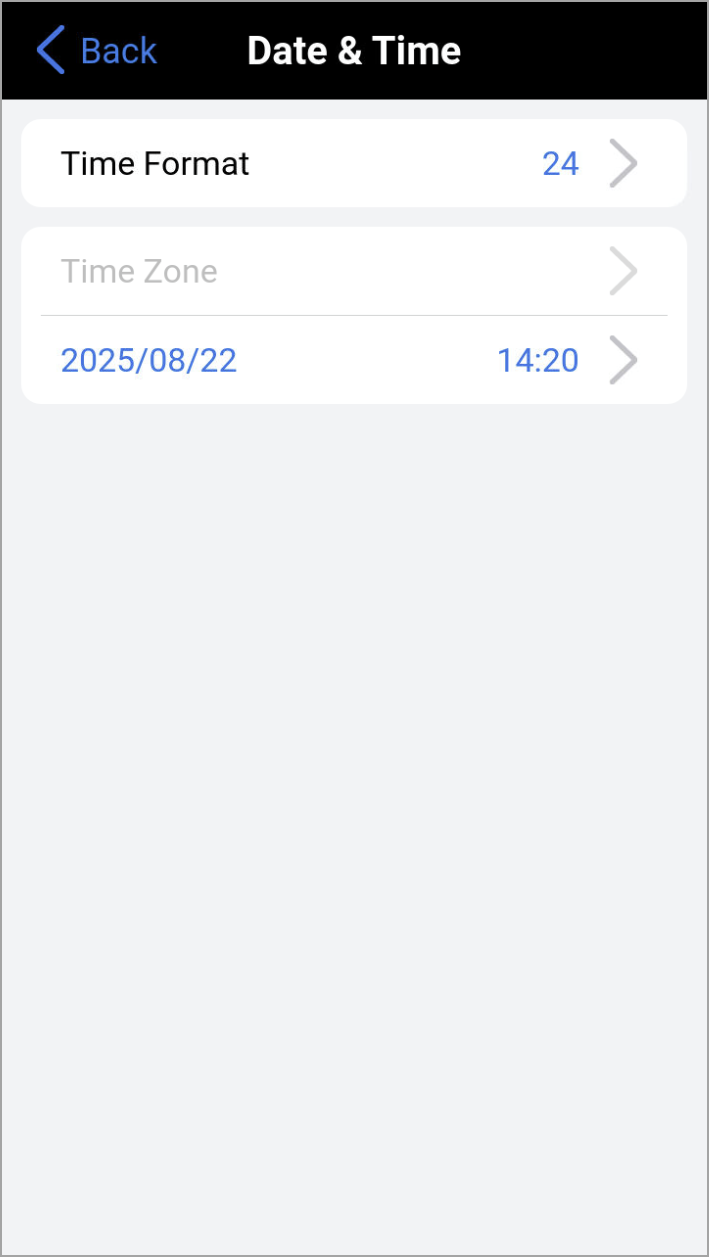
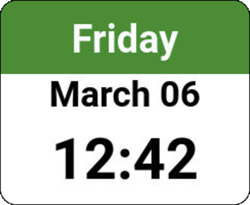
Select the Date/Time widget to reveal the Date & Time screen and configure settings for the date, time, time format, and time zone, etc. |
-
Time Format:
-
12 - Shows time in two 12‑hour cycles with a.m. and p.m. indicators. Useful when technicians need a quick visual cue for morning vs. afternoon/evening during field work or log reviews.
-
24 - Shows time from 00:00 to 23:59 with no a.m./p.m. distinction. Reduces ambiguity in timestamps and event logs.
-
-
Time Zone: Pick the entry that matches your operating location (for example, UTC‑05:00 — Eastern Time (US & Canada)). This ensures the software aligns with local daylight‑saving rules and regional offsets. After setting the time zone, check the time on the main Settings screen to confirm it reflects the correct local time.
-
Date and Time: Use the calendar control to select the correct year, month, and day. Confirm that the displayed date matches your local region’s format (MM/DD/YYYY or DD/MM/YYYY) and enter the current local time using the selected time format (12‑hour or 24‑hour). Then, ensure the hour, minutes, and a.m./p.m. (if applicable) are correct.