NoApp® Contactless Results Transfer via NFC and QR
VeEX's NoApp®* is a productivity feature that allows users of supported VeEX products to easily transfer test results and key performance indicators (KPI) to Internet-connected mobile devices, using a QR Code or NFC, without having to install any application (app), sign in to a service, share contact information, or requiring any configuration. Save the test results on the test set and use the mobile device's camera to read the generated QR code, or just bring it closer to the NFC logo, to get the data transferred from the test set to the mobile device.
Once the test results data is on an internet-connected mobile device, the NoApp cloud service automatically interprets the data. It converts it to a report, with the required graphics, tables, and formatting. Use the NoApp cloud service to:
-
Augment the test report with comments, pictures, documents, and a geolocation tag (obtained from the mobile device),
-
Generate PDF reports to store locally or share with others via email and SMS text messages,
-
Upload to the centralized VeSion R-Server Cloud-Based Workflow and Asset Management System.
Additionally, use NoApp® to consolidate multiple test results belonging to the same job, including those coming from different types of instruments.
Enable QR Code Generation on Test Set
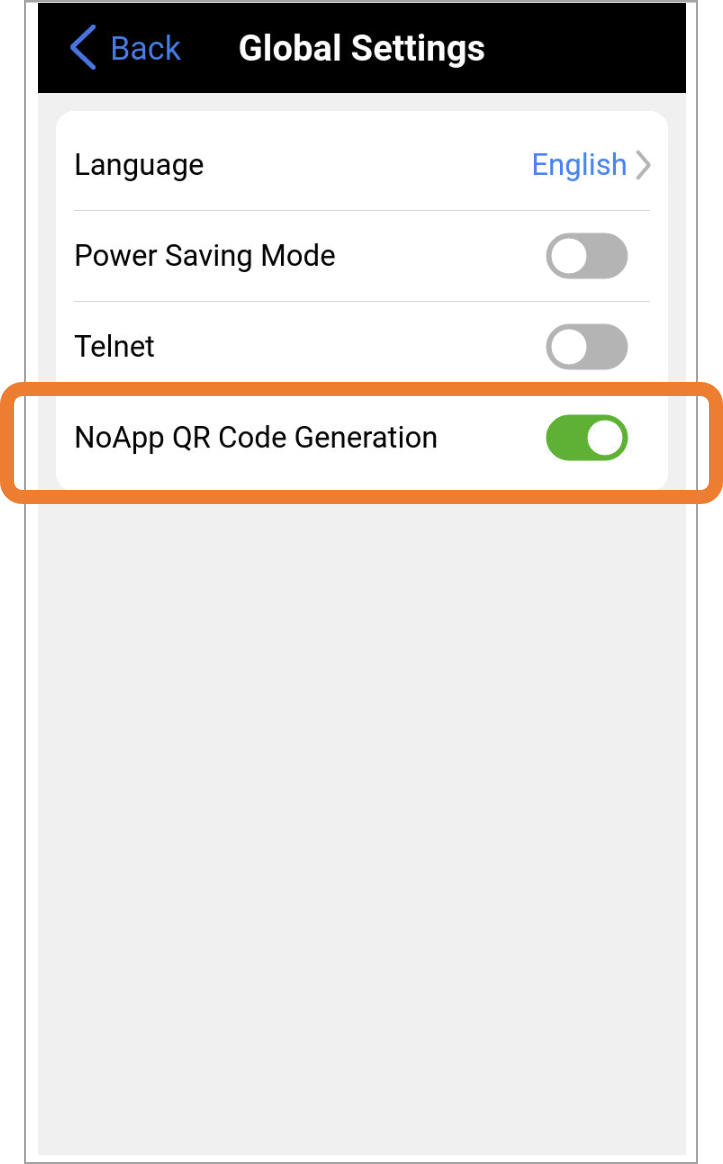
QR Code generation must be enabled on the test set and mobile device, or it can be launched later, from the File Manager by tapping on the QR icon. QR Result generation is only supported by some test applications.
Tap  Global Settings and enable the NoApp® QR Code Generation.
Using NFC Wireless Transfer
 NFC provides easy access to the last saved test result of any application.
To use Near Field Communications (NFC), save the test results and bring the top of a modern smartphone close to the instrument's NFC logo. An NFC website notification should immediately appear. Tap the pop-up message to access the test report.

|
Adds/Removes location (GPS coordinates) from results report; customize report with logo. |

|
Generates complete report in PDF format, which can be shared with the customer (subscriber) or emailed to a supervisor. |

|
Exports to JSON format, for third-party integration or processing. |

|
Adds extra job-related information to the report (e.g., Job ID, technician's information, comments, pictures, etc.). |

|
Uploads test result KPIs to R-Server (for R-Server users). |

|
Texts current test report via SMS/MMS messaging. |

|
Emails current test report. |

|
Creates a new project for results so multiple test results, from the same or different test sets, can be combined into a single job report. |

|
Opens knowledge base. |

|
Opens documentation resources for test set. |