VX-Connect
The VX-Connect mobile application assists in achieving network connectivity for the test set, either via the mobile device’s personal hotspot or Bluetooth®. It can be used to streamline the job process from start to finish. The app is available for iOS and Android download.
-
Connectivity: Bridges VeEX test sets via smartphone hotspot or Bluetooth®.
-
Remote Management: Connects to VeEX R-Server to manage assign jobs and upload results.
-
Mobile Access: Available for both iOS and Android.
-
Geotagging: Adds geographic location data to test results.
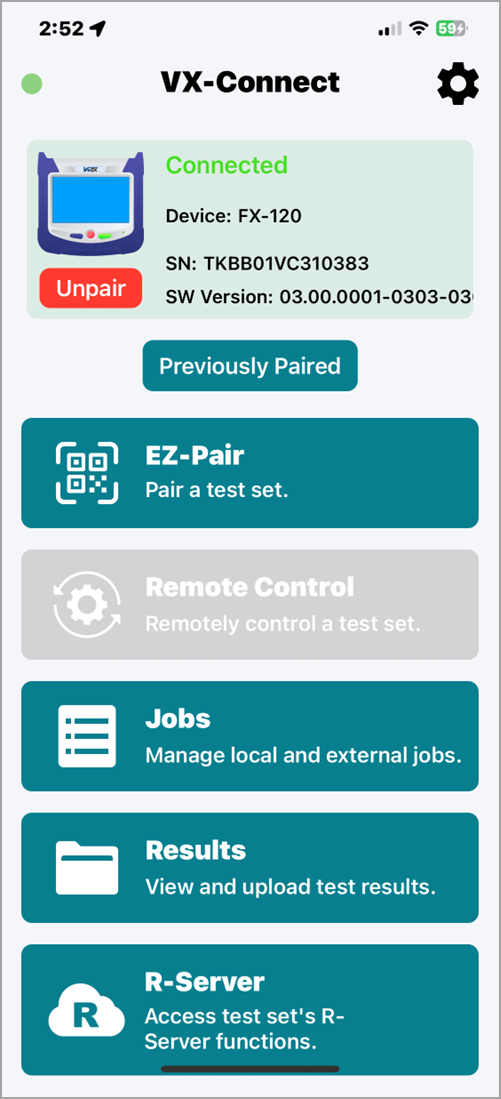
VX-Connect
Pairing Test set to VX-Connect
On the Test Set:
-
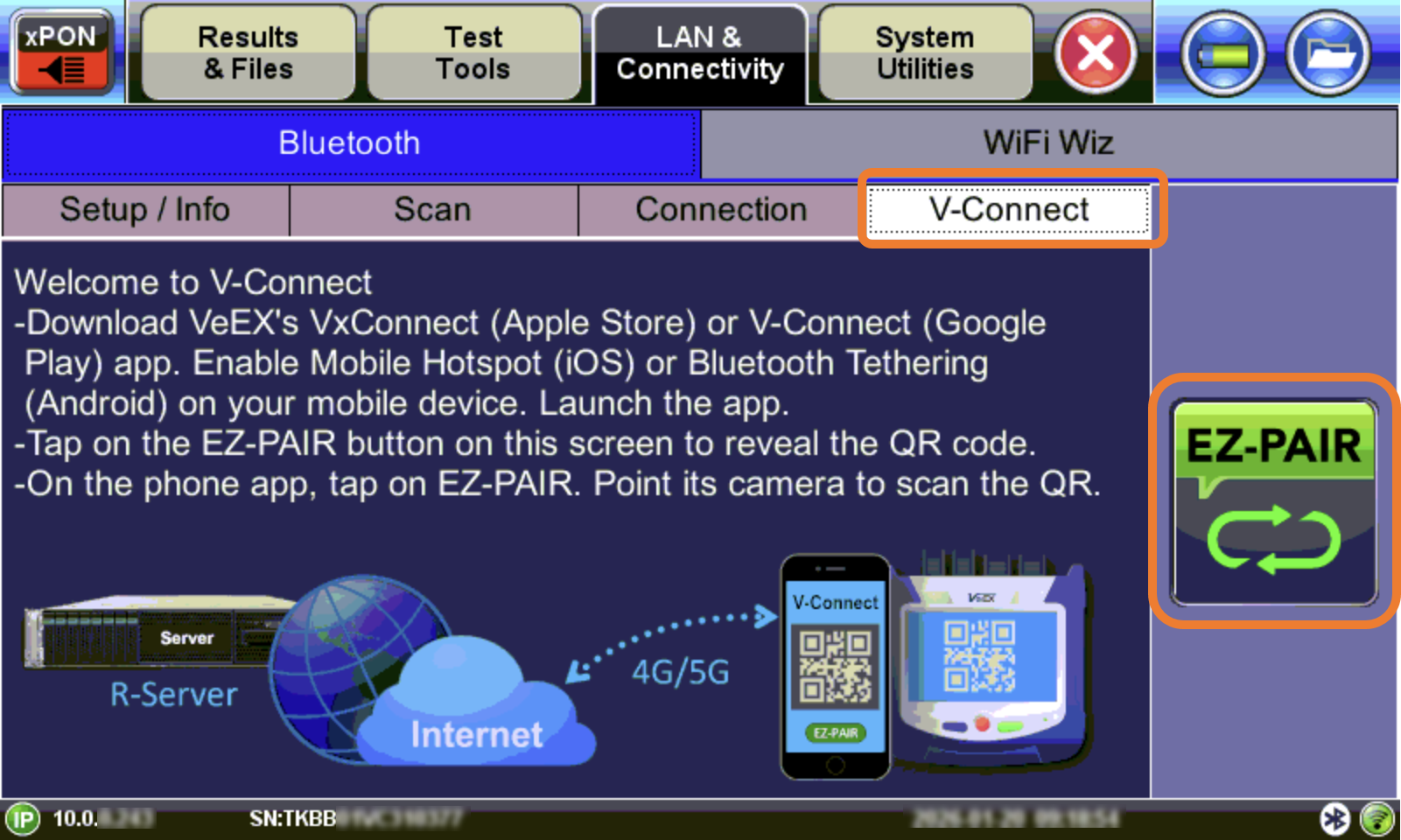
To access the Wi-Fi option, tap Tools, and then tap Bluetooth/Wi-Fi.
-
Select the V-Connect tab.
-
Select EZ-PAIR to reveal the QR code.
On the Mobile Device:
-
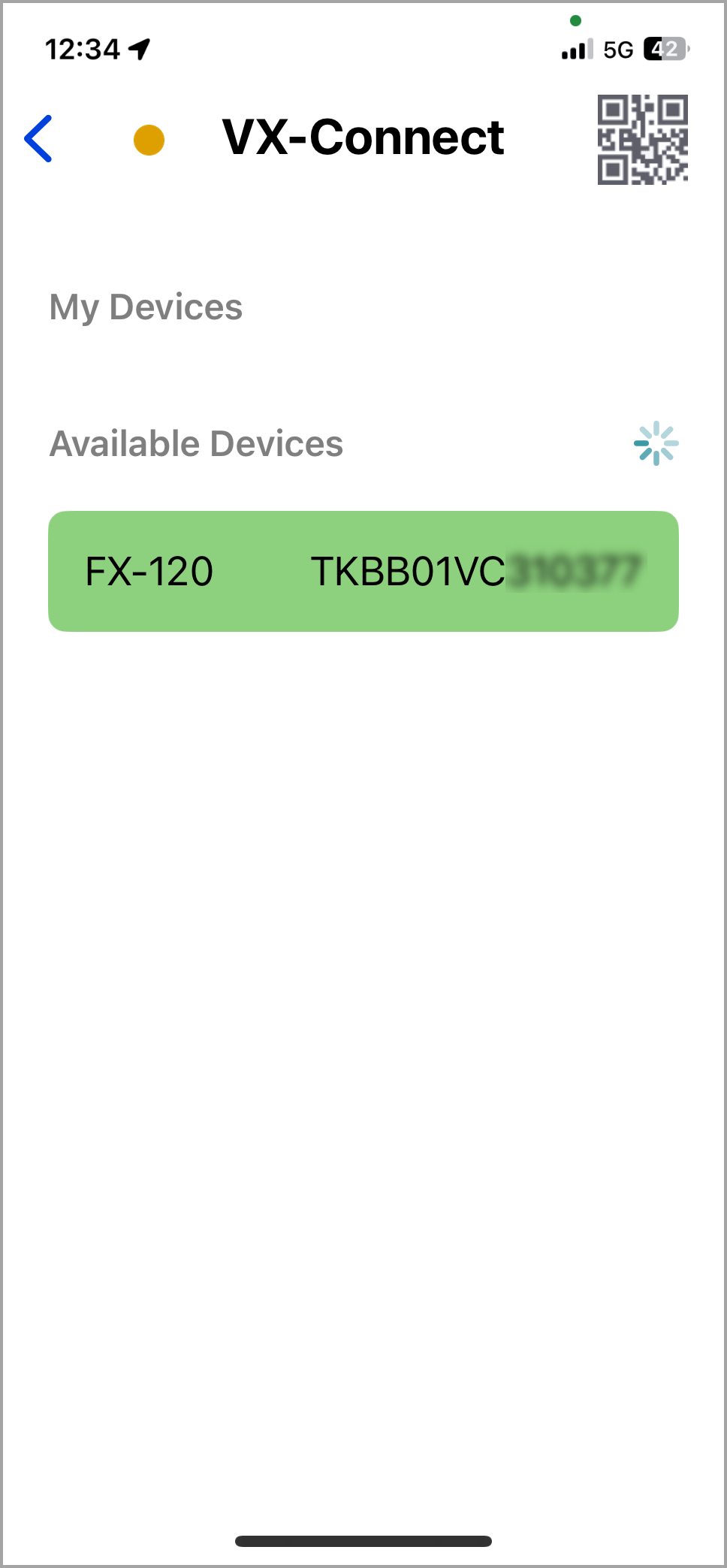
Select VX-Connect, then tap the QR code icon and scan the QR code on the test set. If a message appears to set permissions, allow all permissions. OR Select the test set from the list of Available Devices. A message appears asking if you want to pair. Select YES.
-
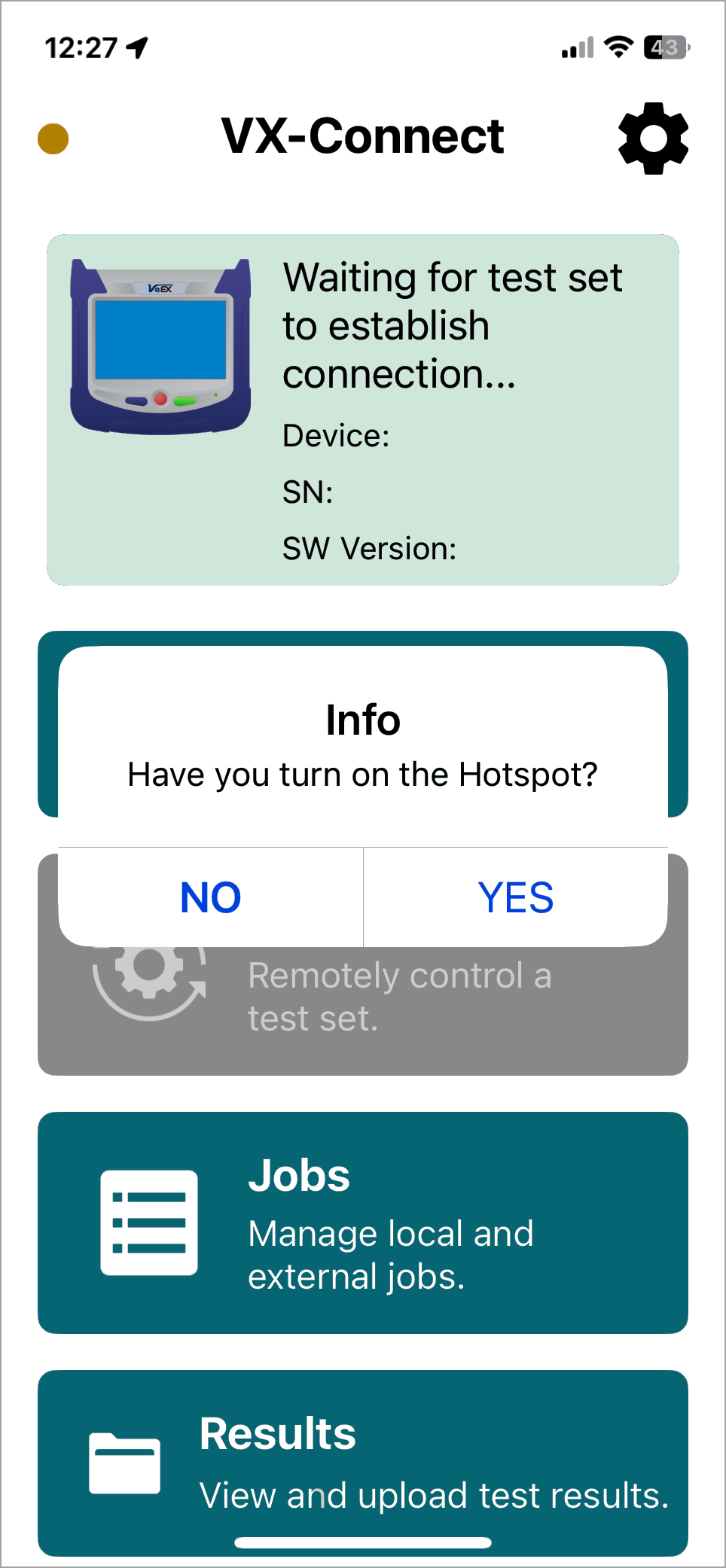
A prompt appears asking if hotspot has been enabled. Select YES if hotspot is enabled on the mobile device. Otherwise, select NO and proceed to turn on hotspot on the mobile device and repeat step 4.
Bluetooth tethering connection for iOS works for iPhone models that have WiFi + Cellular (embedded eSIM)
-
A message box appears giving a PIN code. Make a note of the PIN code to use later. Select OK. The PIN code also appears on the test set.
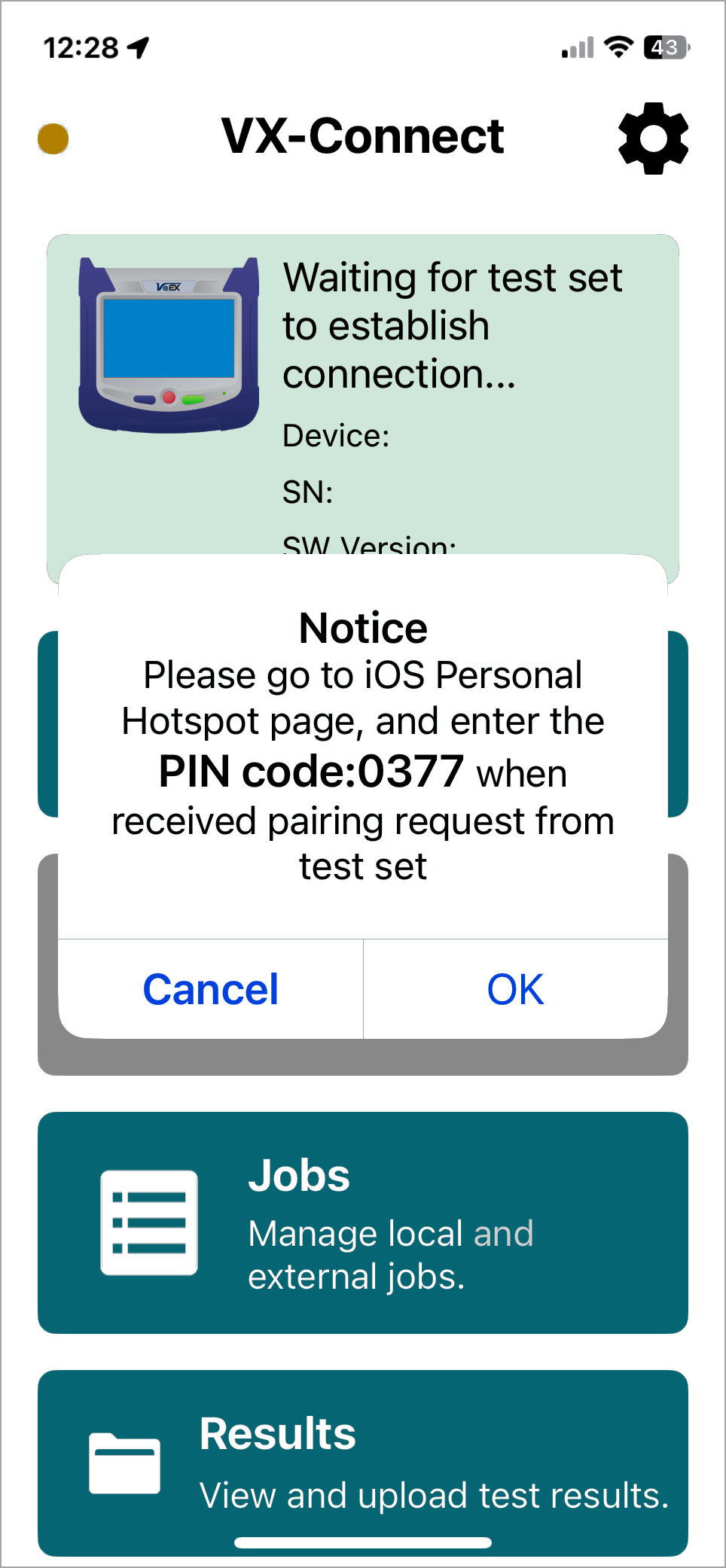
-
Go to the Settings/Personal Hotspot screen of the mobile device and wait for the following screen to appear to enter the PIN code displayed earlier.
The test set Serial Number will display on top of the screen. Select Pair to complete.
Once connected successfully, the test set will show the V-Connect connection status screen.
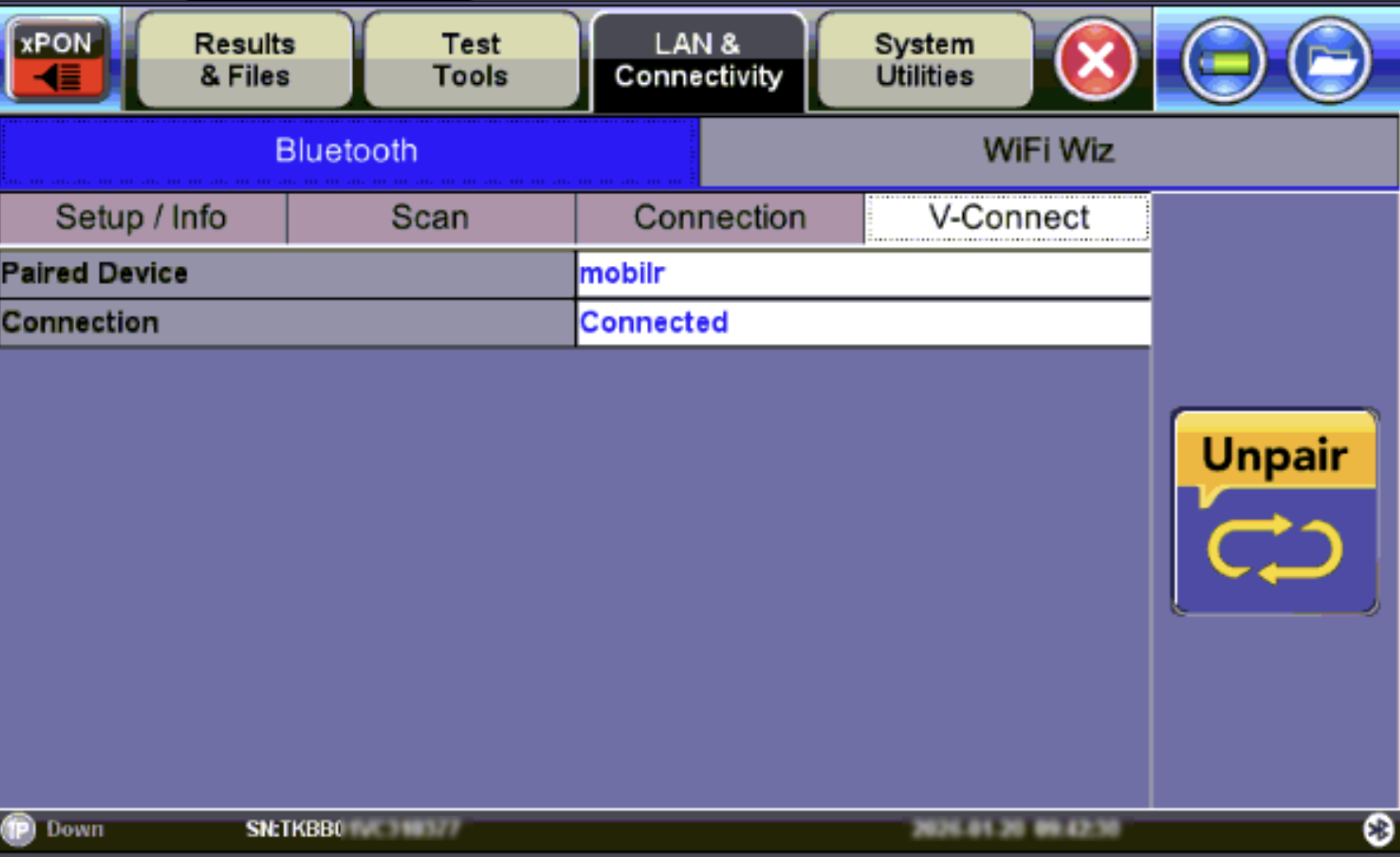
On the V-Connect app, the connection status will also be displayed along with the test set model and serial number.
General Settings
User Profile
Select the Settings icon.
On the VX-Connect Settings screen, select User Profile.
Select the Edit icon, then enter the Technician Name and Email Address, Username.
Select Verify.
Connect to R-Server
Select R-Server to access the test set's R-Server account information, so job lists can be synchronized and upload test result.
Select the Settings icon.
On the VX-Connect Settings screen, select Server Configuration.
Enter the Server Address, Username, and Password for R-Server.
Select Verify???
On the main screen select R-Server
<ENTER DETAILS HERE>
Job Lists
If workforce automation is used by your company, job lists are available for download/upload. Synchronize job lists directly from R-Server, including GPS coordinates for birth certificates for troubleshooting, validation, and re-certification.
<ENTER DETAILS HERE>
Upload Results
Select the result saved on the test set to upload to R-Server. Test results are buffered/kept in V-Connect and uploaded once a network connection is established on the mobile device.
<ENTER DETAILS HERE>
Include Location Coordinates on Results
Once the test set is paired, any results saved to the test set and pushed to R-Server are geotagged. When the results are opened in R-Server, a map is displayed with geographical coordinates showing where the results were stored and uploaded.
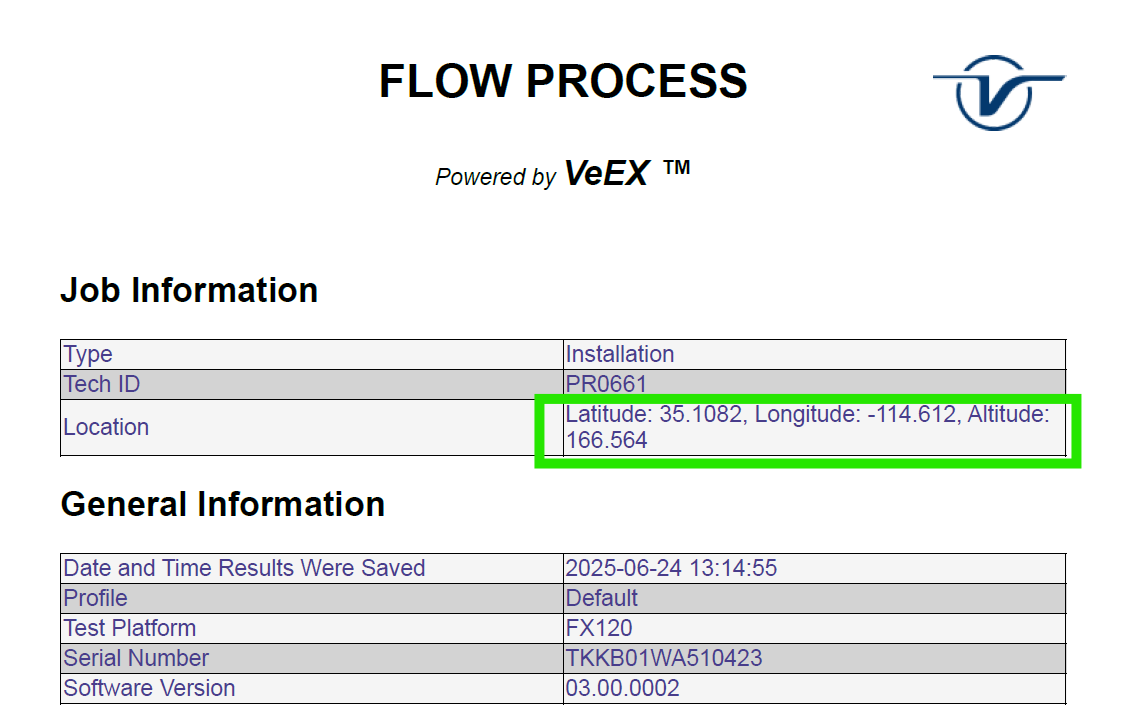
Results file tagged with GPS coordinates
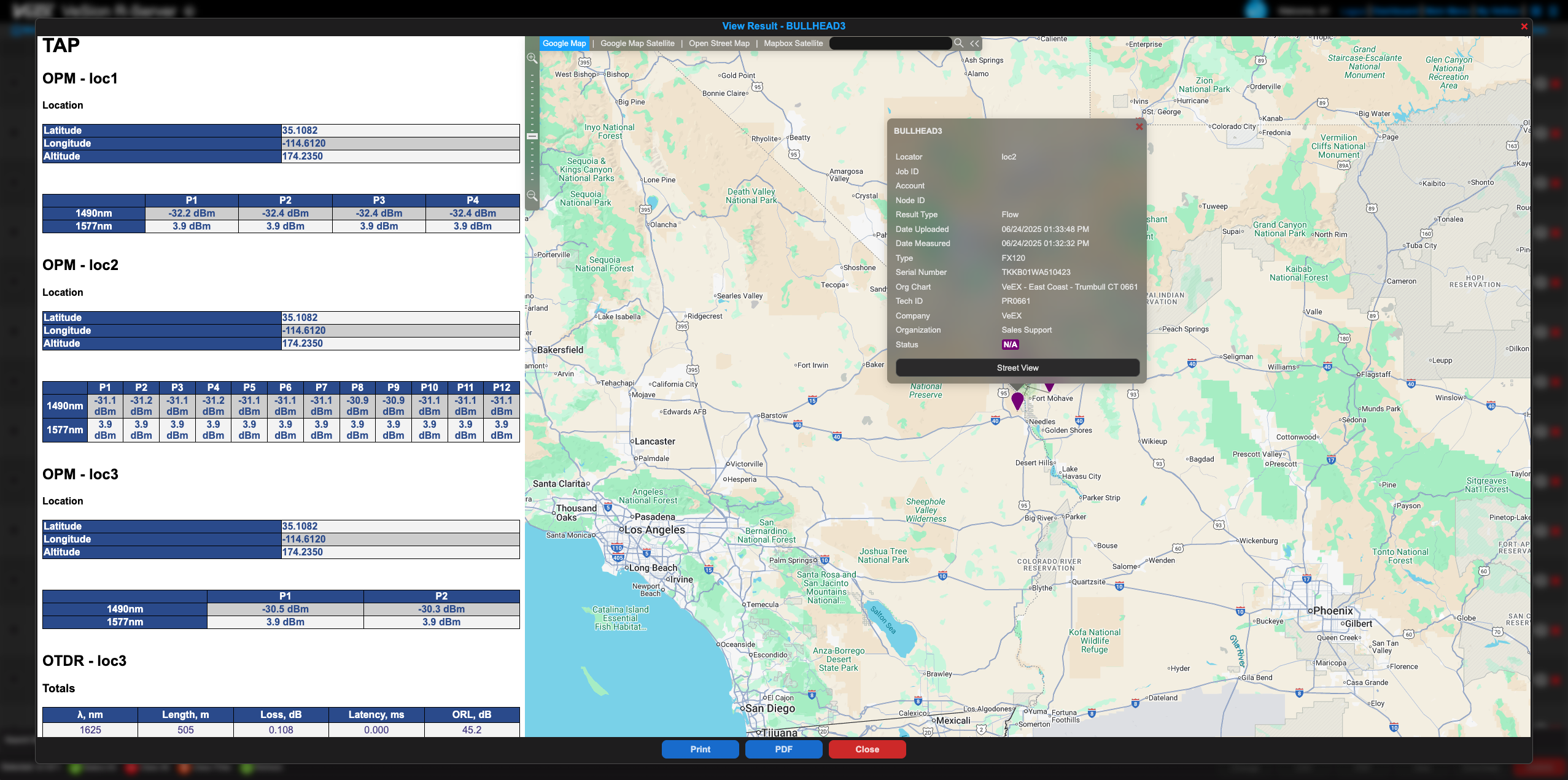
R-Server shows location where results were stored and uploaded
Don't forget to cross-reference back and forth with WiFi/Bluetooth topic.