R-Server
Use the R-Server option to manage test sets and store test results.
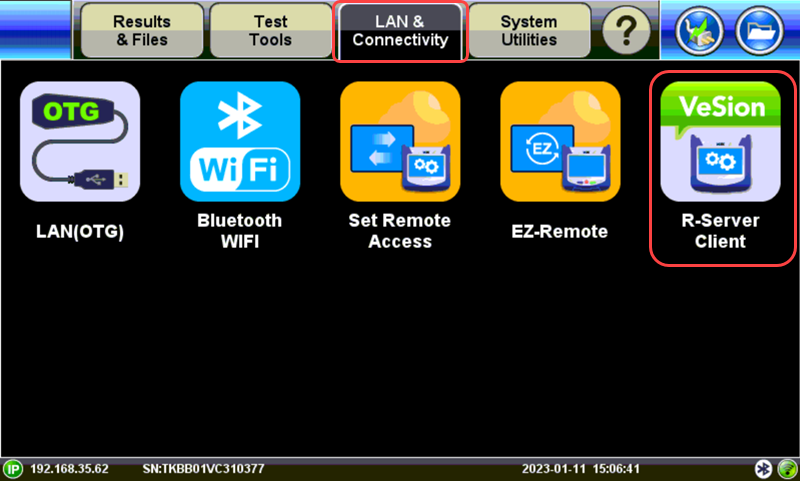
R-Server
Part of VeEX’s VeSion® centralized monitoring and management solutions, the VeSion® R-Server Workflow and Asset Management system provides crucial tools to manage fleets of technicians, test equipment, standardized test profiles, thresholds, centralized test results collection, reporting, jobs/ticketing, and software update delivery to create coordinated and efficient disciplined workforce and test procedures. R-Server enhances the workflow to achieve the level of quality and repeatability required by telecommunications service providers, MSOs and their contractors. The flexible R-Server can be deployed in cloud, hosted, and corporate networks, on physical or virtualized servers.
Supervisors can preset and upload test parameters which are provided to the test sets as profiles. Technicians can download profiles, run tests, and upload results to a centralized system that stores and secures the data.
 A test set must register to an R-Server (establish IP connection) before it can upload results to the server; otherwise, a reminder message will pop up. Use the Diagnostic button to show a chronological record of events performed when connected to R-Server (e.g., registration, download profiles, etc.).
Register a test set (establish IP connection)
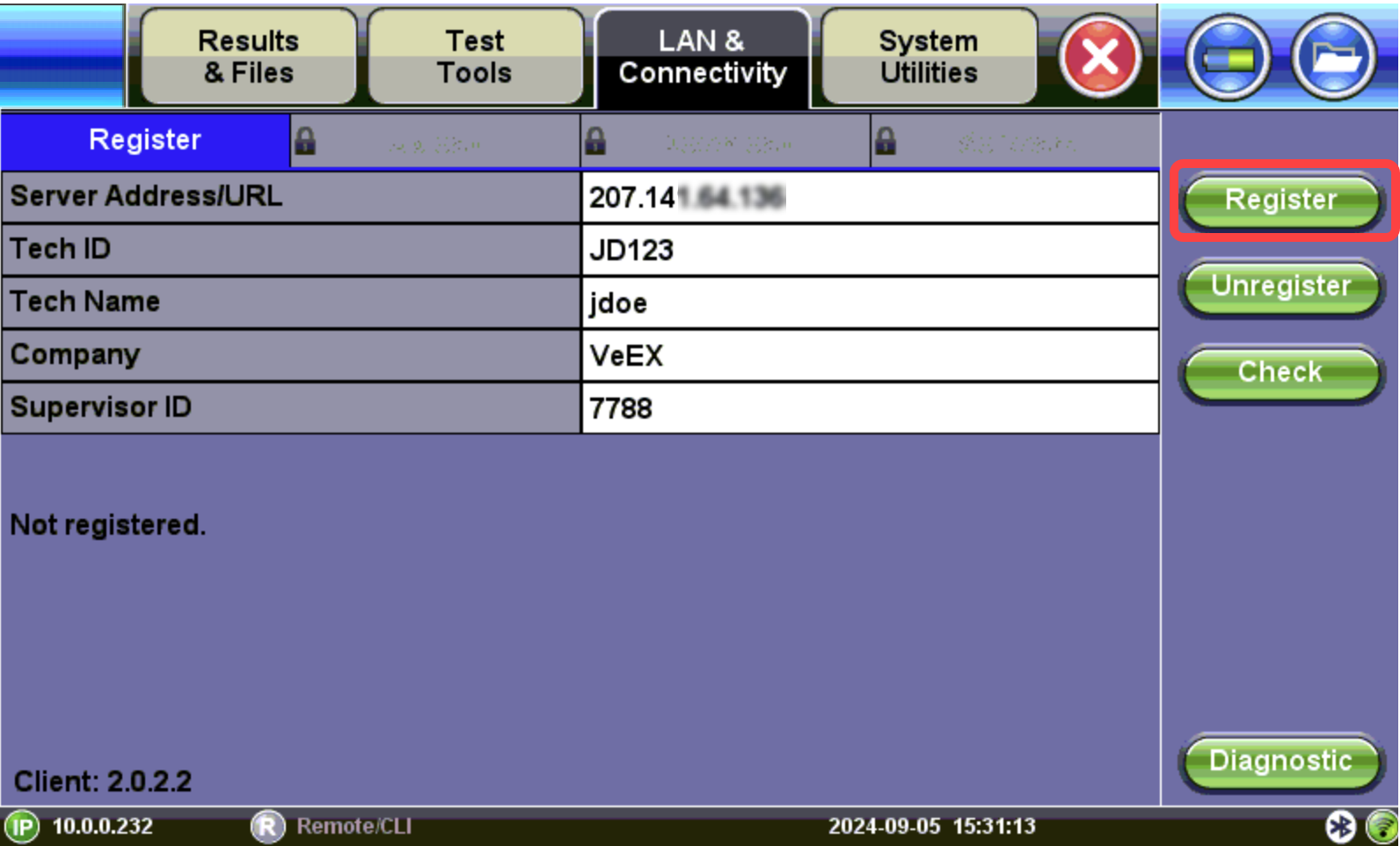
R-Server on test set
 If you are unsure if a test set has already been registered, press Check. If it has not been registered, complete the steps to register the unit.
-
Contact the R-Server administrator and/or supervisor to get and enter the following information in the corresponding fields.
-
Server Address/URL: IP address or URL of the R-Server
-
Tech ID: Registered Tech ID
-
Tech Name: Registered Tech Name
-
Company: Company name. If no name is specified, the company name will be pulled from the supervisor's profile.
-
Supervisor ID: Supervisor ID; ties the test set to a specific Org Chart.
-
-
Press the Register button to register the test set on the R-Server. The test set sends the request to register to R-Server and a message appears saying that the registration is complete. Next, the registration must be authorized and approved by the R-Server manager in order to allow access.
-
When the test set registration is complete and approved by the R-Server manager, press the Check button to verify that the test has been authorized for use. Once authorized, results can be uploaded. If authorized, a message appears saying the test set has been registered and authorized.
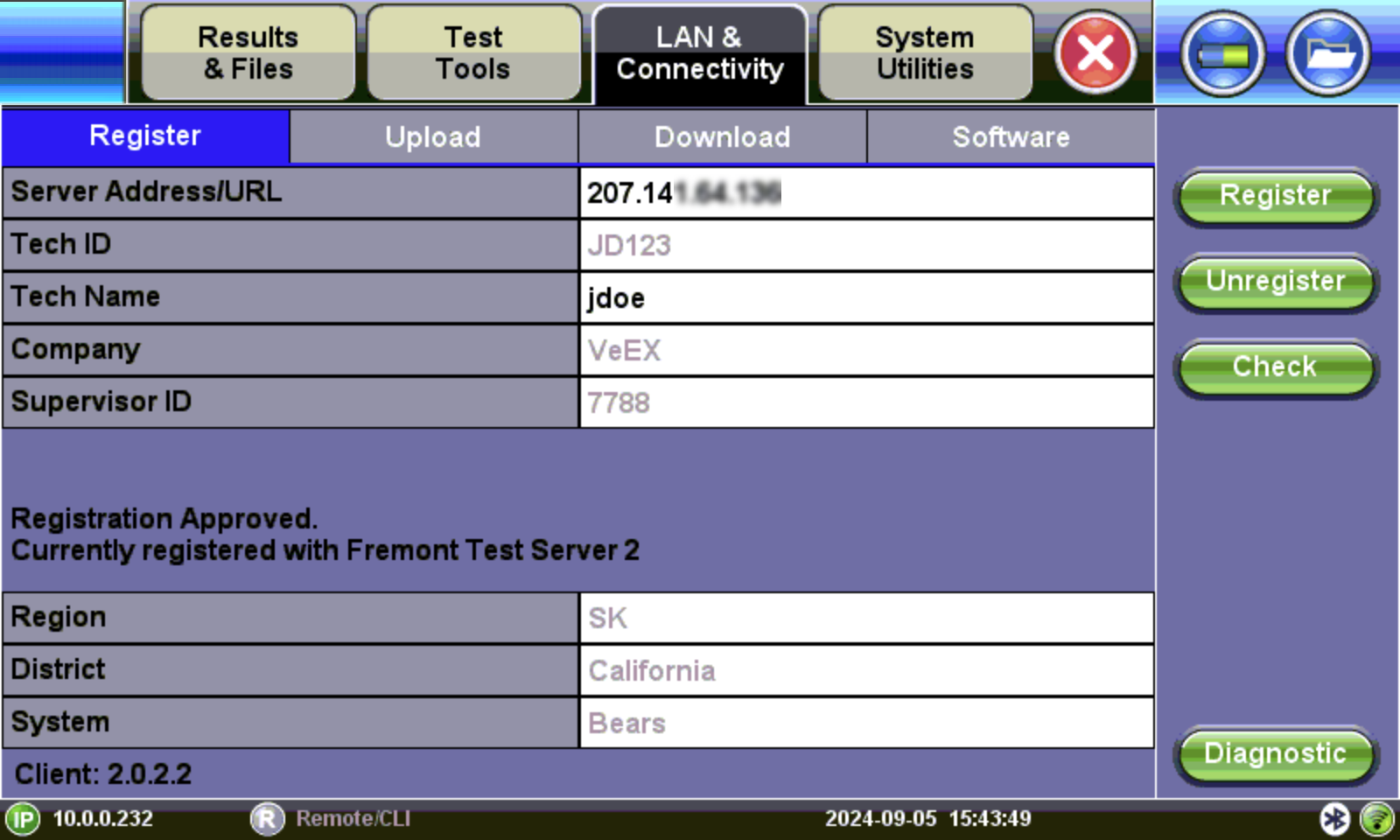
To unregister a test set from a R-Server account, press the UnRegister button. Pressing the UnRegister button once will move the test set to Inventory Managment. Pressing the UnRegister button the second time will remove the test set from R-Server completely
Upload Profiles and Results to R-Server
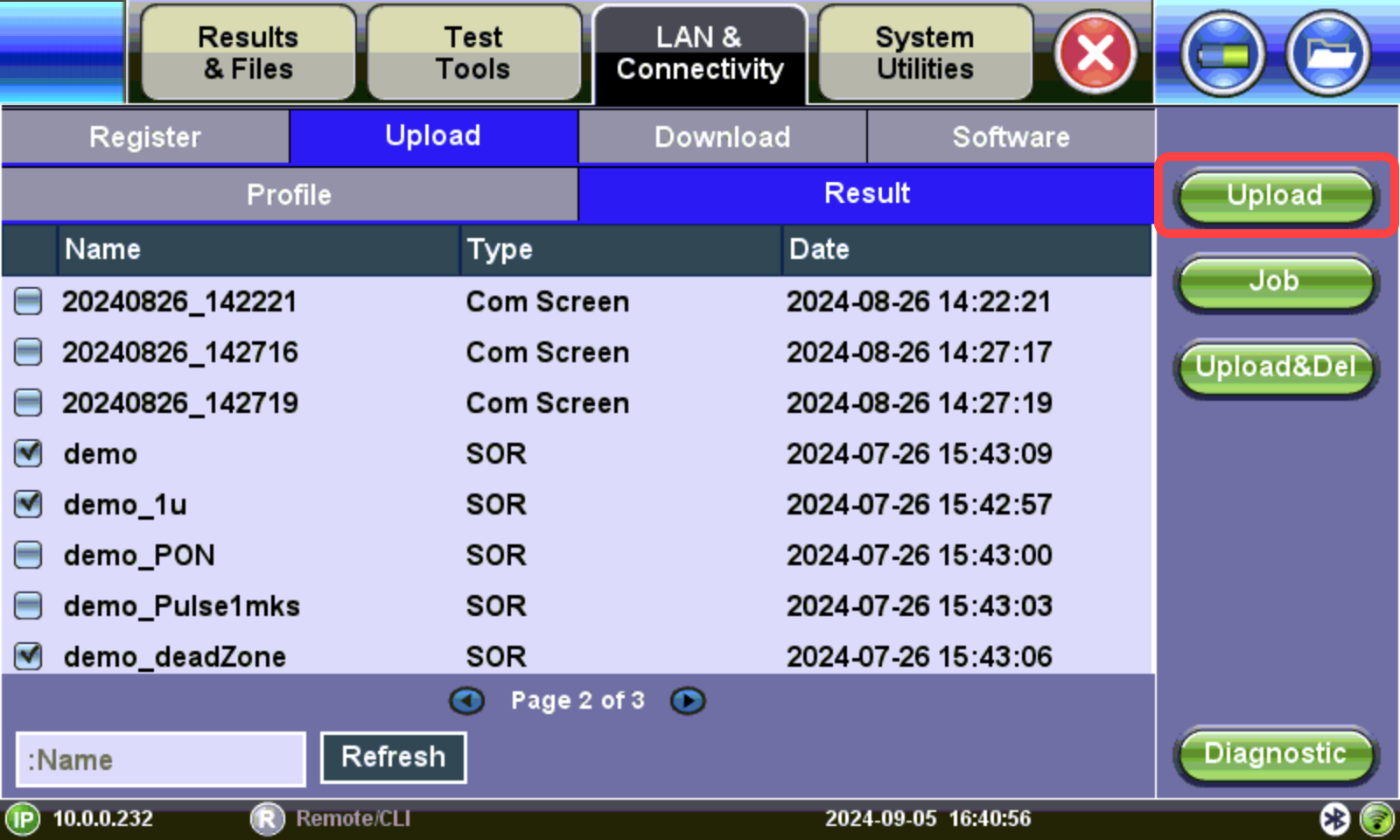
Uploading results to R-Server
-
Select the Upload tab, then select the desired files to upload. To filter displayed result files by Job ID and/or Location, select Job.
-
Tap Upload or Upload&Del for results.
-
Upload: Transfers the selected profile and result file(s) and keeps the file(s) in the test set.
-
Upload&Del: Deletes the result file(s) from the test set after uploading them.
-
Upon successful upload, a confirmation message is displayed on the test set.
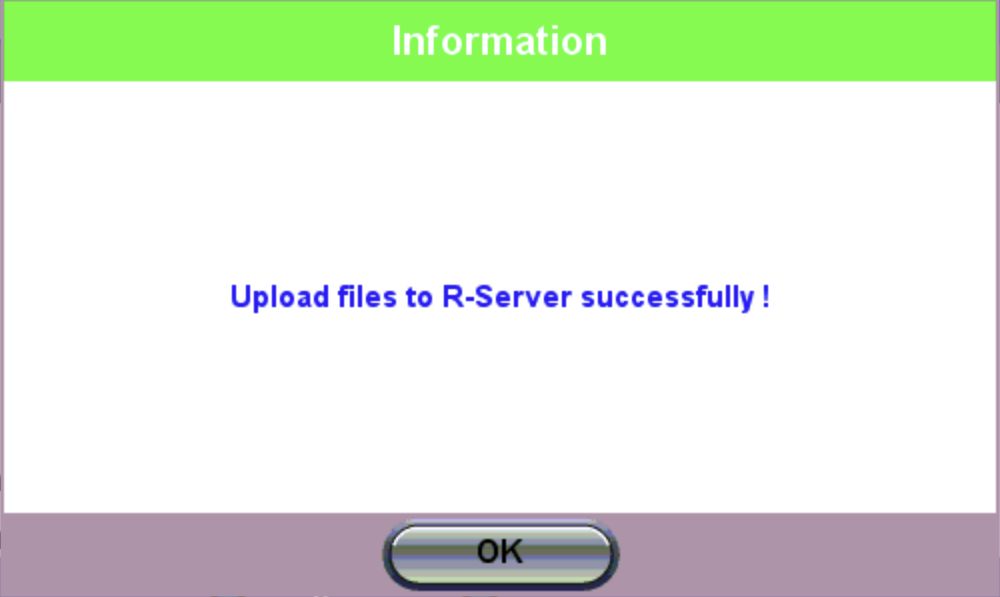
R-Server Upload Confirmation Message
Download Profiles from R-Server
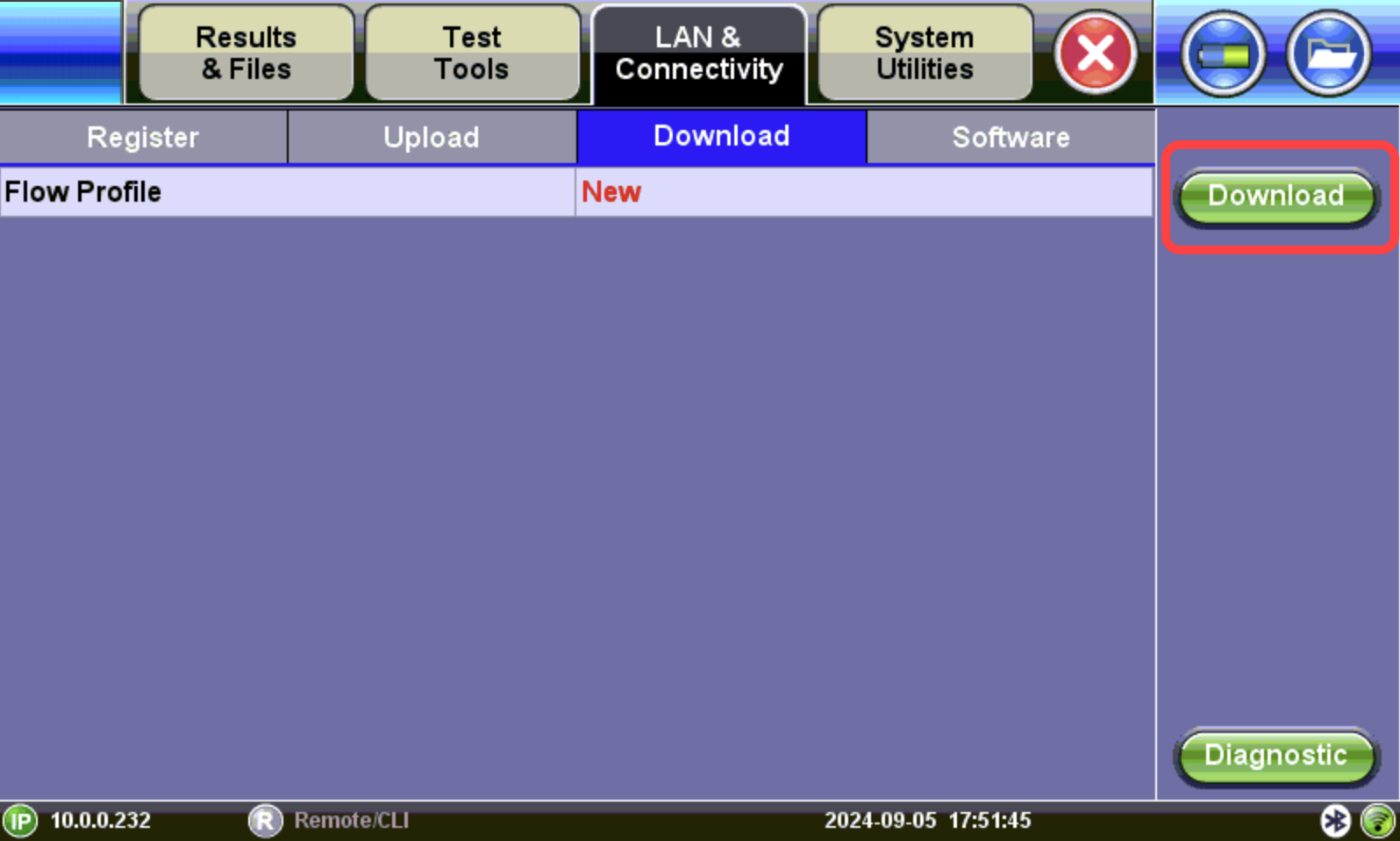
Downloading Profiles from R-Server
Select the Download tab to download all new profiles. If there are files that need to be downloaded, a message will appear at the bottom of the screen.
Tables, profiles, and software are listed as NEW or Current.
Upon successful download, a confirmation message is displayed on the test set. Press OK to restart the unit.
To use the new profile, select the toolbox  , and then select Flow®
 . Refer to Flow® Tests.
Download Software from R-Server
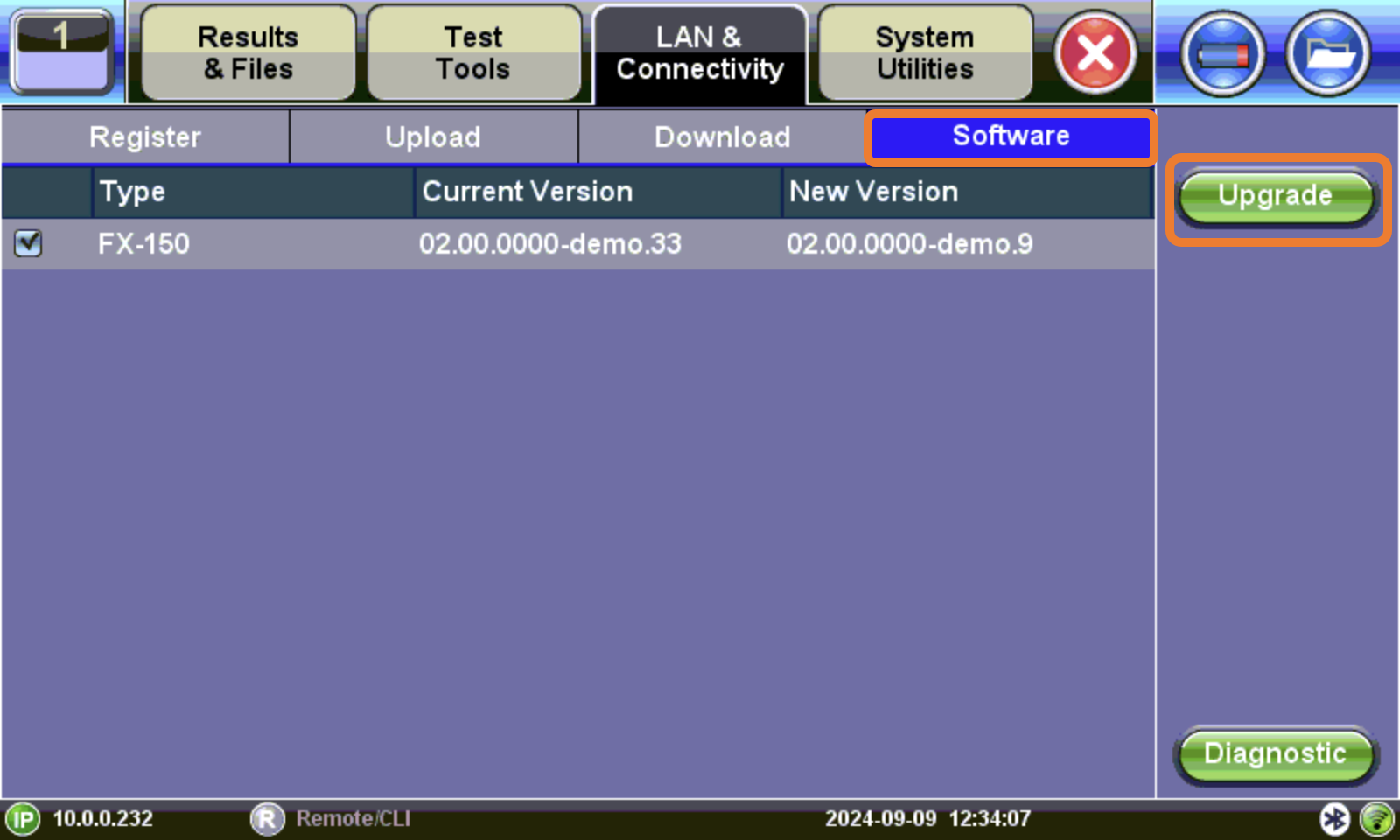
Updating Software from R-Server
Select the Software tab to see if there is a new version of the test set software. If there is a new version, select the Upgrade button. The new version of the software will download to the test set from R-Server and begin the update process. After the update process finishes, the test set reboots automatically.
See Software Update Process for alternate methods of updating test set software.
Download Job Lists from R-Server
If workforce automation is used by your company, job lists are available for download/upload. Use the VX-Connect mobile application to synchronize job lists directly from R-Server, including GPS coordinates for birth certificates for troubleshooting, validation, and re-certification.
-
On the R-Server screen, select Job List. A Job Information screen lists jobs available .
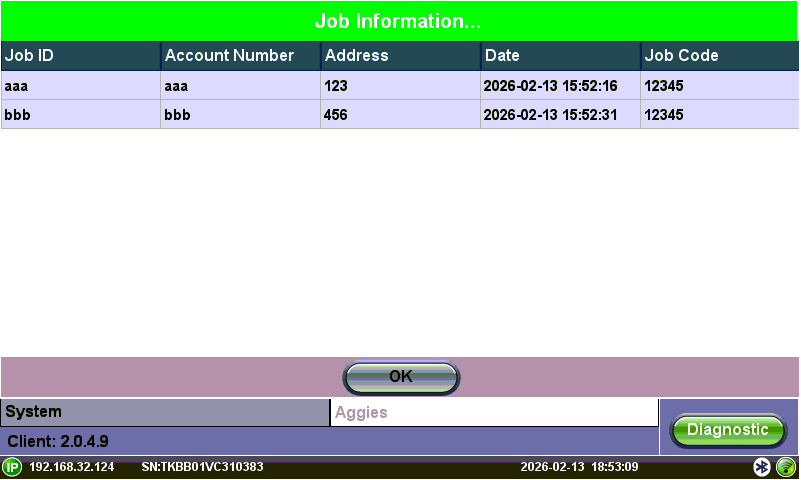
Job Lists Download from R-Server
-
Select OK. Job information is downloaded. The test set will download the job list from R-Server. Jobs are matched by the registered Tech ID.
-
When creating a new Flow® test, a Select button will be available showing the job list downloaded previously. Select the job and then select OK.
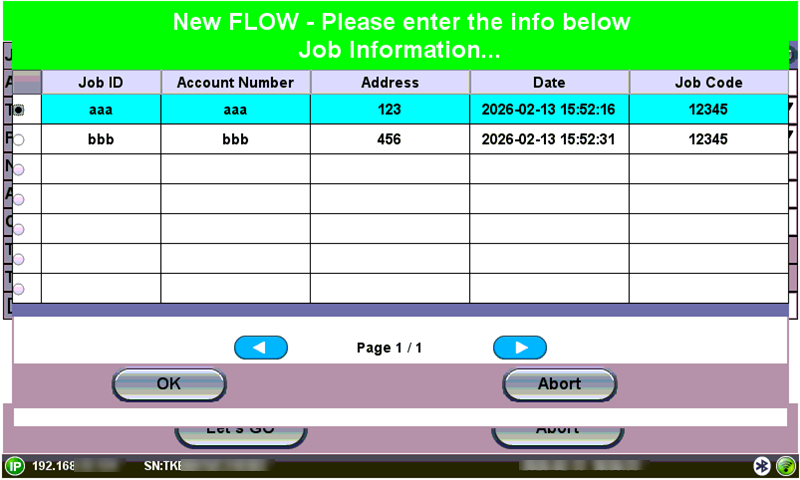
Select Job on New Flow® Test screen
The job information, such as the Job ID, Account number, Address, etc. will be populated automatically. Select Let's GO to continue the Flow® test. Refer to Flow® Tests.
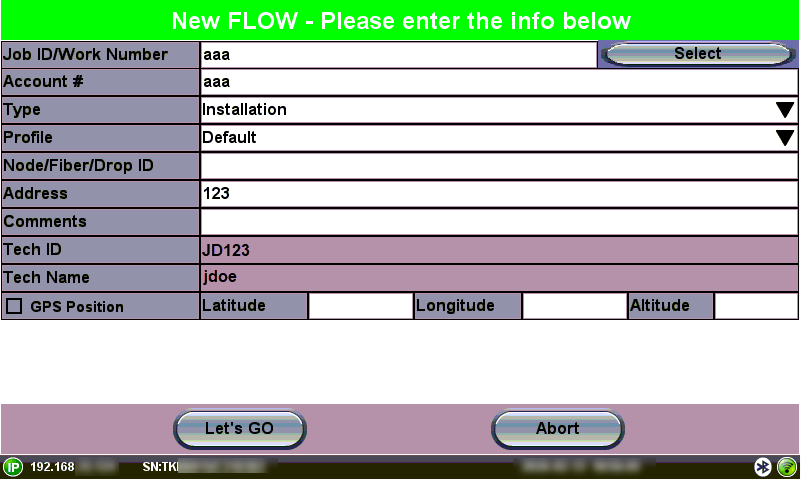
Job Information from Job List on New Flow® Test