Flow® Tests
Use the Flow® Toolbox application to save a series of tests and compile them into a full Flow® Test Report. Create a basic Flow® job test profile to guide workforce with making multiple tests. Implementation of Flow® allows technicians to use multiple test tools to build and properly certify various fiber networks by applying Pass/Fail indicators into a consolidated Job test report. Flow® supports multiple test applications.
If the test set is registered with R-Server, the R-Server controls whether Flow® profiles can be created using the test set. When allowed by R-Server, the test set's Flow® application includes a Default profile. The Default profile can then be used to dynamically create and test Locators without the need of an R-Server defined Flow® profile.
 If R-Server does not allow the test set to create profiles, the only profiles available for selection will be R-Server defined Flow® profiles.
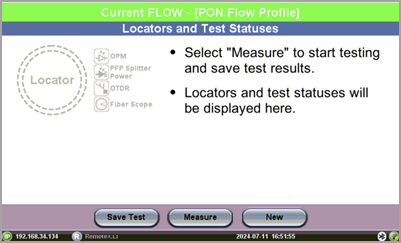
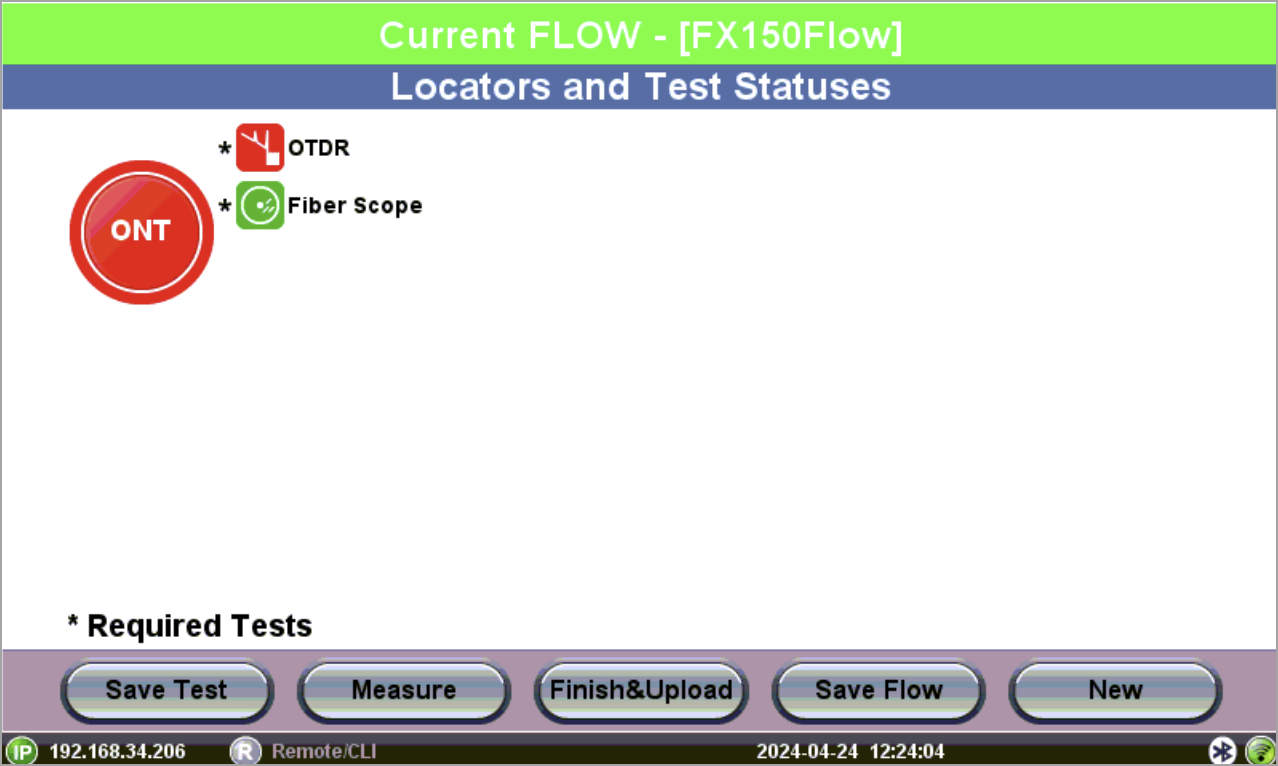
Flow® toolbox application
Configuration Settings
Before performing any measurements using the test set, do the following:
-
Go to
 > System Utilities > Global Settings > Storage Settings and make sure Flow Saving is turned ON.
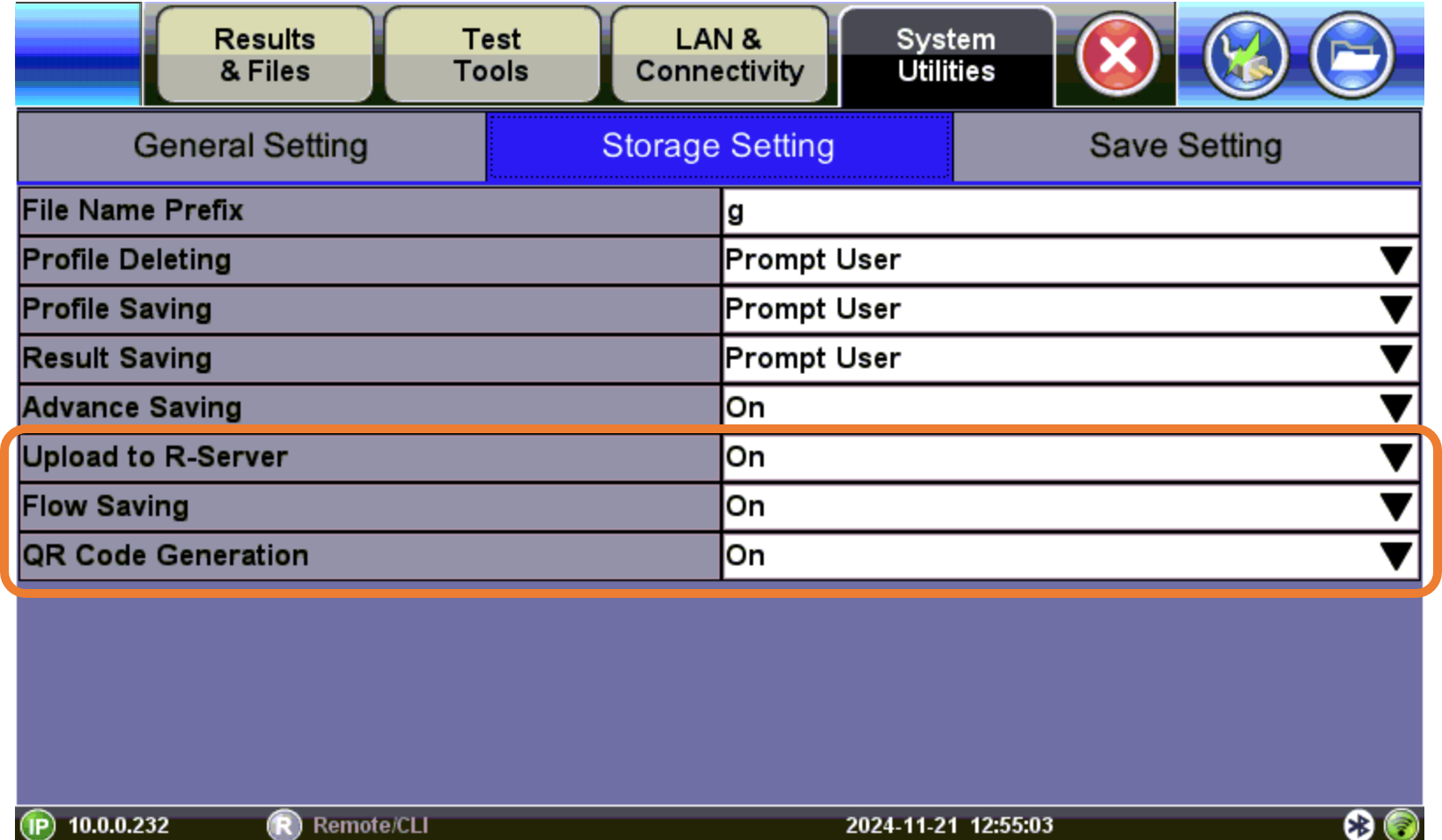
Storage Settings for Flow
-
If the Flow® Test Report needs to be uploaded to R-Server, go to
> LAN & Connectivity > R-Server Client and make sure the test set is connected and registered with R-Server. Refer to R-Server for more details.
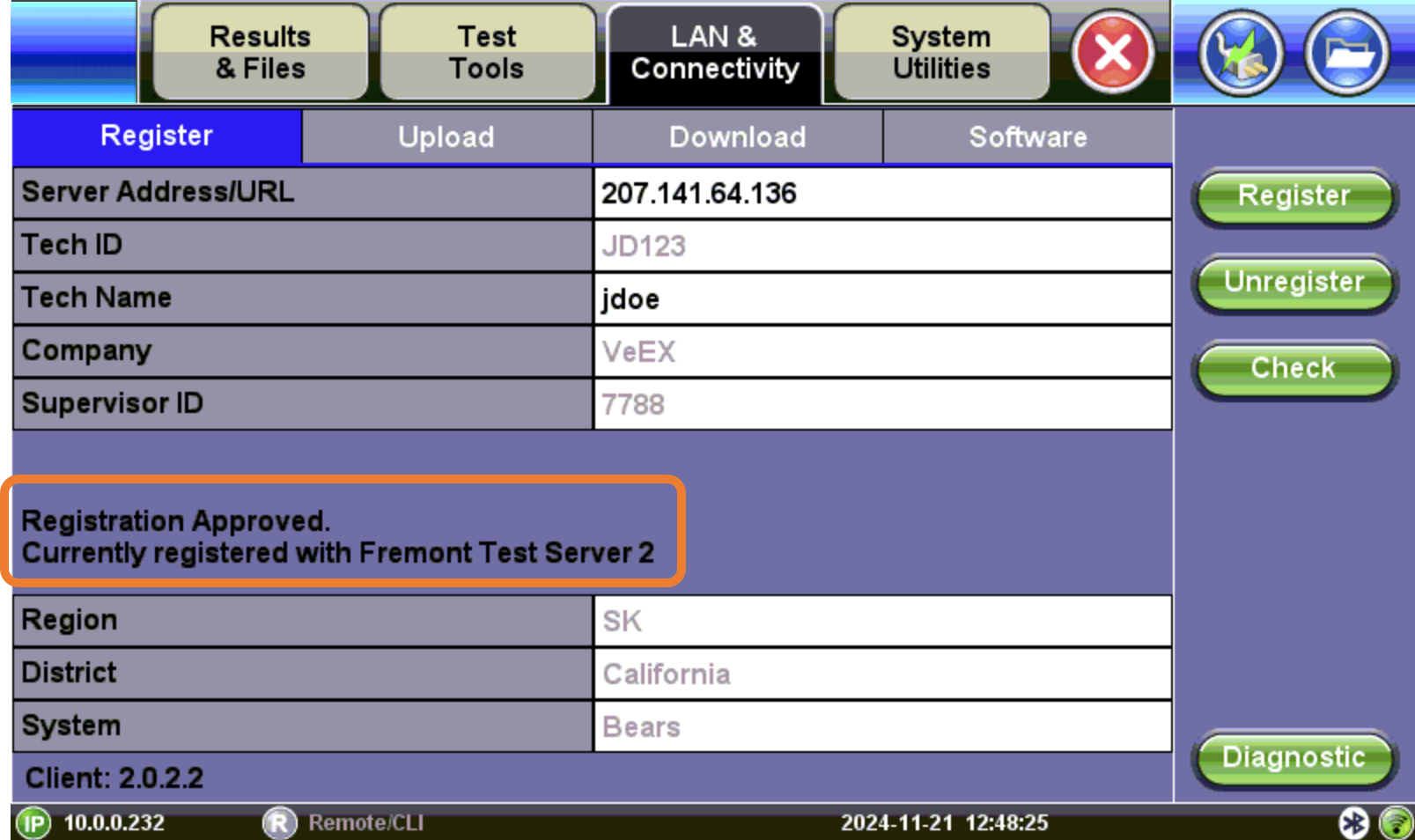
R-Server Registration
Flow® Measurements
-
On the test set up screen, select
 >
>  on the bottom left.
 -
On the Flow® screen, tap New to create a new Flow® session and enter details to identify the new Flow® report, such as job number, account, address, and GPS location. Select Let's GO to begin measurements.
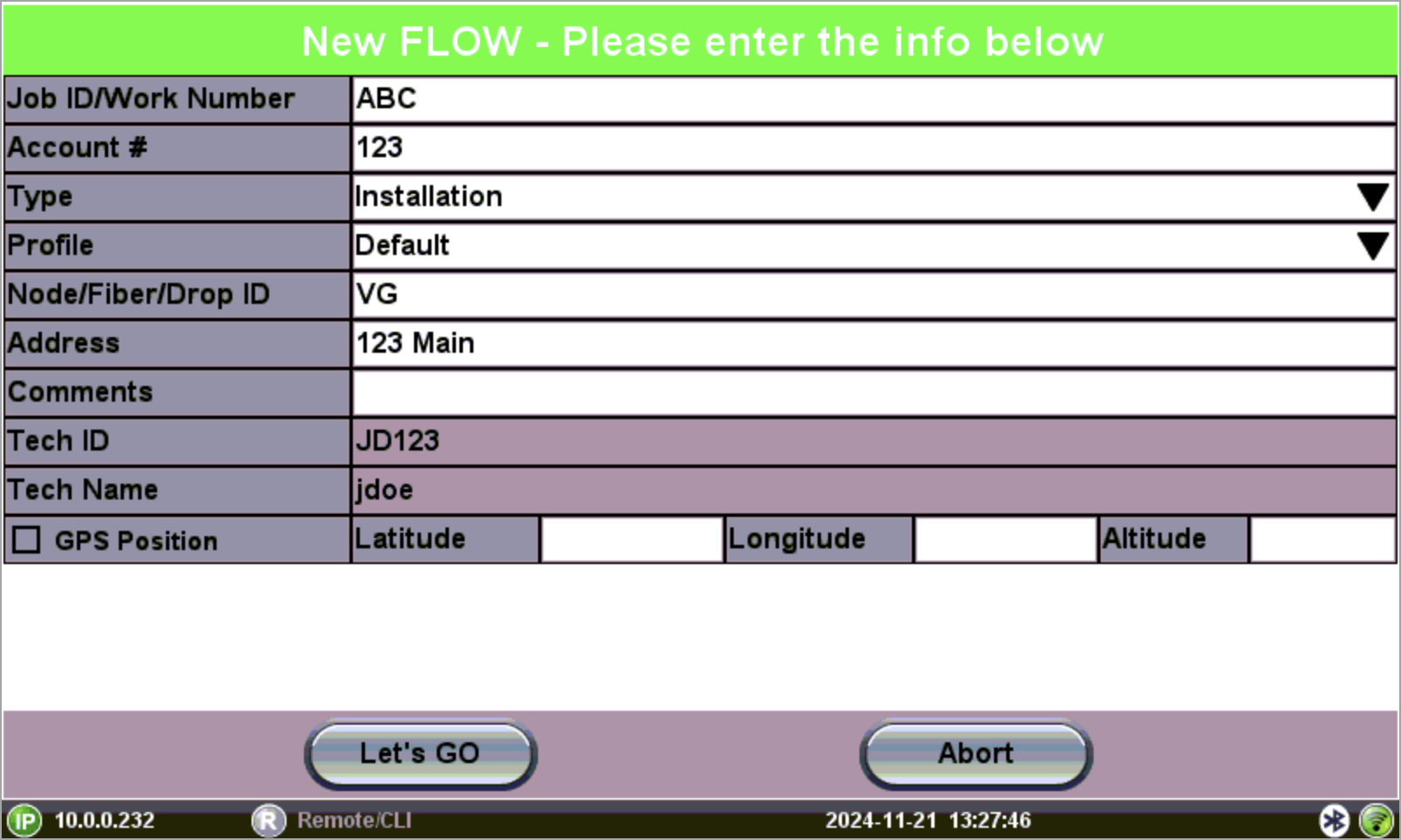
New Flow® Job Information
-
Select Measure and then choose the Locator and type of test (in sequence) to add to the Flow® Test Report. Select Save Test between each test/application.
 Locators/Test Locations can be selected from a list or a Custom Locator can be created. The list depends on the type of work selected.
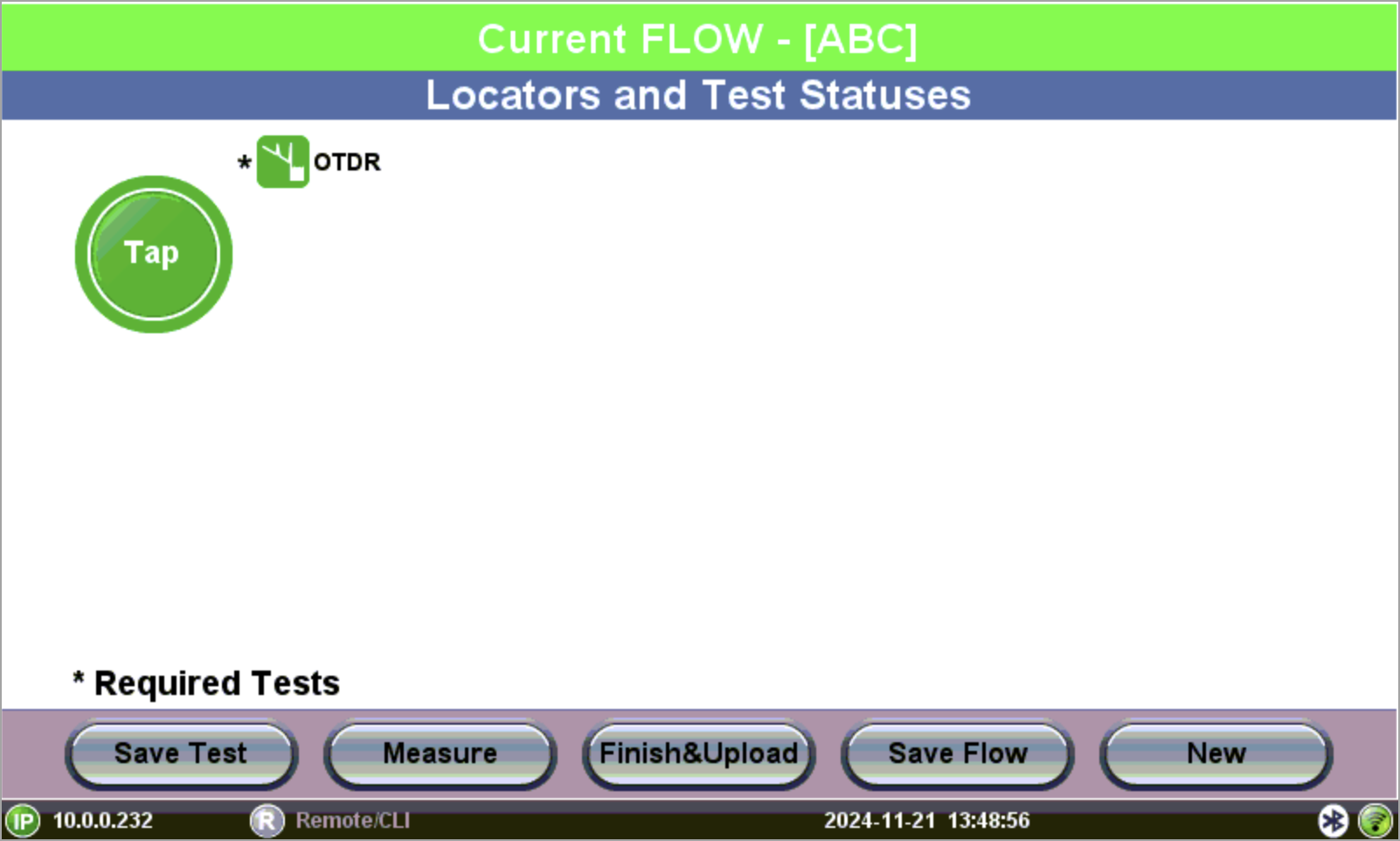
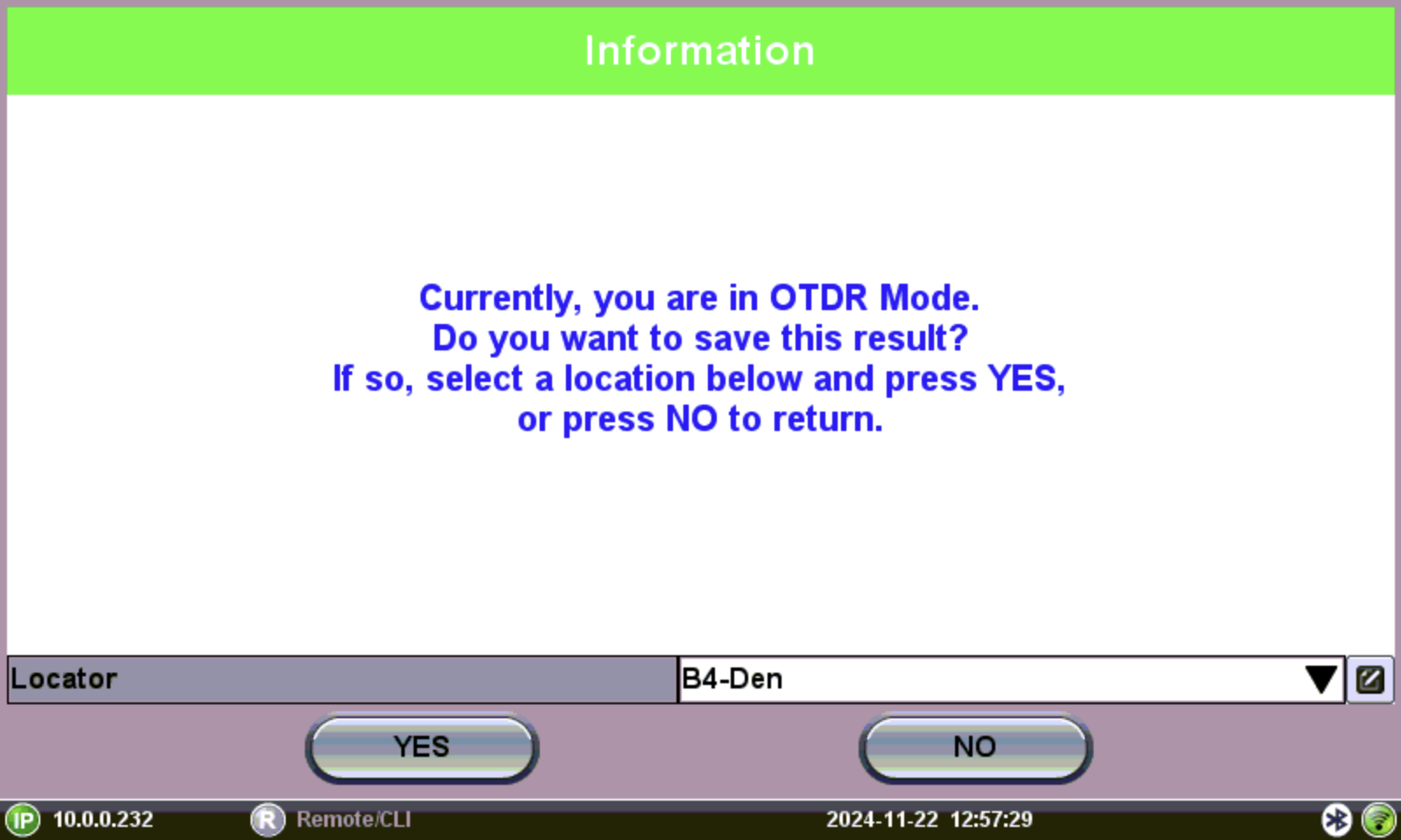
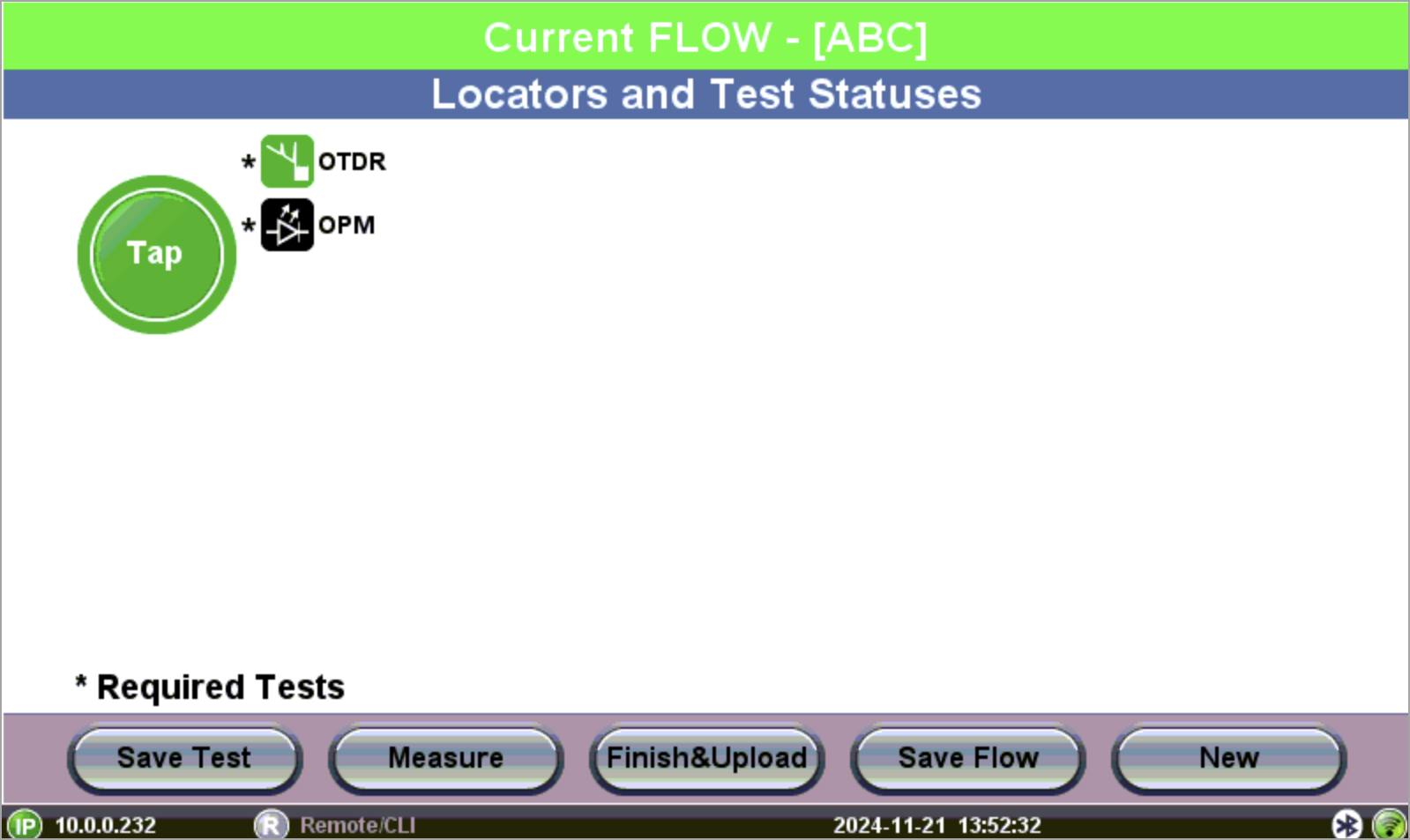
Adding tests to Flow®
- After adding all tests, select Save Flow to save results. Select Finish & Upload to save results to the Flow® report and upload it to R-Server. An Upload Successful screen appears if upload completes. The test set then automatically synchronizes jobs with R-Server. If no jobs are available.a prompt appears. Select Continue. The test set then automatically synchronizes profiles with R-Server. If there are new Flow® profiles, they are downloaded automatically.
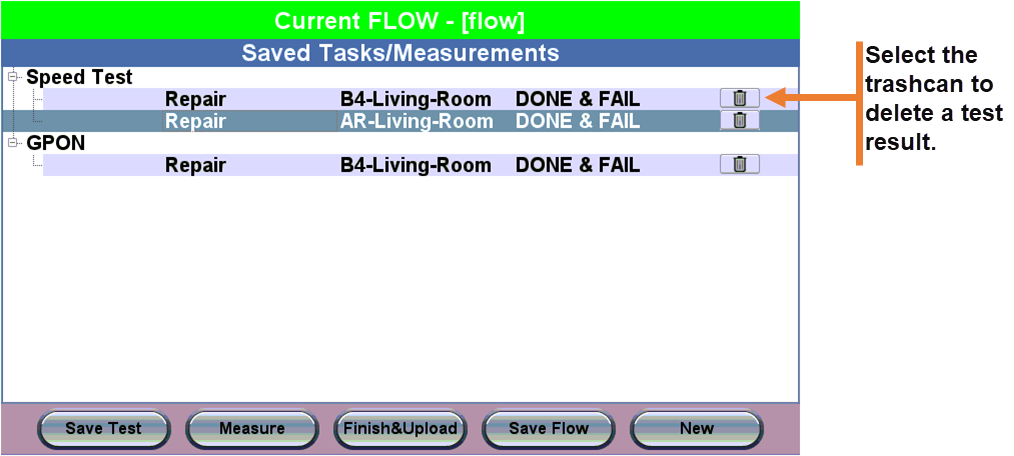
Flow® Results
- After adding all tests, select Save Flow to save results. Select Finish & Upload to save results to the Flow® report and upload it to R-Server. An Upload Successful screen appears if upload completes. The test set then automatically synchronizes jobs with R-Server. If no jobs are available.a prompt appears. Select Continue. The test set then automatically synchronizes profiles with R-Server. If there are new Flow® profiles, they are downloaded automatically.
Locators
Create a New Locator
1. After selecting Save Test, select the pencil icon to the right of the Locator dropdown.
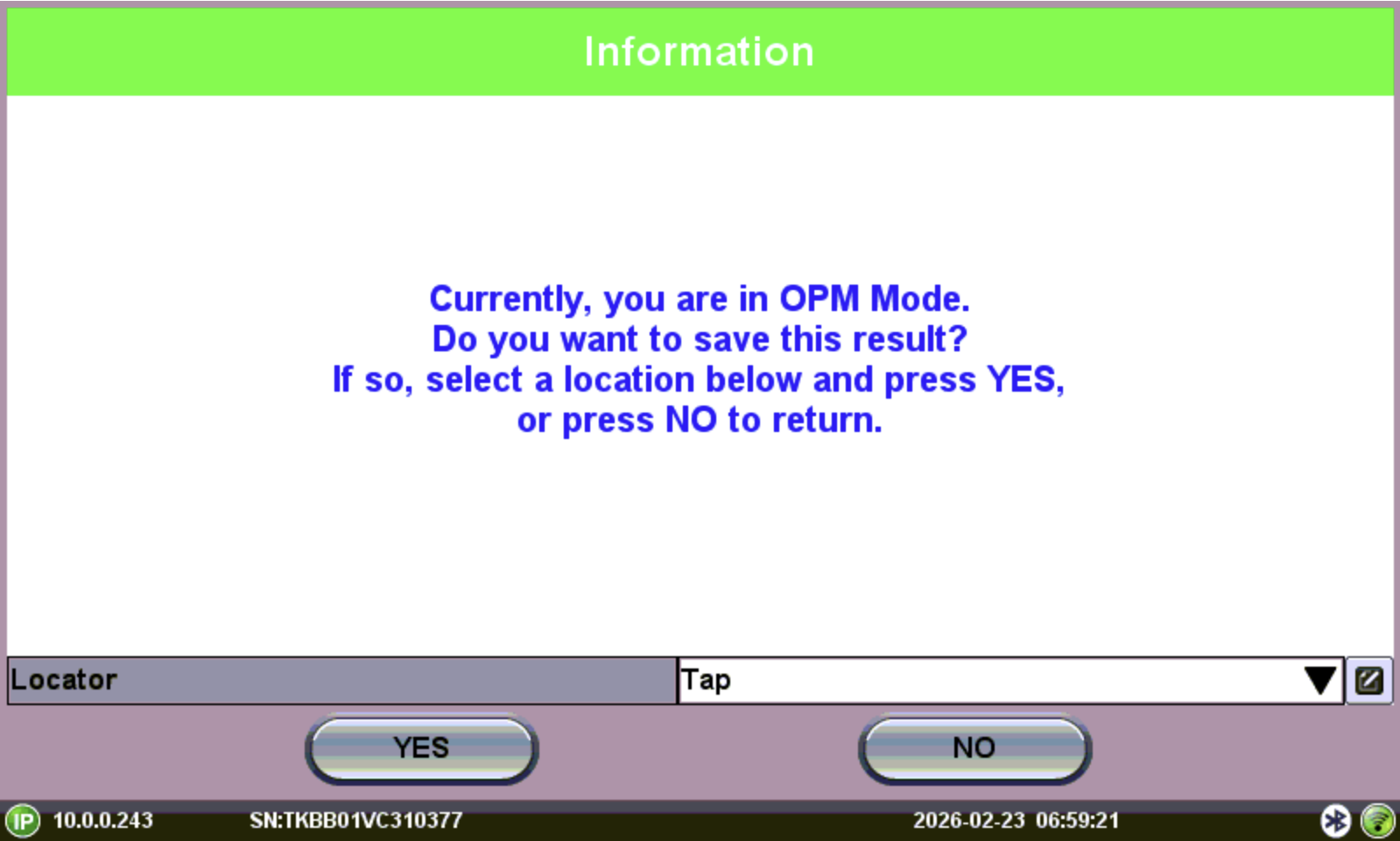
Save Test
-
On the Locator Editor screen, enter the new custom Locator name in the Locator field.
-
Select the blue plus sign
 to add the new Locator to the Custom list, then select OK to return to the Flow® screen.
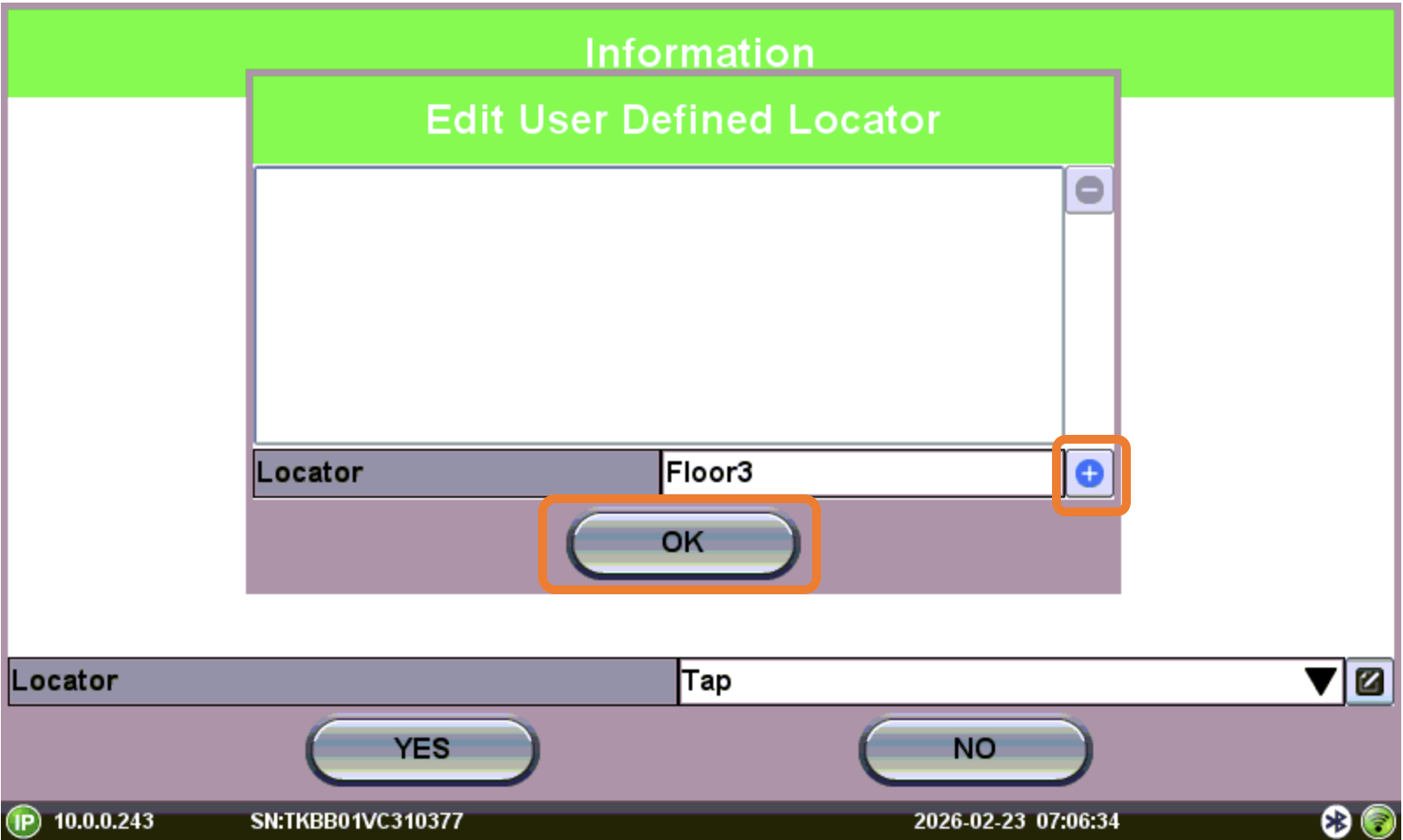
Add Locator
The newly custom Locator can now be used.
Delete a Locator
-
On the Save Test screen, select Delete Locator, then select YES on the confirmation screen.
-
Delete a custom Locator by selecting the red minus sign
 on the Custom List, then selecting OK.
 ALL test results saved to that Locator will be deleted.
Locator Tests
Select the Locator to see all measurements saved under it.
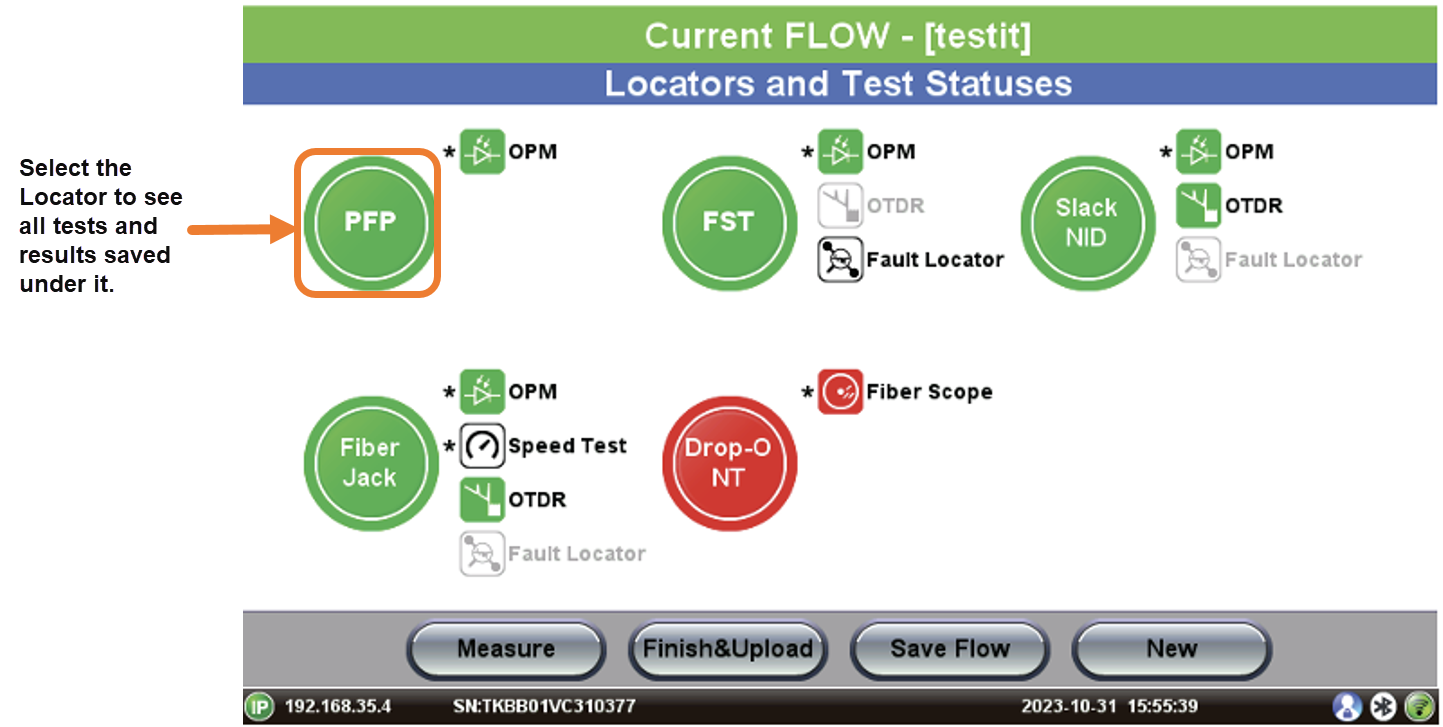
Locators and Tests
Flow® Report
The report can be accessed:
-
From the test platform's files. Refer to Working with Saved Results, Profiles, Images.
-
From R-Server. Refer to R-Server.
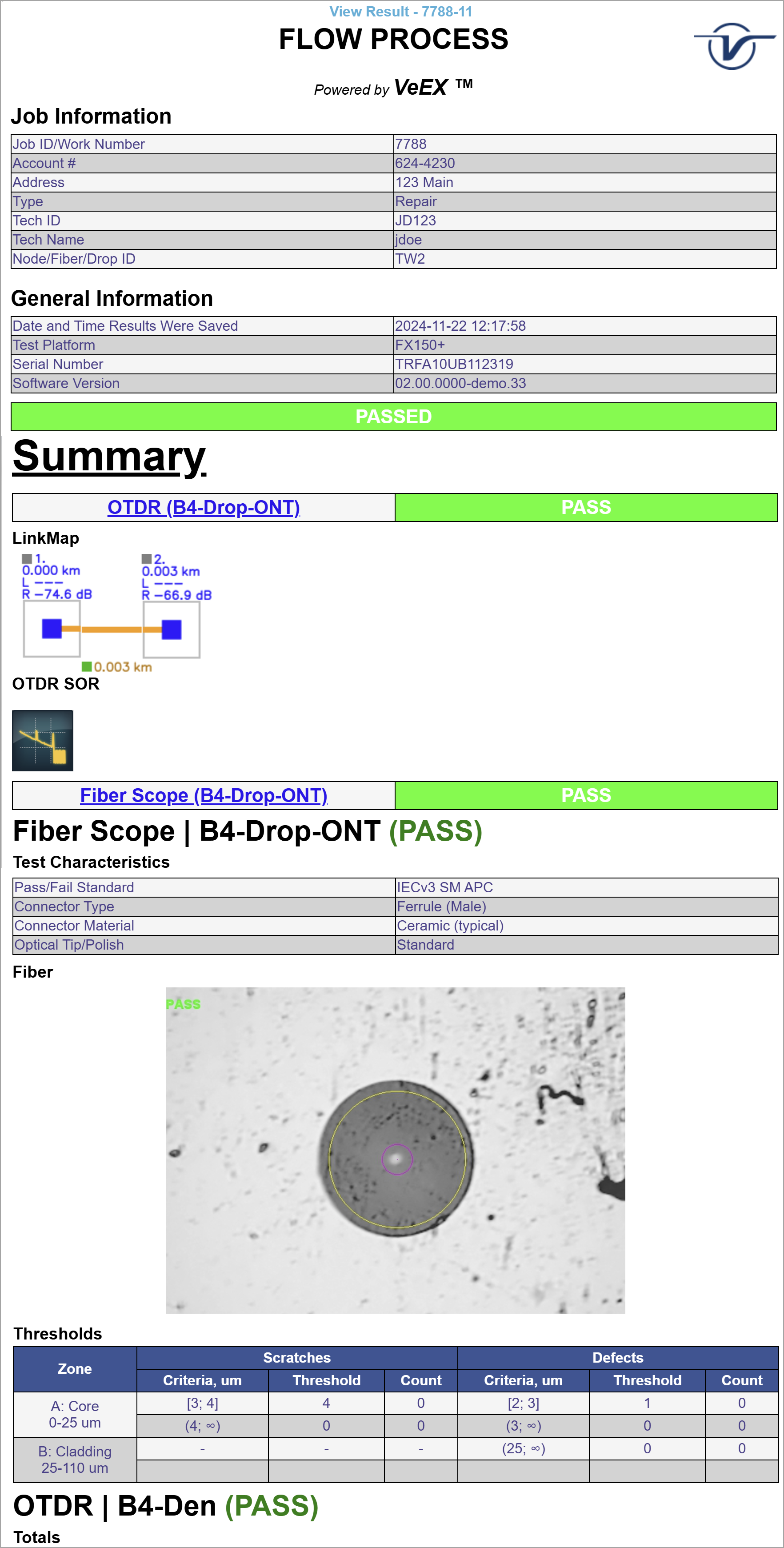
Sample Flow report (viewed in R-Server)
Download and Use Flow® Profile from VeSion® R-Server
-
Go to
> LAN & Connectivity > R-Server and select the Download tab. The Flow® Profile displays New if the meter detects any new Flow® profile assigned to it. -
Press Download to download the Flow® profile(s).
-
To use the new Flow® profile, navigate to the Flow® application by selecting
> on the bottom left. -
The new Flow® configuration screen will be displayed. If not, press the New button to start a new Flow®.
-
On the new Flow® screen, select Installation from the Type drop-down and select the newly downloaded Flow® profile from the Profile drop-down.
-
Select Let's Go to start testing. The order and results message of each Locator will reflect the configurations of the Flow® profile as configured on the R-Server.