Autosave Parameters
Select Auto Save to open the Autosave Parameters window.
Enter settings to save results automatically with default information in the filename.
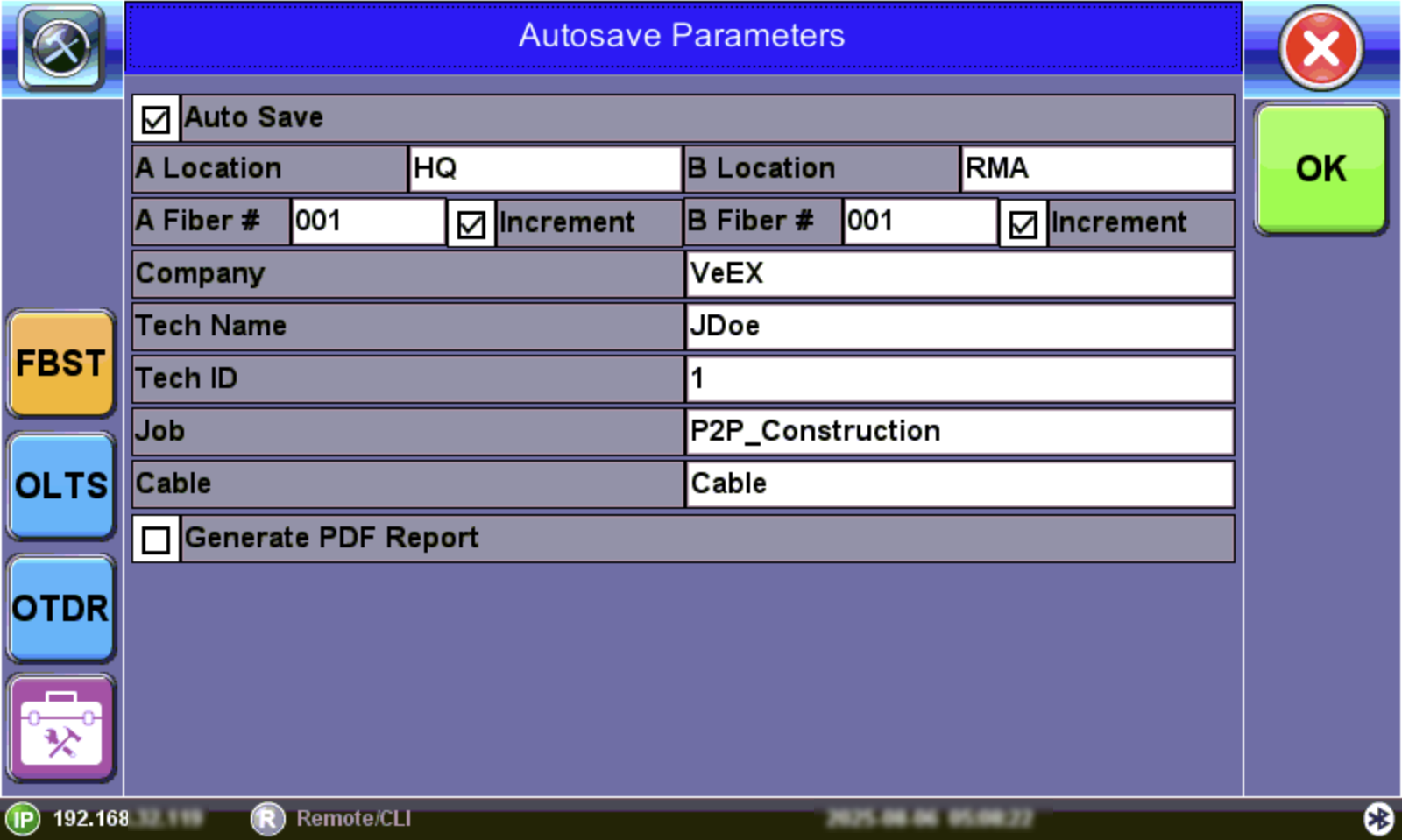
FiberBEAST Autosave Parameters
Auto Save: Enable/disable autosave.
The details entered in the following fields can be used to pre-set the filename automatically and increment the fiber number automatically.
The filename will begin with the Location name, followed by the Fiber number.
-
A Location Name of location where one test set resides.
-
B Location - Name of location where opposite test set resides.
-
A Fiber # Fiber number to begin
-
B Fiber # - Opposite test set fiber number to begin
- Increment: Choose to increment the fiber number automatically in the filename. Increments the selected fiber if the Auto Save option is selected.
Include more specific details in the Test Report, such as Company, Operator(s), Job, and Fiber(s). This information appears on the Job Information portion of the Test Report. Tap the blank fields to edit the names.
-
Company: Name of company
- Tech Name: Operator name
- Tech ID: Operator ID
- Job: Name of job.
- Cable: Name of fiber cable.
- Generate PDF Report: Check to generate a results report in PDF automatically. The PDF report can be exported from the File Management option. Refer to Create Test Report PDF for details.
View Autosaved Results
Result files can be accessed by selecting the Results & Files tab on the platform Home menu. Refer to Working with Saved Results, Profiles, Images.