FiberBEAST Test Reports
Test results are combined into one FiberBEAST report. The reports can be accessed from the test set's files. To navigate the test results report, use the right rocker switch to scroll Up and Down.
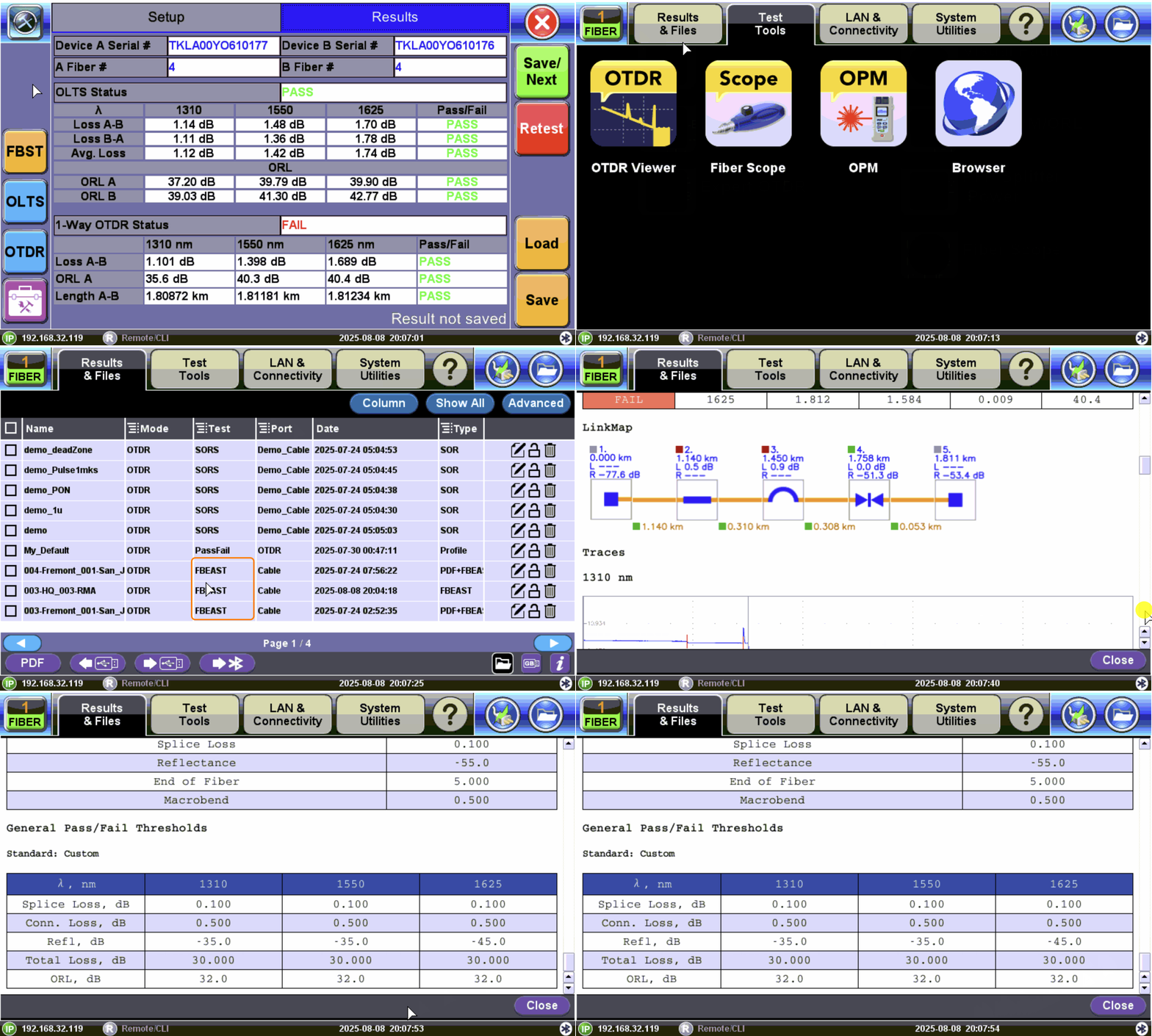
The FiberBEAST Test Report shows results for all tests performed and saved. Job Location and Fiber information settings from the Autosave screen appear at the top of the report.
A OLTS + OTDR Test Report shows the average OLTS results. Pass/Fail OTDR test results are included in the comprehensive report, along with the LinkMap showing a span summary of measurement results in the form of a block diagram. Refer to LinkMap™.
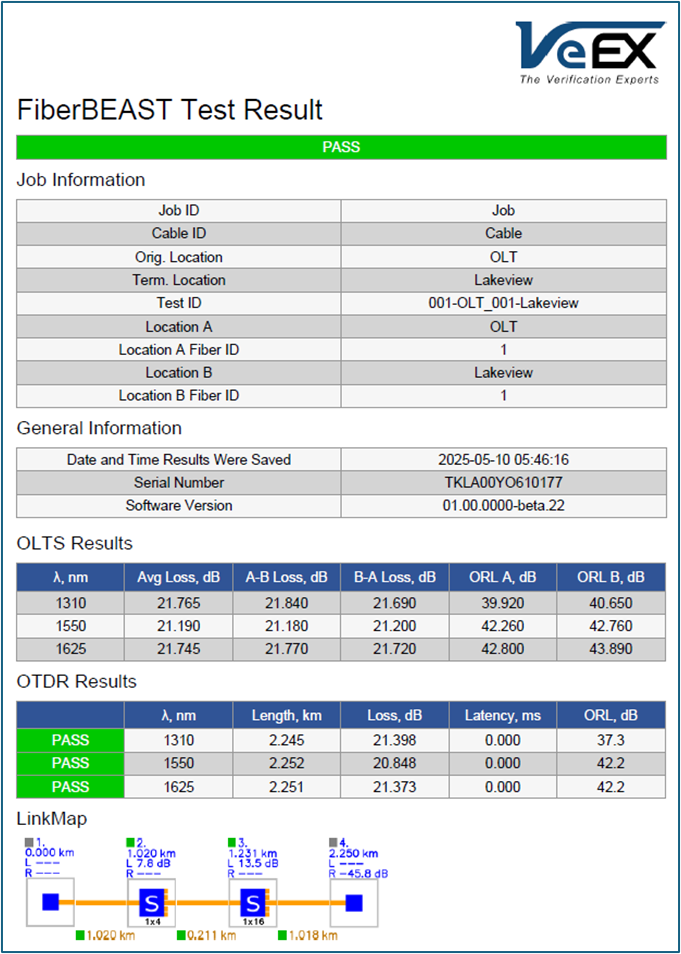
Sample FiberBEAST Test Report (OLTS + OTDR results)
A OLTS Report (Multiple Fibers) combines the test results of each fiber into a simplified summary report. It includes a complete analysis on whether the fiber has passed or failed.
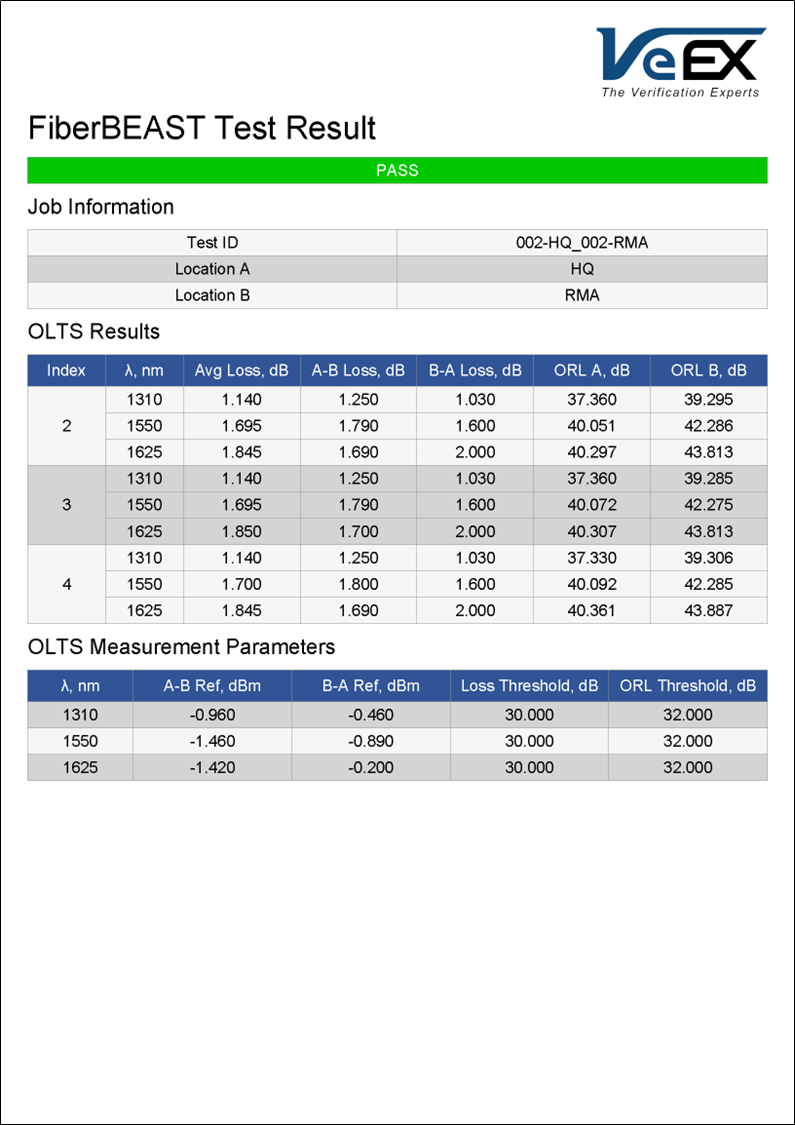
Sample FiberBEAST Test Report (OLTS Only - Multiple Fibers)
View Test Report from Platform Files
-
Select the System Tools and Utilities icon
 to access the platform menu.
 -
Select the Results & Files tab. The File Management screen is displayed.
-
Select the desired FBEAST results file to open the test report. Refer to Working with Saved Results, Profiles, Images more information on viewing files on the test set.
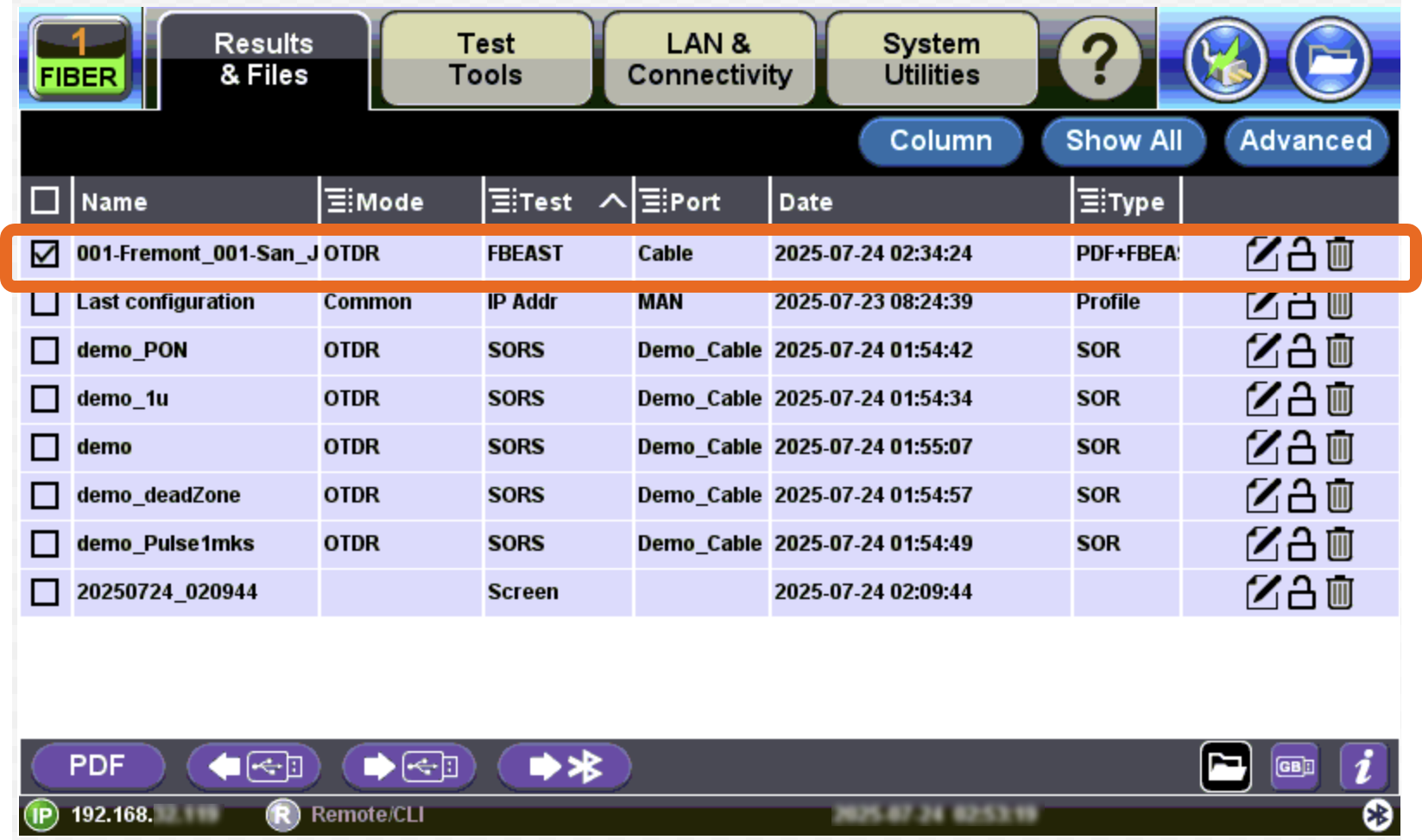
FiberBeast Results in Platform File Manager
Create Test Report PDF
To create a PDF of the FiberBEAST Test Report, select the checkbox next to the result file, and then select PDF  . The PDF file will be created on the external USB or hard drive connected to the test and a checkmark
  will appear to the right of the result file.
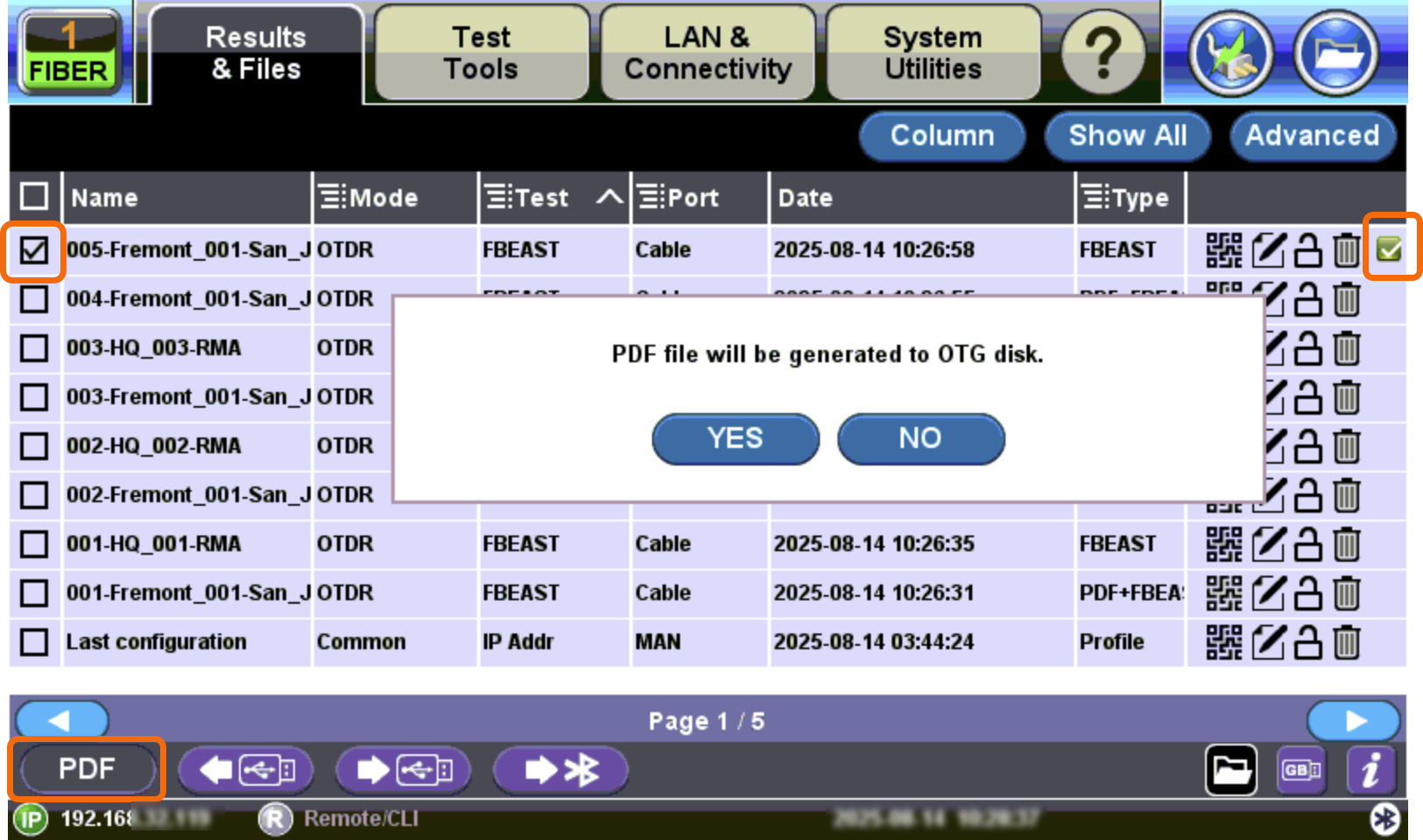
Saving Test Report to PDF
Refer to FiberBEAST Screen Navigation for information on navigating the test set.