MTX150x Lite Quick Guide
When powered on the test set automatically loads the V-TEST (VeEX Internet Speed Test) application.
The MTX150x Lite is an optimized Quality of Experience (QoE) test solution (Layer 4+ applications) for multi-Gigabit services from 100 Mbps to 10 Gbps on copper and fiber interfaces. This rugged and ultra-portable hand-held test set helps field technicians install, verify, maintain and troubleshoot high-speed Residential and Business services, Internet Access and other packet- base services up to 10 Gbps.
The V-TEST feature qualifies network TCP/HTTP protocol performance by testing Internet speeds up to a full line rate against a server to verify the maximum download and upload data rates attainable by subscribers' high-speed or Gigabit Internet services.
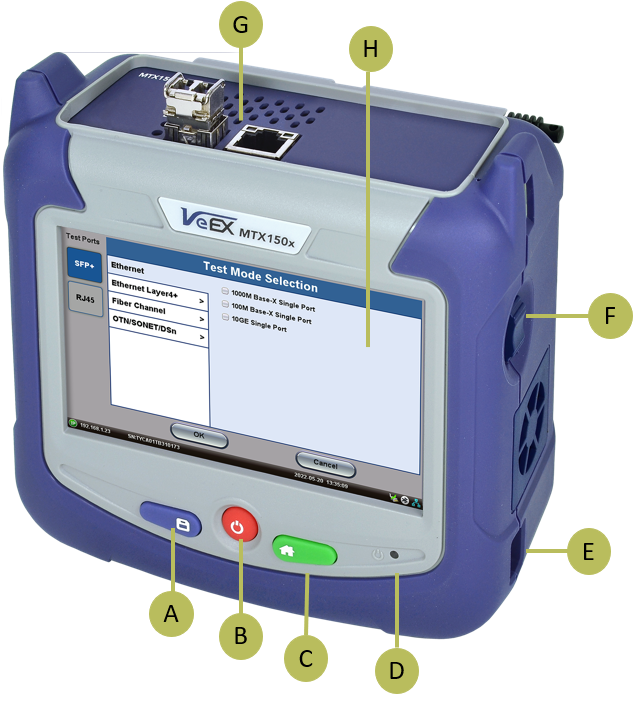
A. Save: Saves current test results in the unit's memory and provides automatic naming and time stamping function.
B. Power: Press for 2 seconds to turn the test set ON or OFF.
C. Home: Returns the screen to the home menu. Pressing the Home key for 3 seconds puts the unit in sleep mode. Once in Sleep Mode, press the Home key for 3 seconds to return to normal operation.
 More about sleep mode
 This is not full power shutdown.
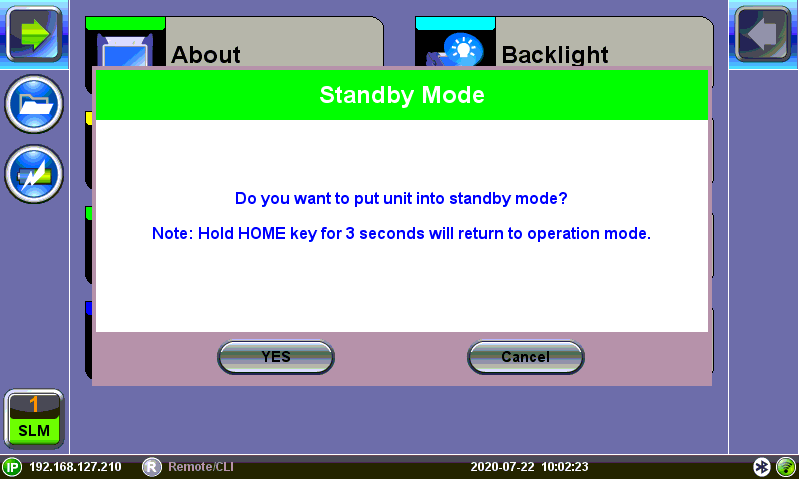
Standby/Sleep Mode
F. Side Buttons: Side buttons on the left and right side of the unit provide additional feature-specific functionality such as revealing menus and scrolling through table results. Button functions vary depending on individual applications (e.g., push to expand left or right menu bar, scroll left/right or up/down, capture screenshots). Refer to Hard Buttons for the Quick Guide displayed during boot-up sequence.
Side Button Shortcuts:
- Right side + Save: Saves the screen (bmp)
- Right side + Home: Hibernates device
More about side buttons
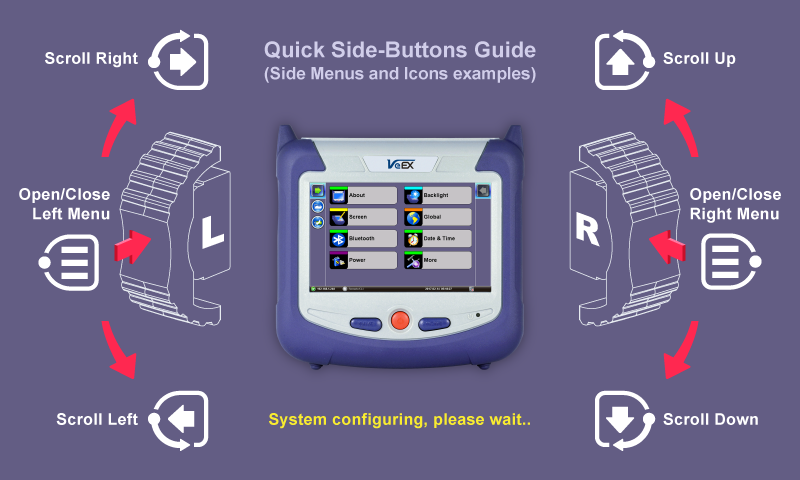
Side buttons on the left and right of the unit can reveal menus or other functions depending on the unit
D. LED: Power ON and battery charge LED indicator
-
Off - Power is OFF, not charging.
-
Orange - Battery is charging.
-
Green - Power is ON.
E. Micro-B USB: Use an USB-A OTG cable (optional with purchase) to connect a USB to the micro-B USB port. The port supports memory drives and USB add-on devices such as fiberscopes. An optional Micro-B OTG to Ethernet adapter is also available for network connection. (Only VeEX approved OTG to Ethernet Cables can be used.)
G. Test port connector
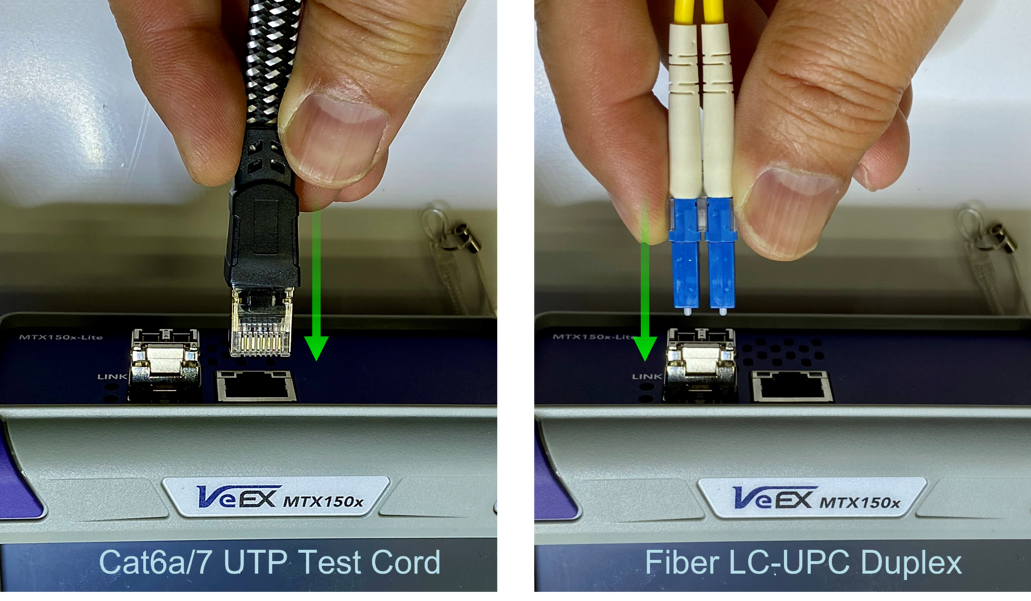
 Use certified CAT 6a or CAT 7 UTP test patch cords.
H. Touch screen LCD
I. Stylus: Use when finer touch screen control is required.
J. DC power socket: Use VeEX-supplied AC/DC chargers only.
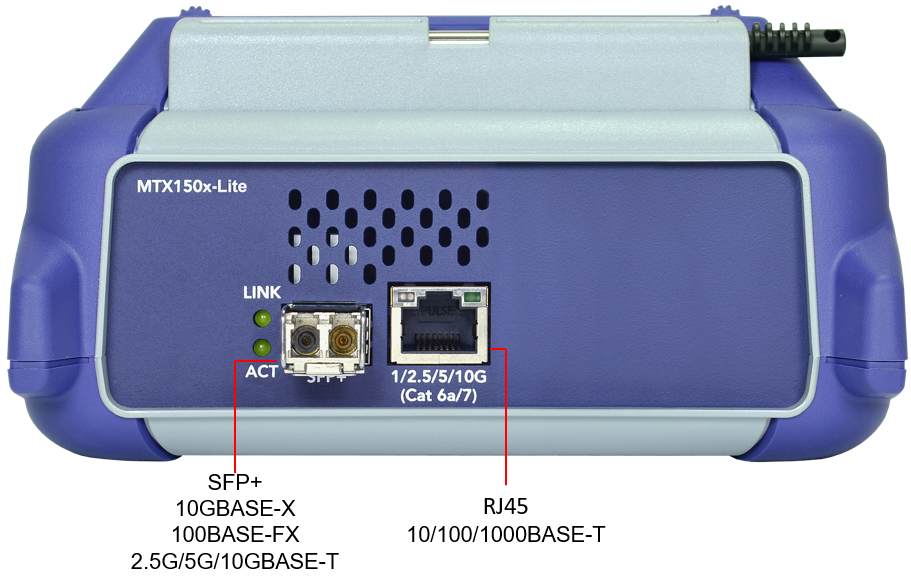
MTX150X Light Connector Panel's Test Ports (top view)
Follow the instructions below to use the MTX150x Lite to start testing high-speed and multi-gigabit Internet access services.
Step 1: Connect the Patch Cord
Use the appropriate copper (UTP) or duplex-LC fiber test cord to connect the port or device under test (DUT) to the test port.
|
Copper UTP: Use patch cords that are rated to support the port's maximum Ethernet speeds. Good quality Cat6a and Cat7 patch-cord cables are required for devices supporting 2.5GE (2.5GBASE-T), 5GE (5GBASE-T) and/or 10GE (10GBASE-T). |
Using lower quality or non-certified for Cat6a or Cat7 cables will produce lower results and limit maximum data rate.
|
|
Fiber Optics: Make sure to clean all male and female connectors. Verify them using a digital Fiber Scope. (Cross-contamination build-up can degrade the test set's performance.) Insert the appropriate SFP+ transceiver into the test set's slot and make the connections. |
|
|
The optical transceiver's laser will automatically turn on, so it is ready to activate the link and run the tests. Although most common optical transceivers are considered safe, please follow standard eye safety procedures and common sense (e.g., avoid using optical scopes or looking directly at active connectors). |

Step 2: Power on Test Set
Press and hold the Power button  for two seconds, until a confirmation tone (beep) is heard, and the VeEX logo appears on the screen, then release the power button.
The test set will take a few seconds to
Once ready, the Basic V-TEST screen displays with a GO button in the center. This indicates that the test set is ready to test.
To turn the test set OFF, press and hold the Power button until two confirmation tones (beeps) are heard.
By default, the test set always starts in BASE-T copper mode  , as indicated by the Test Mode Selection button. It can detect 10GBASE-T, 5GBASE-T, 2.5GBASE-T, 1000BASE-T and even legacy 10/100BASE-T automatically.
Changing Test Modes (Copper ↔ Fiber)
By default, the test set starts in copper (RJ45) mode and it can detect 10GBASE-T, 5GBASE-T, 2.5GBASE-T, 1000BASE-T and even legacy 10/100BASE-T automatically.
Changing Test Modes
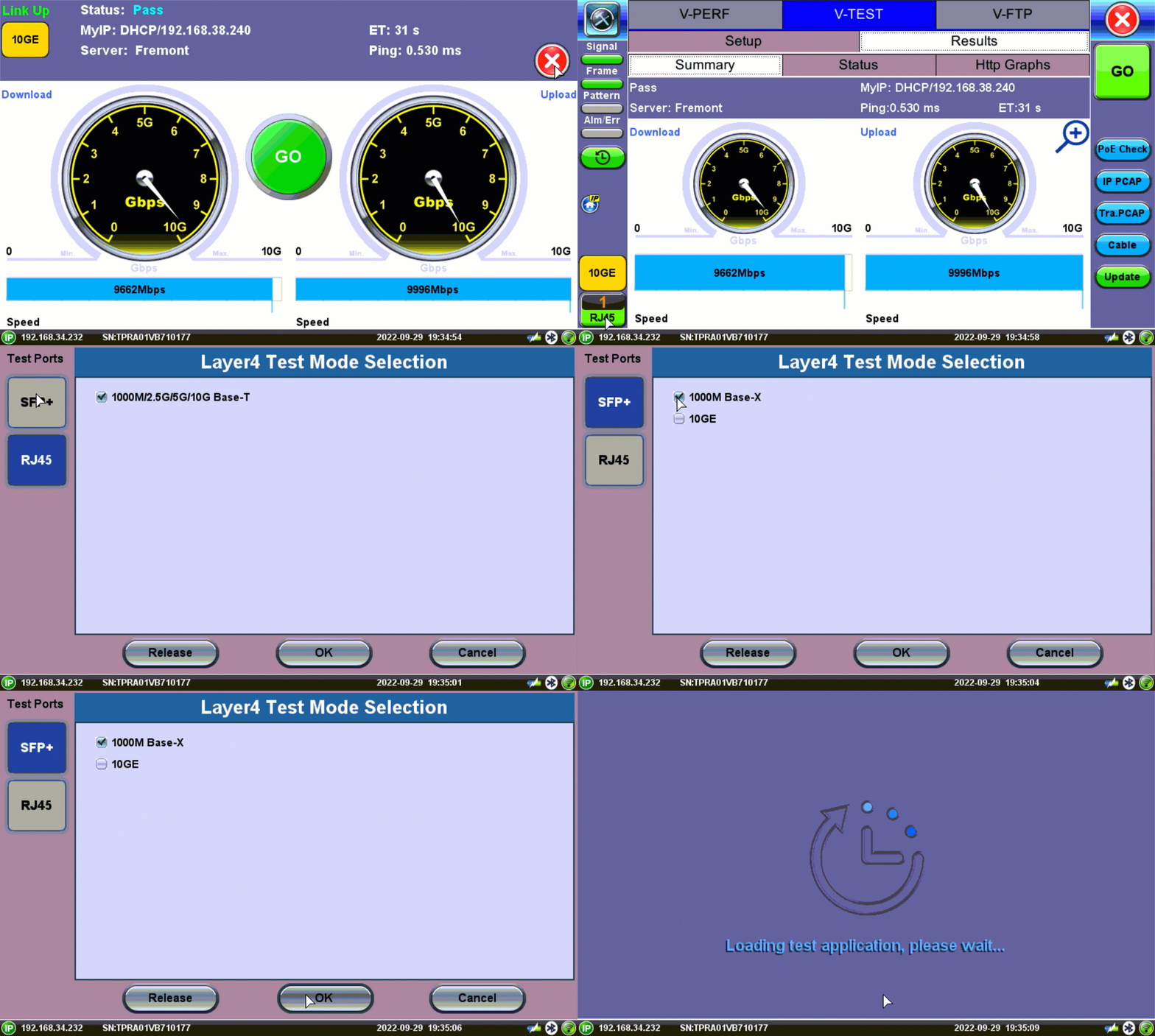
To change between fiber optics and copper test modes:
-
Tap
 , then tap Test Mode button at the bottom left of the screen to access the Layer4 Test Mode Selection menu.
 -
For Fiber Optics, tap
 and for Copper, tap
  , then select the checkbox for the appropriate test mode: 1GE (1000M BASE-X) or 10GE or 1000M/2.5G/5G/10G BASE-T
 -
Press OK and wait for the test application to load.
-
Connect the test cable between the test set and the device under test, then select Speed Test from the menu and run the test.
Step 3: Basic V-TEST
Press to run the Internet speed test.
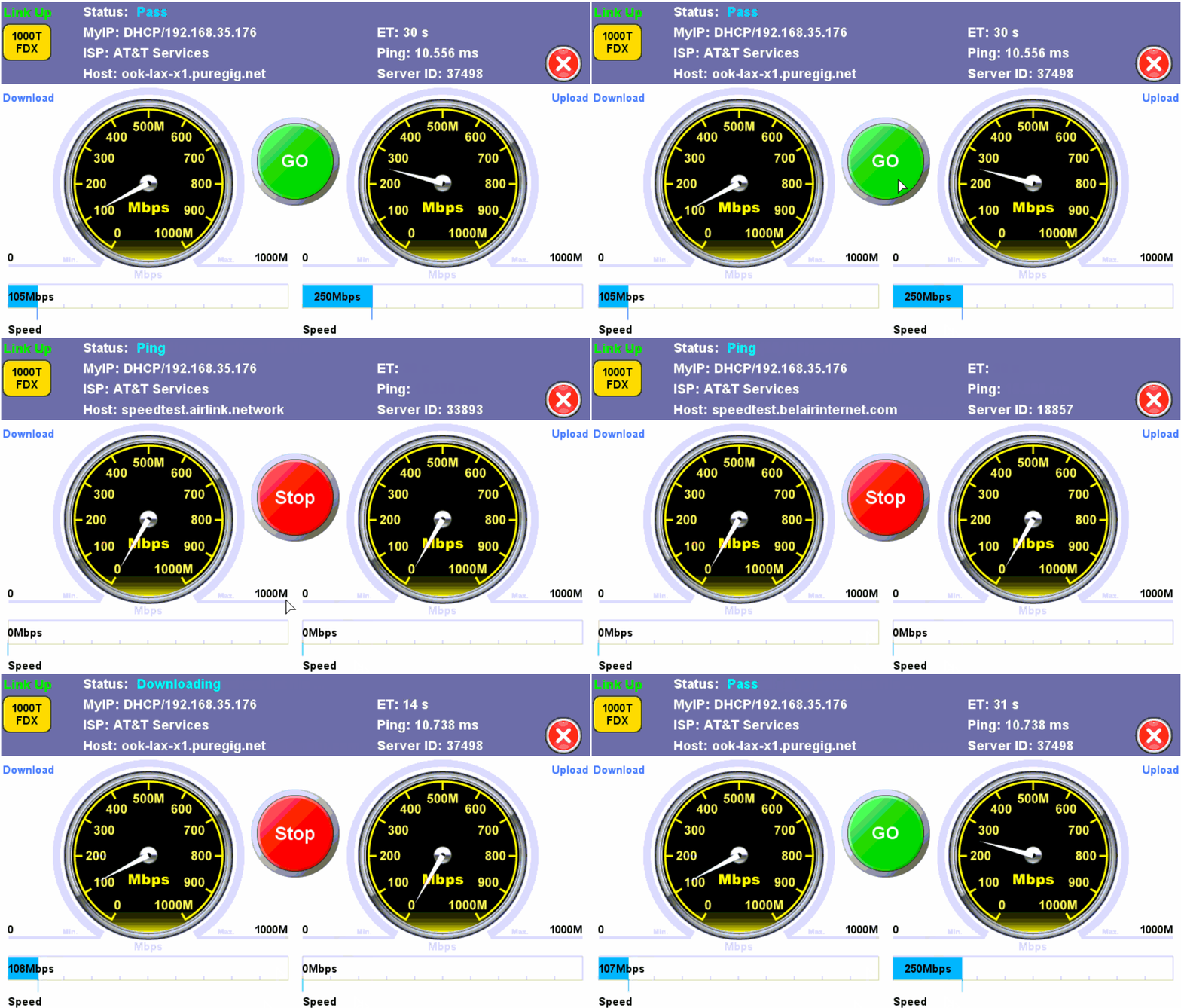
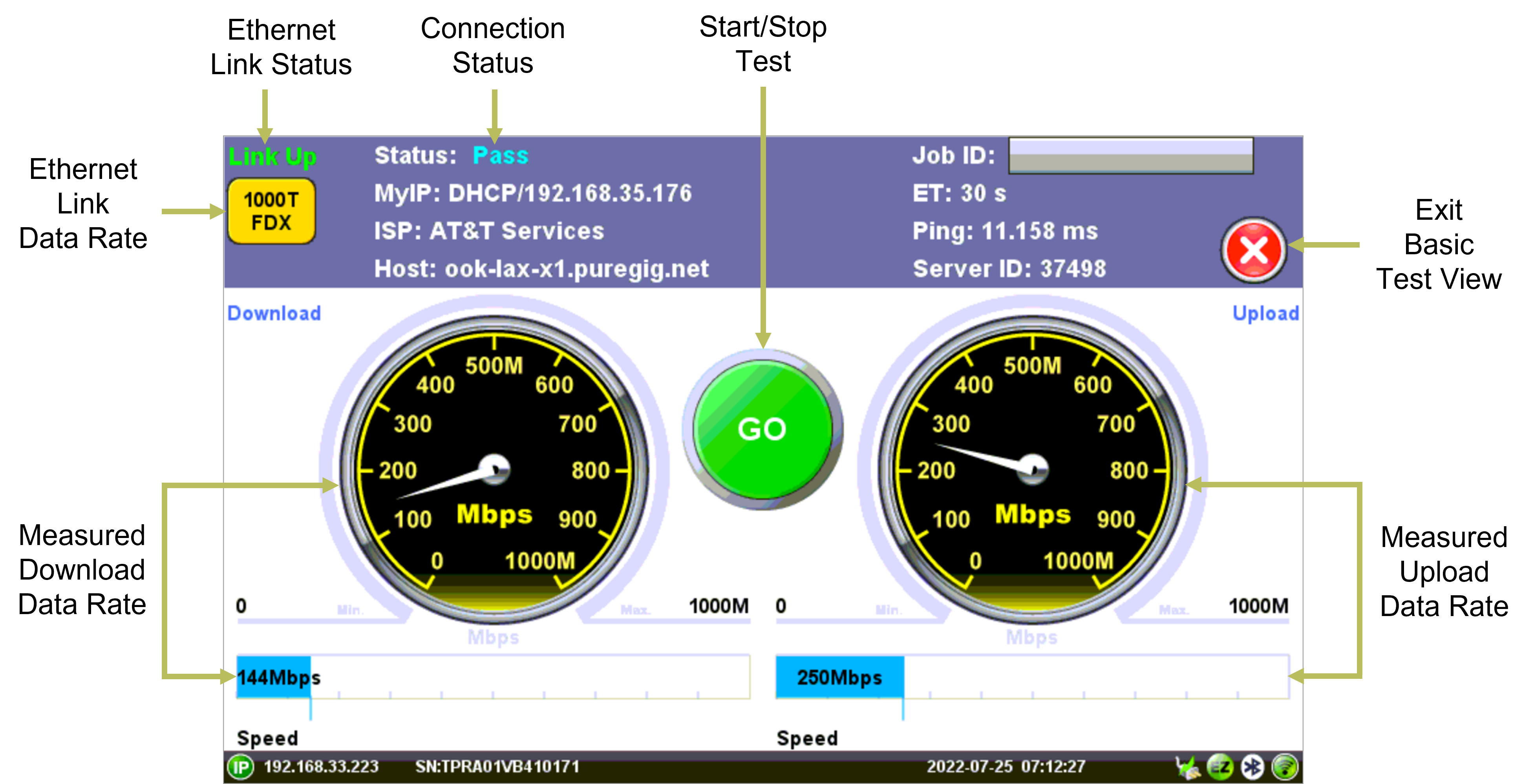
After pressing GO, the test set does the following:
-
Identifies the internet service provider (ISP) and searches for the closest Ookla Speedtest® server, based on round-trip response times.
-
Runs the Internet speed test for the Download direction (from server to test set), then the Upload (from test set to server) and displays the results.
-
Once finished, the GO button will turn back to green. It is ready to save the results and/or run more tests.
Basic V-TEST
More about IP Addresses
MyIP 
MyIP (also known as 'Home IP') is the IP address assigned to the active Test Port and the one used for testing purposes. Tap on the icon to display the current IP address assigned to the active port.
Bottom Bar IP 
The IP address displayed at the bottom-left corner of the screen is the test platform's management connection (WiFi or LAN) used by system's features, like remote control, software updates, etc. LAN connections require an optional micro-B USB to RJ45 Ethernet adapter cable.
Full V-TEST
to switch to the Full V-TEST screen and access more test details.
More about Advanced V-TEST Modes
Server Selection Modes
-
Ookla® Speedtest®
Speed Test Modes
Auto Mode: This is the default and recommended mode, and it is also known as "Speedtest Powered" mode. It automatically selects the best speedtest.net server from lists maintained by Ookla. It will scan nearby servers in the local market and test to the server with the fastest (lowest latency) response.
Manual Mode: Manually select a specific Server ID from a list of public Ookla servers. A list of all nearby servers is displayed automatically. The corresponding server ID and server information (URL/IP, location, and ISP) are also provided.
-
VeEX Managed – Perform internet speed tests by manually selecting servers from lists created and maintained by VeEX. These non-public lists are created for specific customers. The Update button is used to update the servers' list. Internet access is required to receive the server lists maintained by VeEX.
-
User Managed – Advanced users can perform internet speed tests by manually selecting servers from pre-configured lists, using the Manual mode. In User Managed mode, enter the server IP/URL and save it to a server list that can be maintained and managed on its own. Options to modify or delete server lists are available under Server List Manage.
-
Manual – Advanced users, with detailed knowledge of their Speedtest servers, can manually add their own servers, test files and maintain their own server lists. Enter the IP/URL of the server to test. If TCP port number 8080 is used, there is no need to enter a Path and File name. Port 8080 is used by Ookla netgauge servers, therefore the proper Speedtest handshaking will take place between the test set (client) and Ookla server. If TCP port number 80 is used, the correct Path and Filename need to be entered.
Tap  to switch to the Basic V-TEST view.
ISP & Sponsored Server Selection Modes
V-TEST or Speedtest® verify/certify the Internet Access data rates which are the rates advertised by the Internet (access) Service Provider (ISP), from the customer's premises to the point of entry to the Internet. For that reason, the selection of the centralized speed test server is very important.
Before starting the Download and Upload throughput tests, the test set pings nearby servers, then it generally selects the one that has the fastest ping response. However, all the nearby Ookla® servers would be a combination of ISP-owned or sponsored servers, and some other servers that are hosted by independent companies, which may reside outside of the footprint of the ISP providing the service. Testing to a server that is not owned/sponsored by the ISP may not guarantee reliable test results, since the server has not been vetted by the ISP providing the service.
Turning the ISP/Sponsor Match setting ON, instructs the test set to prioritize the server search for servers that are sponsored by the ISP and select one of these servers for testing. If no ISP-sponsored servers are found, then the test set would carry out its normal search for the fastest ping-response server.
More about Link Statuses
|
Link Status Indicator Labels A yellow status box will be displayed when the link has been properly established with the port under test and it is considered active. |
|
10GE: |
10 Gbit/s, 10GBASE-T copper interface (RJ45 UTP) or 10GBASE-X optical interface (LC-UPC duplex) |
|
5GE: |
5 Gbit/s, 5GBASE-T copper interface (RJ45 UTP) or 5GBASE-X optical interface (LC-UPC duplex) |
|
2.5GE: |
2.5 Gbit/s, 2.5GBASE-T copper interface (RJ45 UTP) or 2.5GBASE-X optical interface (LC-UPC duplex) |
|
1GE: |
1 Gbit/s, 1GBASE-T copper interface (RJ45 UTP) or 1GBASE- optical interface (LC-UPC duplex) |
|
1000T: |
1 Gbit/s, 1000BASE-T copper interface (RJ45 UTP) |
|
100T: |
100 Mbit/s, 100BASE-T copper interface (RJ45 UTP) |
|
10T: |
10 Mbit/s, 10BASE-T copper interface (RJ45 UTP) |
|
FDX: |
Full Duplex |
|
HDX: |
Half Duplex |
|
UTP: |
Unshielded Twisted (copper) Pairs cable |
Step 4: Save Results
Press the SAVE button  and use the touch-screen keypad to enter the name (overwrite or edit), then tap Apply.
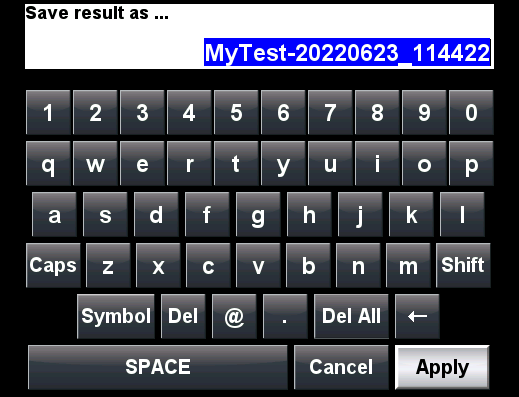
Auto-Naming: By default, the test set auto-naming feature uses the current date and time to generate a default unique name for every test result (YYYYMMDD_hhmmss). The auto name can be rewritten or specific prefix defined to be added to it (e.g., to identify site, cabinet, rack, customer or the technician running the test).
To configure the prefix:
-
From a test application, press
and/or  on the top left of the screen to access the system configuration menu.
 -
Select
-
Select the Storage Setting tab and set File Name Prefix to the desired prefix. For example, after setting the File Name Prefix to "MyTest-", all subsequent tests would be automatically named "MyTest-YYYYMMDD_hhmmss".
Upon saving results, a secondary form is displayed to enter additional information about the Job ID/Work Order, technician, location, and comments.
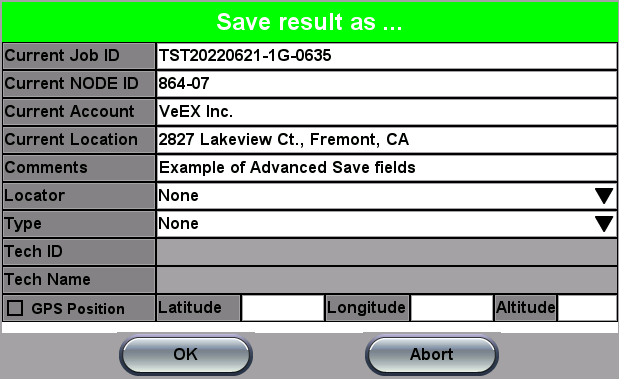
This creates more complete test reports and is required if the test set is registered to the VeSion R-Server Centralized Workflow and Results Management System.
When the Advanced Saving option in
More about Advanced Saving
To append additional information to test reports:
-
Press
, then press on the top left of the screen. -
Select
-
Select the Storage Setting tab and set Advance Saving to ON.
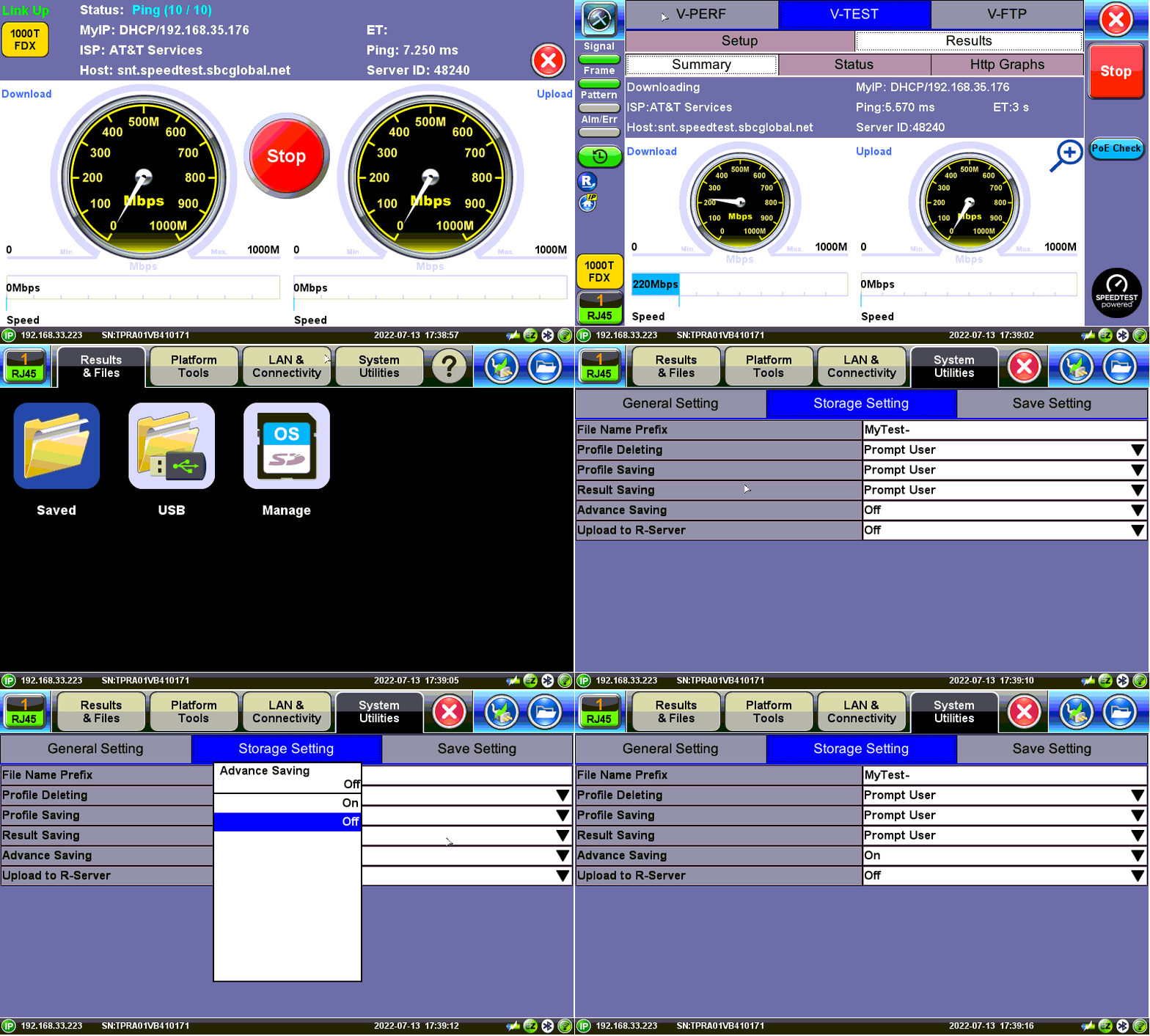
Step 5: View Results and Generate Test Reports
To access the test results stored in the test set:
-
Press
, then press on the top left of the screen. -
Select
-
Select the desired results file to open the test report.
To navigate the test results report, use the links in its Table of Contents and the right rocker switch to scroll Up and Down.
More about File Manager functions
Tap the file to open and display it.
 |
Navigates right and left to view all files. |
|
|
Closes the current test report and goes back to the File Manager. |
 |
Exports the selected test report to mobile device via QR Code. |
|
|
Deletes all unlocked test reports that are selected with checkmarks. |
|
|
Renames the selected test report (one). |
|
|
Unlocks or Locks test reports. Locked reports are identified by a red padlock icon. Locked test reports cannot be deleted or renamed. |
|
|
Generates a PDF copy of the test report and stores it in an attached USB memory stick (required) for distribution (e.g., via email). |
|
|
Imports (restores) all test results, test profiles and screenshots stored in an attached USB Memory Stick. The included On-The-Go (OTG) micro-B USB to USB-A adapter cable is required for the USB memory stick. |
|
|
Exports (backup) all selected test results, test profiles and screenshots stored to an attached USB Memory Stick. The included On-The-Go (OTG) micro-B USB to USB-A adapter cable is required for the USB memory stick. |
|
|
Transfers selected test results, test profiles and screenshot files to a paired Bluetooth® smartphone, tablet or PC. |







Other Test Features
PoE Check:
Verifies the presence of Power over Ethernet on the Link or Device Under Test (DUT).
IP PCAP:
Traffic Packet Capture & Decode (function). Enable this advanced troubleshooting feature to capture Layer 3 packets while running tests. Tap on the red IP PCAP button to stop the capture and a standard PCAP file will be saved in the File Manager, where they can be opened (View) and decoded with the built-in Wireshark protocol analyzer or exported to USB for further analysis on a PC.
Tra. PCAP:
Traffic Packet Capture & Decode (test application). Launches a separate test application for advanced Ethernet packet capture. PCAP files are stored in the File Manager, where they can be opened (View) and decoded with the built-in Wireshark protocol analyzer or exported to USB for further analysis on a PC.
Cable:
The Cable Check function provides basic diagnostics for the UTP cable pairs' pin-out (straight, crossed, low impedance mismatch, short, high impedance mismatch, open) and as well as their length.
Update:
Perform internet speed tests by manually selecting servers from lists created and maintained by VeEX. These non-public lists are created for specific customers. The Update button is used to update the servers' list. Internet access is required to receive the server lists maintained by VeEX.
V-PERF:
TCP/UDP-based business Internet speed performance test based on RFC6349 and compatible with RTU-300 hardware-based centralized test heads as well as iPerf and iPerf3 servers.
A common source of customer complaints come from file transfer speeds not matching the throughput rates guaranteed in the SLA. While many factors affect TCP applications performance, including customer’s operating system hardware performance and settings (TCP window size), carriers need to prove SLA with a test tool that can show TCP performance independent of Operating System or Server limitations and present repeatable reliable results. The test set V-PERF feature uses RFC6349 test methodology and metrics for qualifying network TCP or UDP performance. It offers a full line rate stateful TCP test with configurable window sizes, client and server modes as well as compatibility with iPerf servers.
V-FTP:
V-FTP is an internet speed performance test based on uploading and downloading large test files to an FTP server. The V-FTP Throughput feature allows users to test up to full line rate FTP protocol performance to any FTP Server by uploading and downloading files.
Related Topics
What Does Layer4+ Refer To?
Layer4+ refers to the Internet layers 4 and above (transport and application layers), which are more closely related to the customers/subscribers’ applications and the way they use Ethernet, the Internet, and how they perceive performance (quality).
How Does Speedtest.net Works?
See follow this Ookla link for more details.