Cloud Services

Use the Cloud Services option to accessR-Server cloud services to download test profiles and upload test results.
Part of VeEX’s VeSion® centralized monitoring and management solutions, the R-Server Workflow and Asset Management system provides crucial tools to manage fleets of technicians, test equipment, standardized test profiles, thresholds, centralized test results collection, reporting, jobs/ticketing, and software update delivery to create coordinated and efficient disciplined workforce and test procedures. R-Server enhances the workflow to achieve the level of quality and repeatability required by telecommunications service providers, MSOs and their contractors. The flexible R-Server can be deployed in cloud, hosted, and corporate networks, on physical or virtualized servers.
Supervisors can preset and upload test parameters which are provided to the test sets as profiles. Technicians can download profiles, run tests, and upload results to a centralized system that stores and secures the data.
 A test set must register to an R-Server before it can upload results to the server; otherwise, a reminder message will pop up. If you are unsure if a test set has already been registered and the IP address/URL for the R-Server is entered in the Server Address/URL field, the test set checks the registration status upon opening the Cloud Services option. Otherwise, press
  Check on the R-Server screen. If it has not been registered, complete the steps to register the unit.
Register the test set
-
Contact the R-Server administrator and/or supervisor for the IP address/URL of the R-Server and relevant information to enter it in the corresponding fields:
-
Server Address/URL: IP address or URL of the R-Server
-
Tech ID: Registered Tech ID
-
Tech Name: Registered Tech Name
-
Company: Company name
-
Supervisor ID: Supervisor ID; ties the test set to a specific Org Chart
-
-
Press the
 Register button to register the test set on the R-Server. The test set sends the request to register to R-Serverand a message appears saying that the registration is complete. Next, the registration must be authorized and approved by the R-Servermanager in order to allow access.
Later, when the registration is approved by the R-Server manager, an authorization message will appear upon accessing Cloud Services. Once authorized, results can be uploaded.
To unregister a test set from a R-Server account, press the  UnRegister button. Pressing the UnRegister button once will move the test set to Inventory Management. Pressing the UnRegister button the second time will remove the test set from R-Server completely.
Upload Results to R-Server from Cloud Services App
-
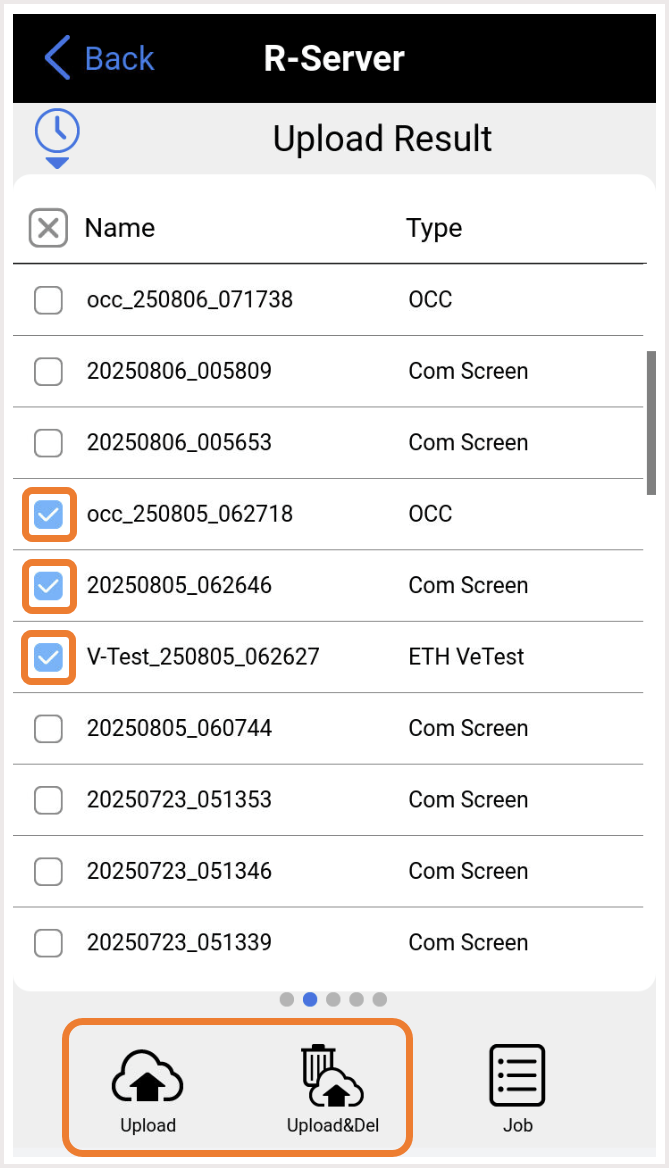
Select the Upload tab, then select the desired files to upload.
-
Tap Upload or Upload&Del.
-
Upload: Transfers the selected result file(s) and keeps the file(s) in the test set.
-
Upload&Del: Deletes the file(s) from the test set after uploading them.
-
Upload Results to R-Server from Files App
-
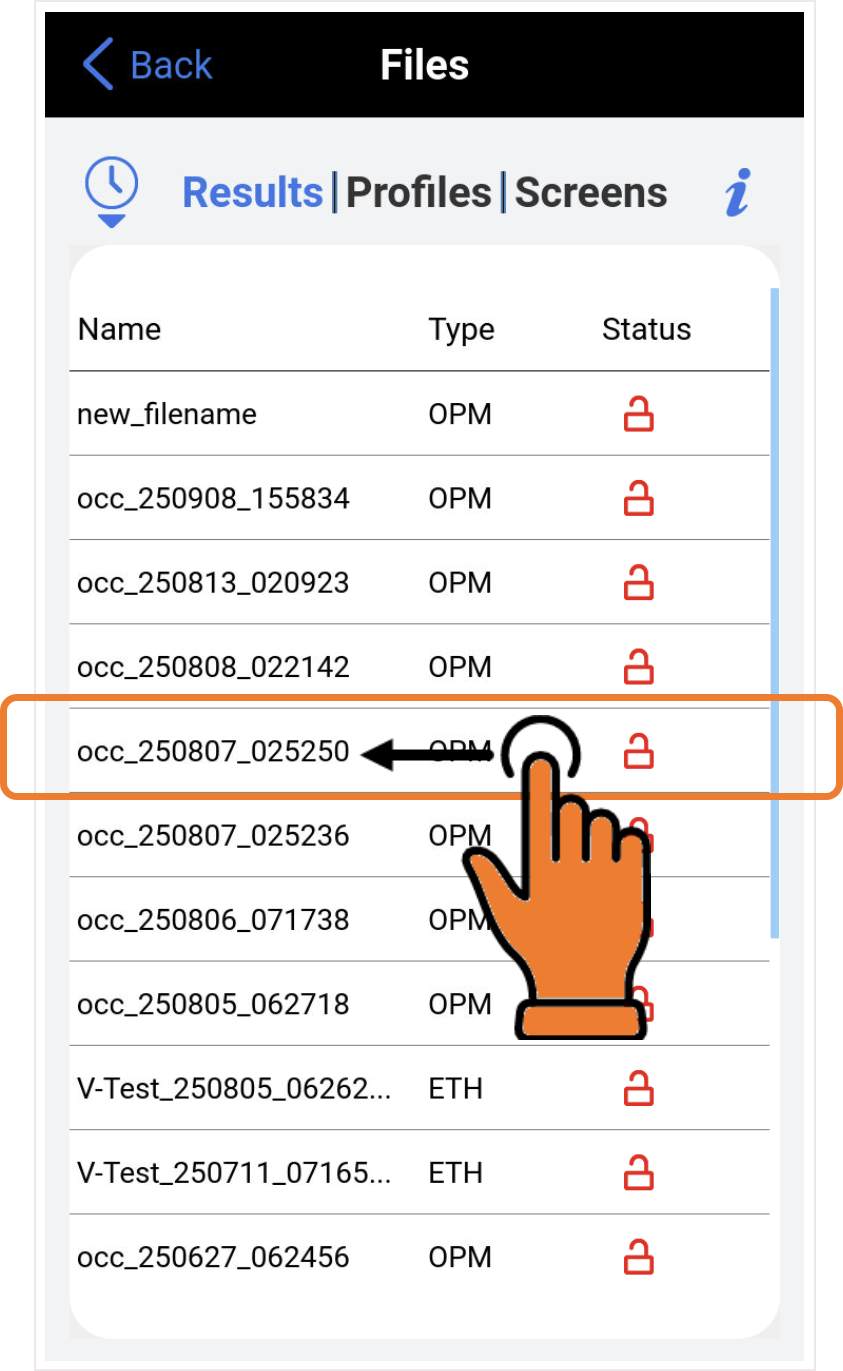
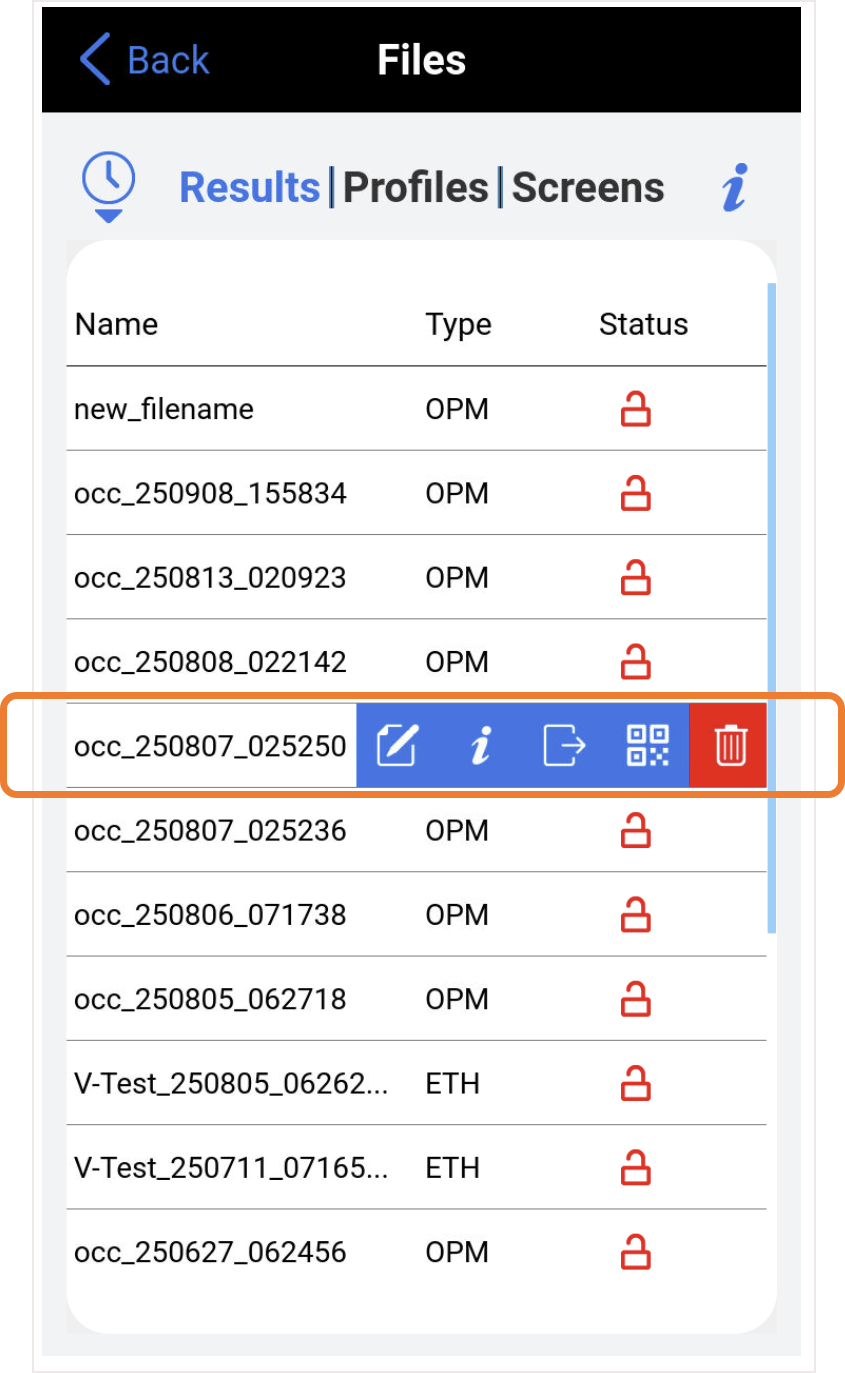
Left swipe on the result, then select the
 Transfer Files icon.
 -
Select Save to R-Server
 .
.
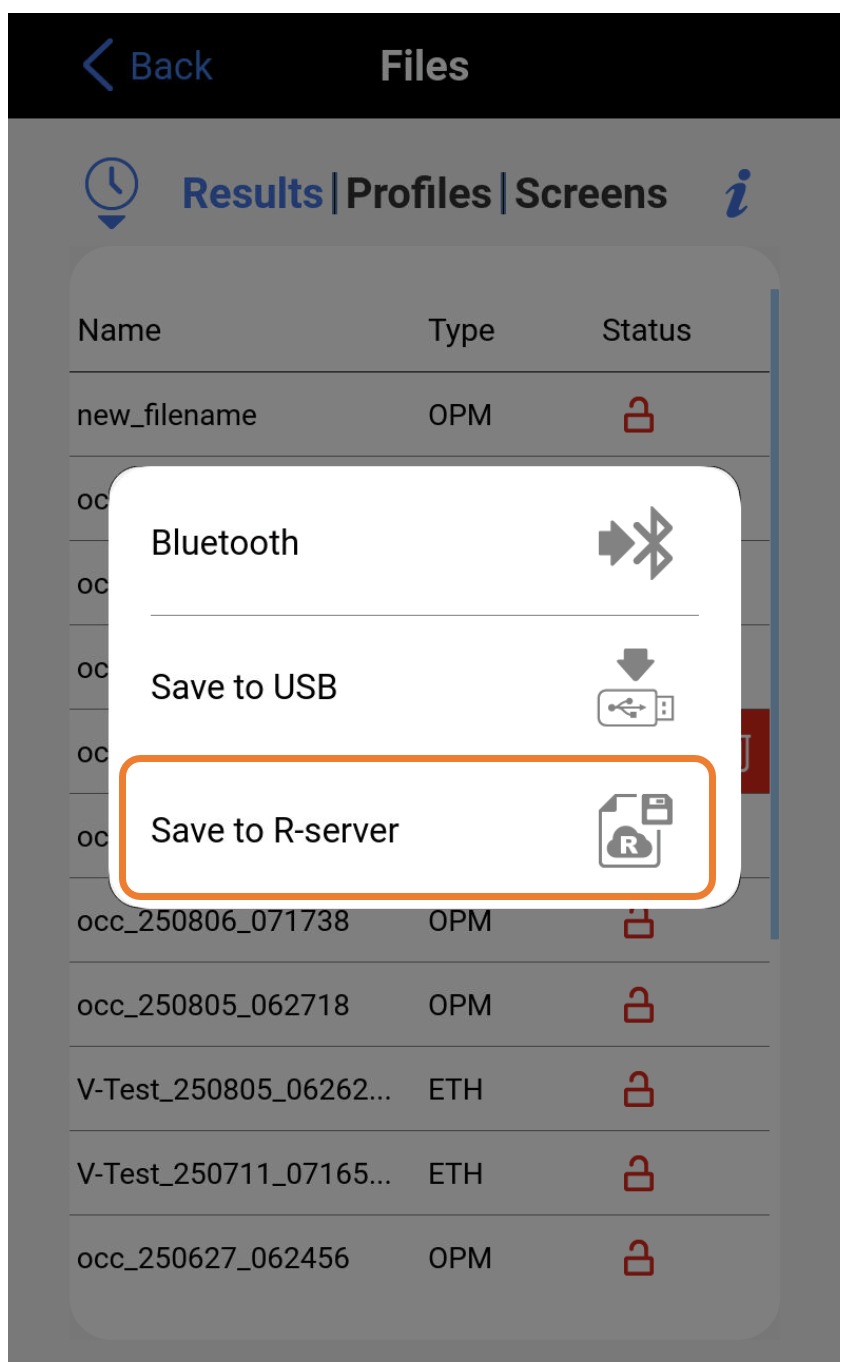
Upon successful upload, a confirmation message is displayed on the test set.
Download Profiles from R-Server
Select the Download tab to download all new changes. If there are files that need to be downloaded, NEW will appear next to the file.
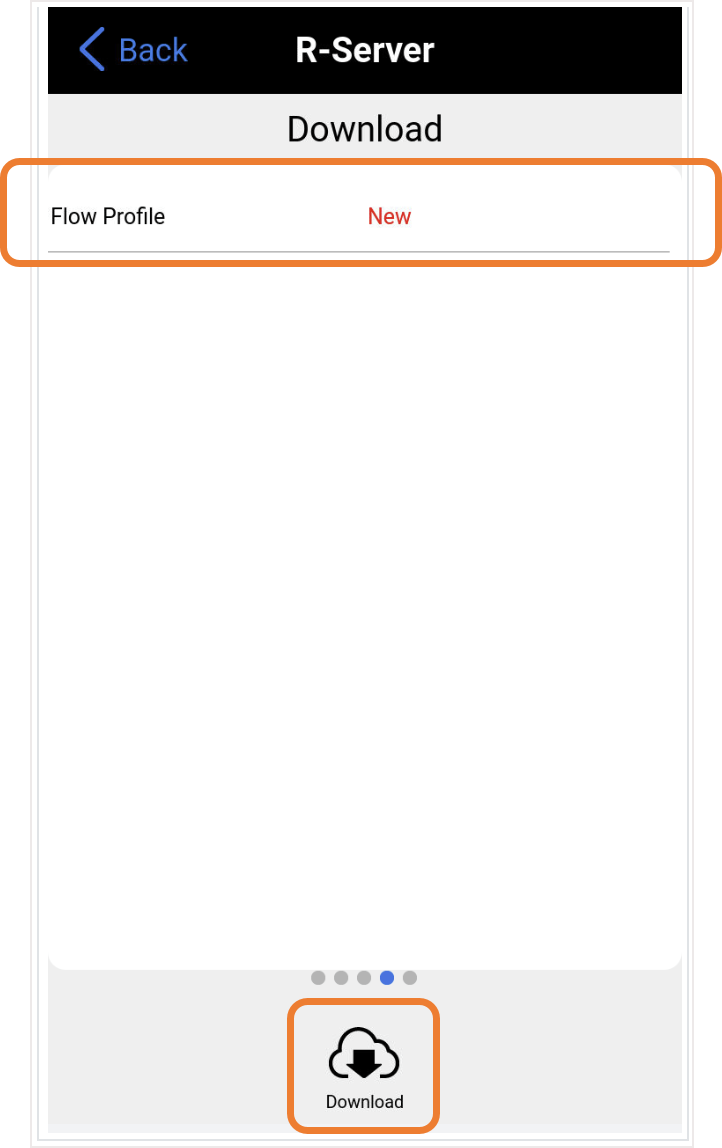
Upon successful download, a confirmation message is displayed on the test set. Press OK to restart the unit.
Download Software from R-Server
Swipe left until the Software screen is displayed. If there is a new software version, select the  Upgrade button. The new version of the software will download to the test set from R-Server and begin the update process. After the update process finishes, the test set reboots automatically.
See Software Update Process for alternate methods of updating test set software.