File Manager - Results, Profiles & Screenshots

Swipe down from the top of the screen to reveal the System, Settings & Tools menu, then tap on the Files button to access and manage stored test results, test profiles (configurations) and screenshots (screen capture image files). A list of stored files is displayed.
Tap Results | Profiles | Screens, at the top of the page, to select the type of files to be displayed. The current type is highlighted in blue. Use the  and
and  to sort the files in descending or ascending order, based on file name or timestamp. The
  provides information about the amount of internal storage being used and the number of files currently stored.
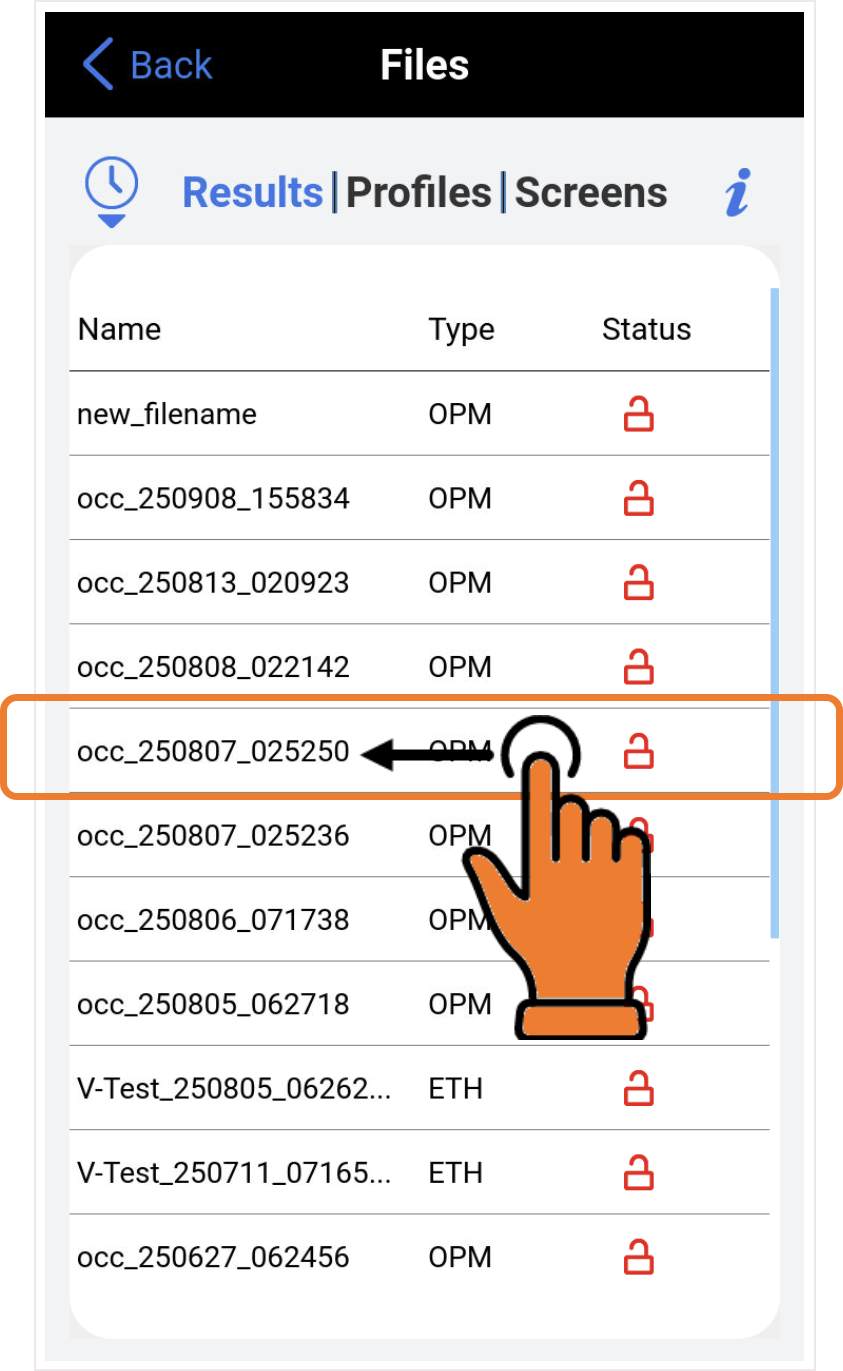
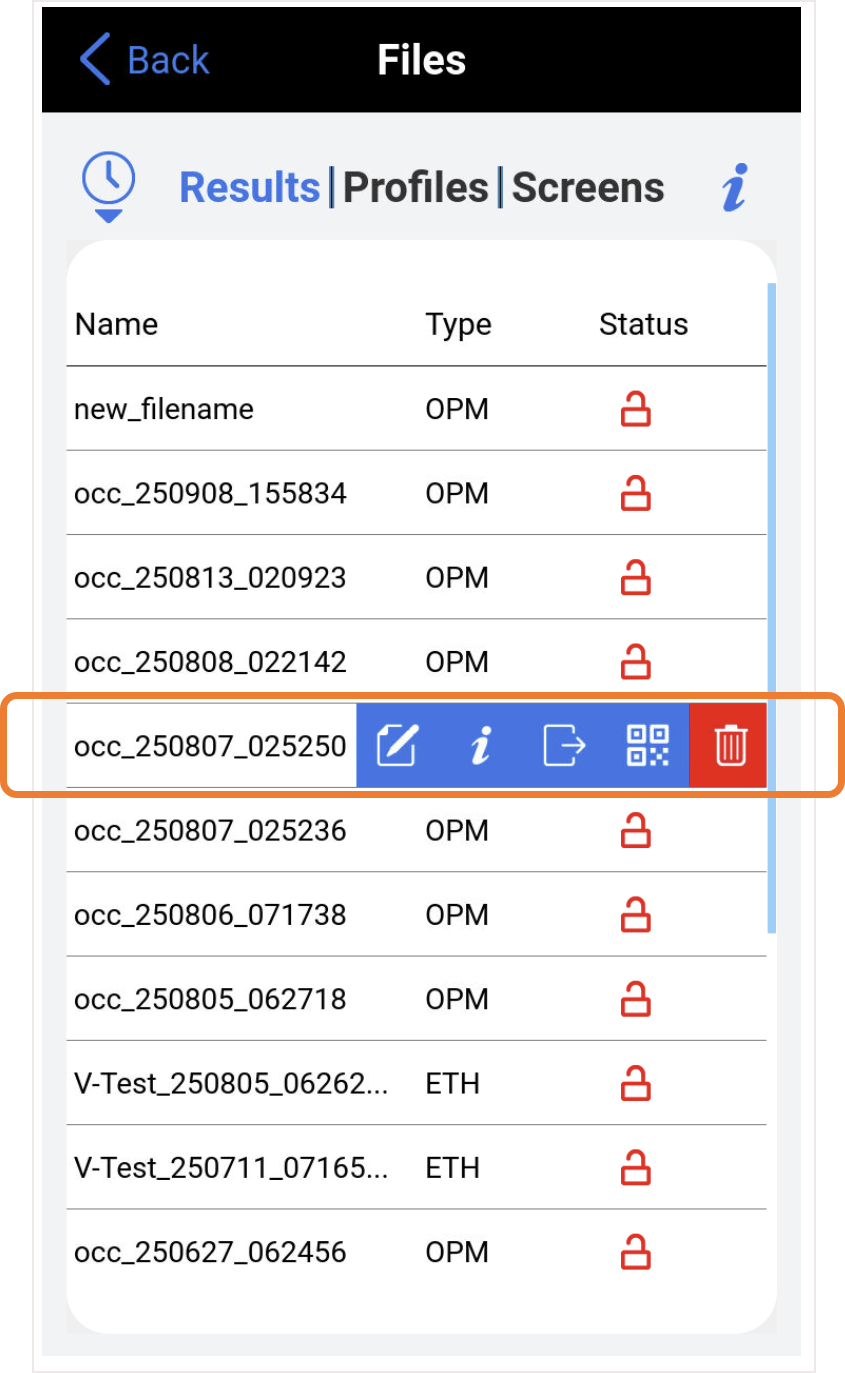
To manage individual files, select the desired file and swipe half-way to the left, to open the individual file Edit menu.
Individual File Functions
 Rename - Renames file.
 File Information - Shows basic test results details and Lock/Unlock function. Locked files can't be deleted.
 Transfer File - Shares file to a
  Bluetooth device (paired), attached
  USB memory stick (backup), or to registered
  R-Server.
 Generate QR Code - Transfers test results to mobile device with NoApp® cloud services. (QR generation must be enabled in Global Settings.)
Use NoApp®
to transfer test result data, generate, upload and share test reports, via QR Code and NFC.
 Delete individual file - Deletes file. Files can be
  locked to prevent accidental deletion. To lock a file, swipe right on the file, select and turn on the lock feature for the file.
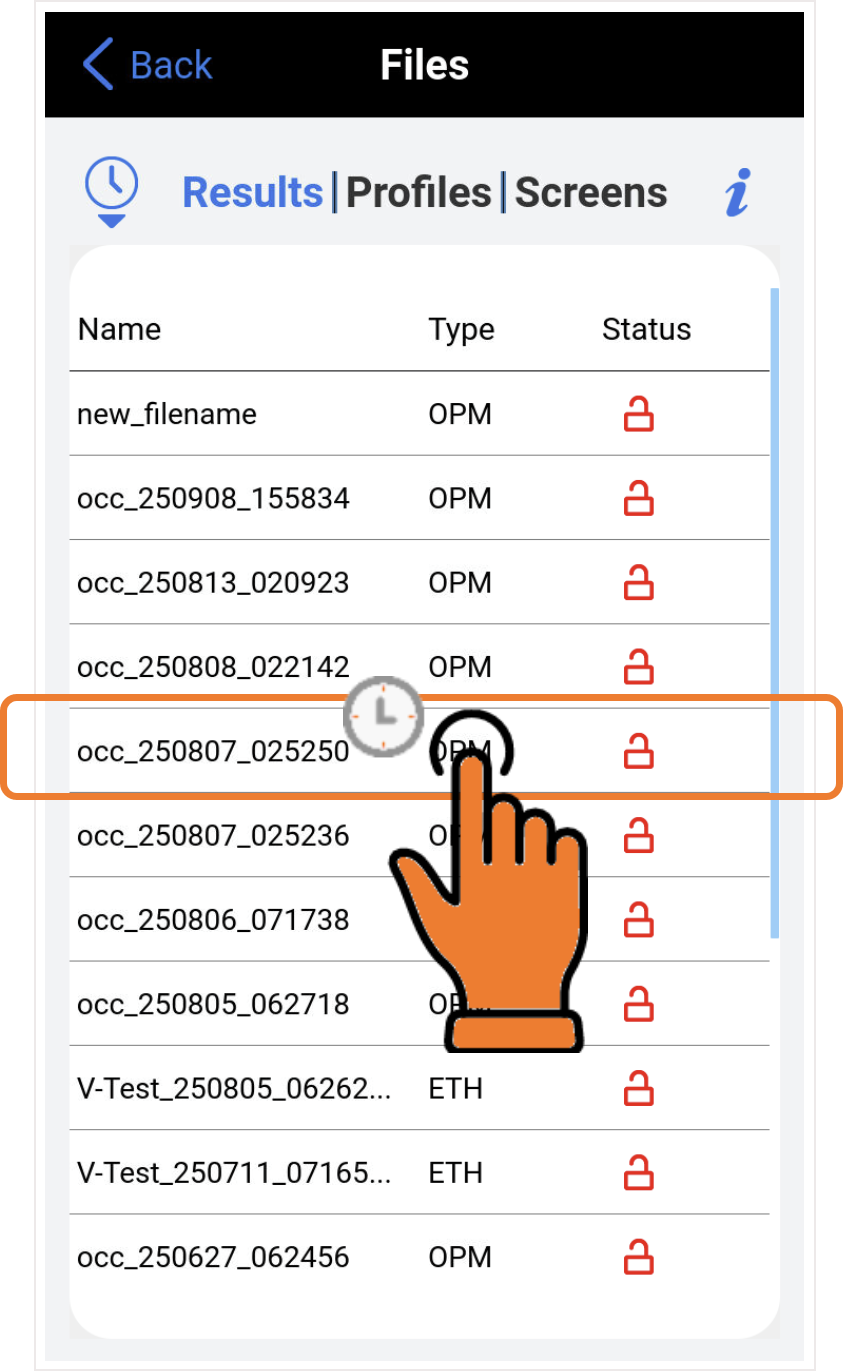
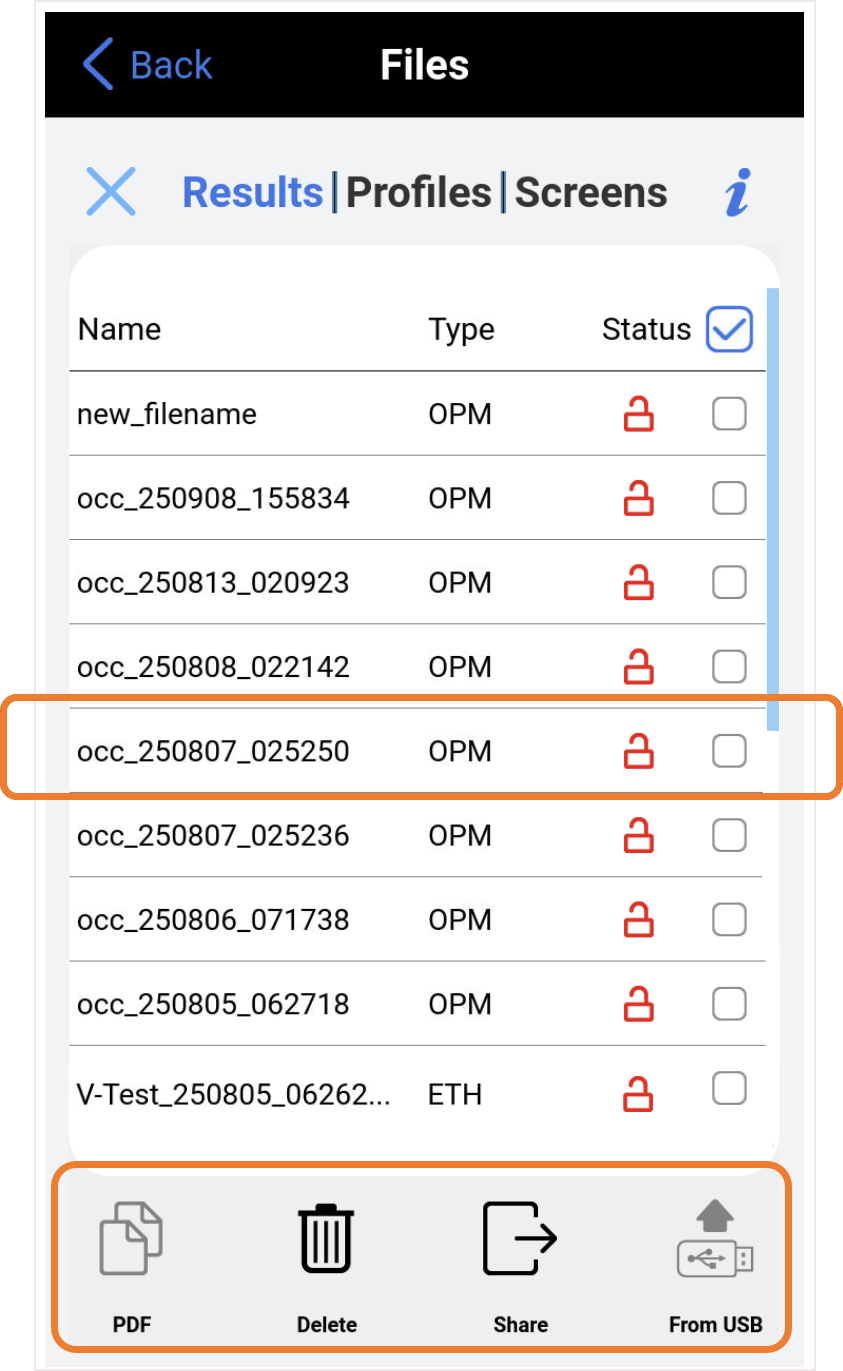
Touch and hold one of the files to access the multi-file functions, select the files to apply, then select an option at the bottom. Tap  Close when finished. There must be at least one file stored in the test set for this to work.
Multi-File Functions
 PDF - Generates a PDF copy of the file and stores it in an attached USB memory stick (required).
 Delete - Deletes all unlocked test reports that are selected with checkmarks.
 Share - Shares selected files to a paired Bluetooth device, attached USB memory stick, or a registered R-Server (Cloud Services).
 From USB - Restores (loads) previously exported test results, profiles and screenshots from an attached USB memory stick.