ONT Emulation

The PON ONT Emulation test application works with the GPON/ XG(S)-PON/10G EPON ONT Emulation SFP+ transceiver, which is an optional add-on feature to the test set. It emulates the behavior of an actual ONT without needing on-site customer equipment. Use the test application with VeEX provided ONT SFP+ transceivers (sold separately).
PON ONT Emulation enables verification of OLT provisioning, power levels, PON ID, and service readiness prior to customer service requests. By emulating ONT functions such as authentication and response to network commands, technicians can confirm connectivity, run speed tests, and streamline activation workflows, making the tools ideal for both deployment and training environments.
-
Connect the SFP+ transceiver to the test set.
-
Swipe-down from the top to reveal the Test Application menu and select
PON ONT Emulation.
If the serial number is registered to the OLT, it will begin the initialization process to connect and acquire an IP. The PON mode, vendor, and serial number will be displayed in the top status bar.
To enter a new vendor and serial number (registered to the OLT), tap the field to enter the information. After changing the original vendor and/or serial number, the ONT SFP+ transceiver will reload automatically. If the new ONT information is registered to the OLT, the application status bar will show the registered status.
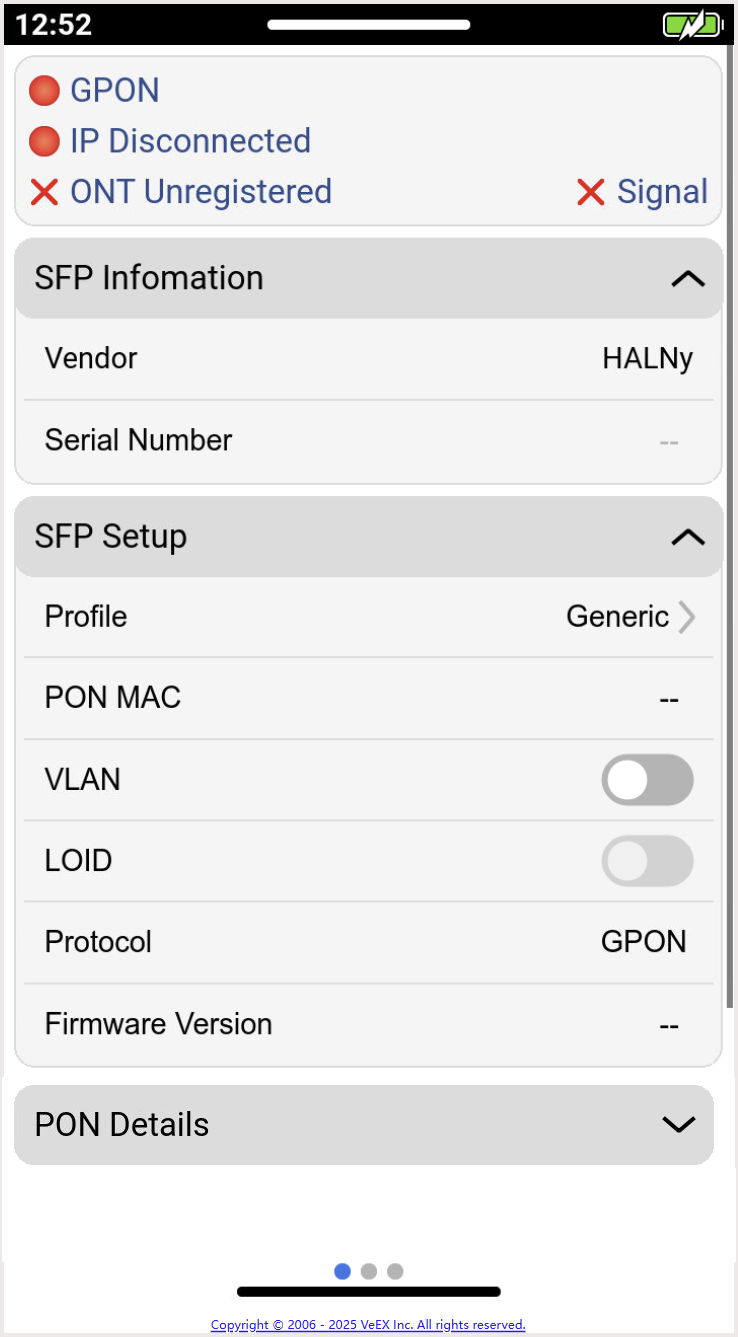
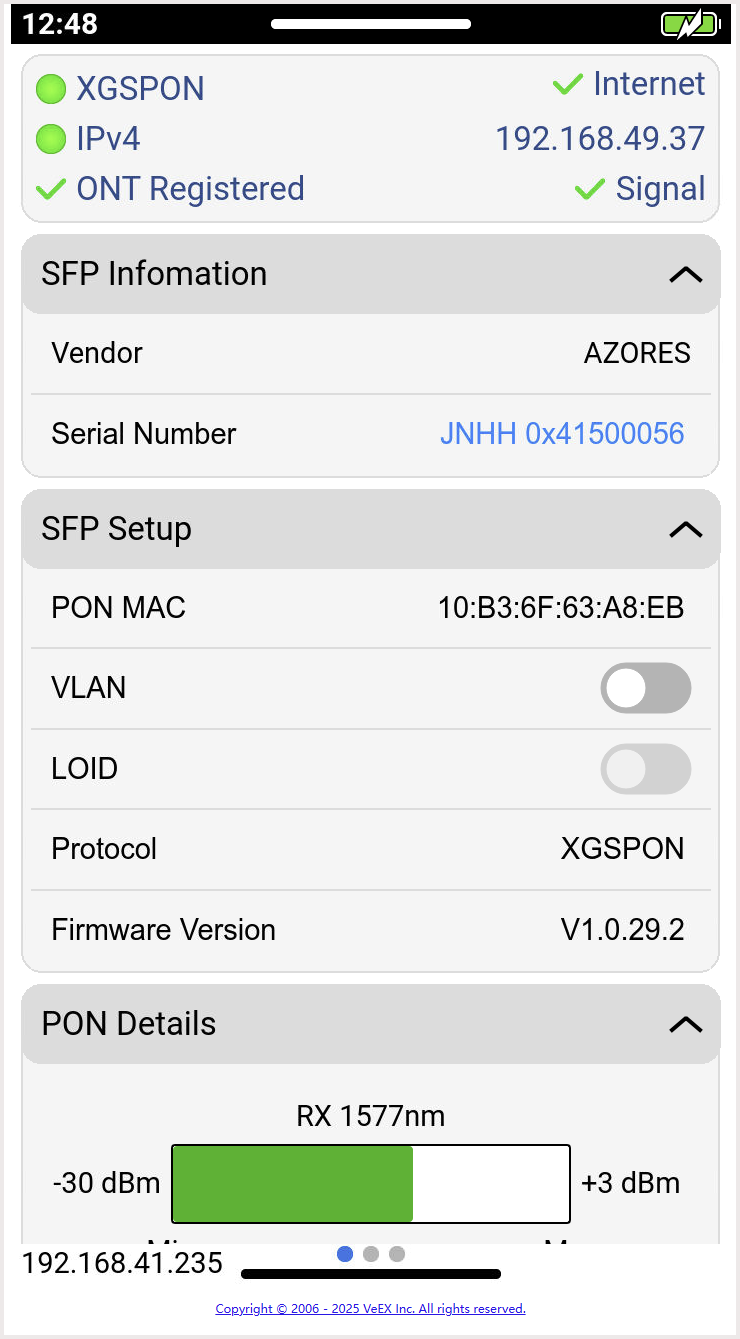
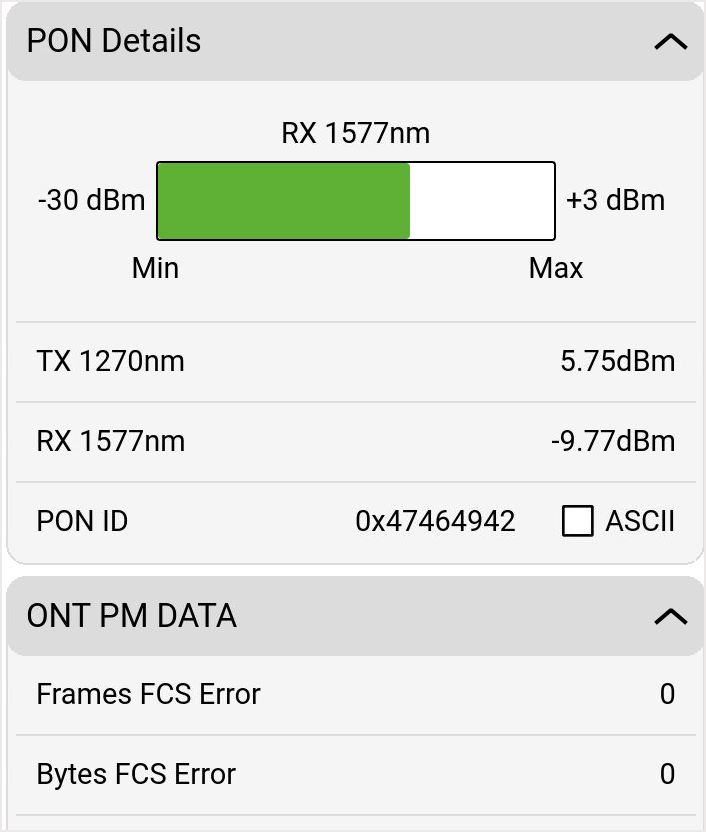
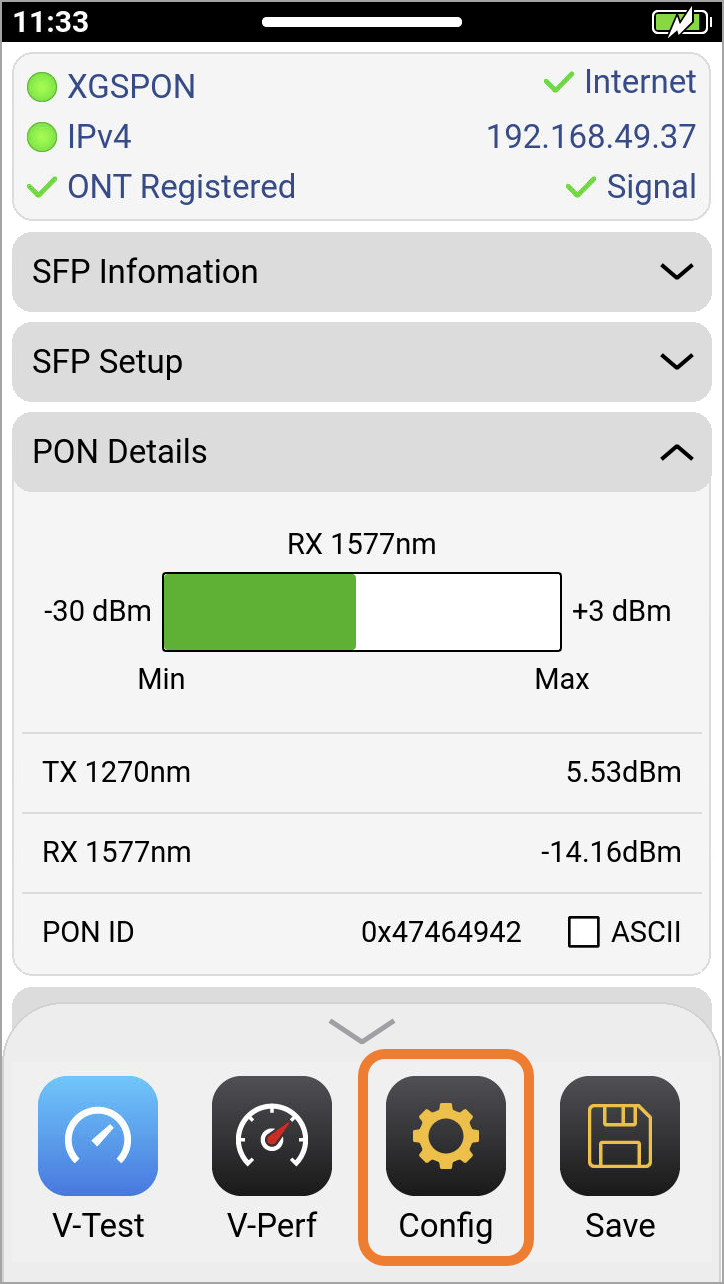
Once connected, the PON Details show the power levels transmitting to and from the OLT.
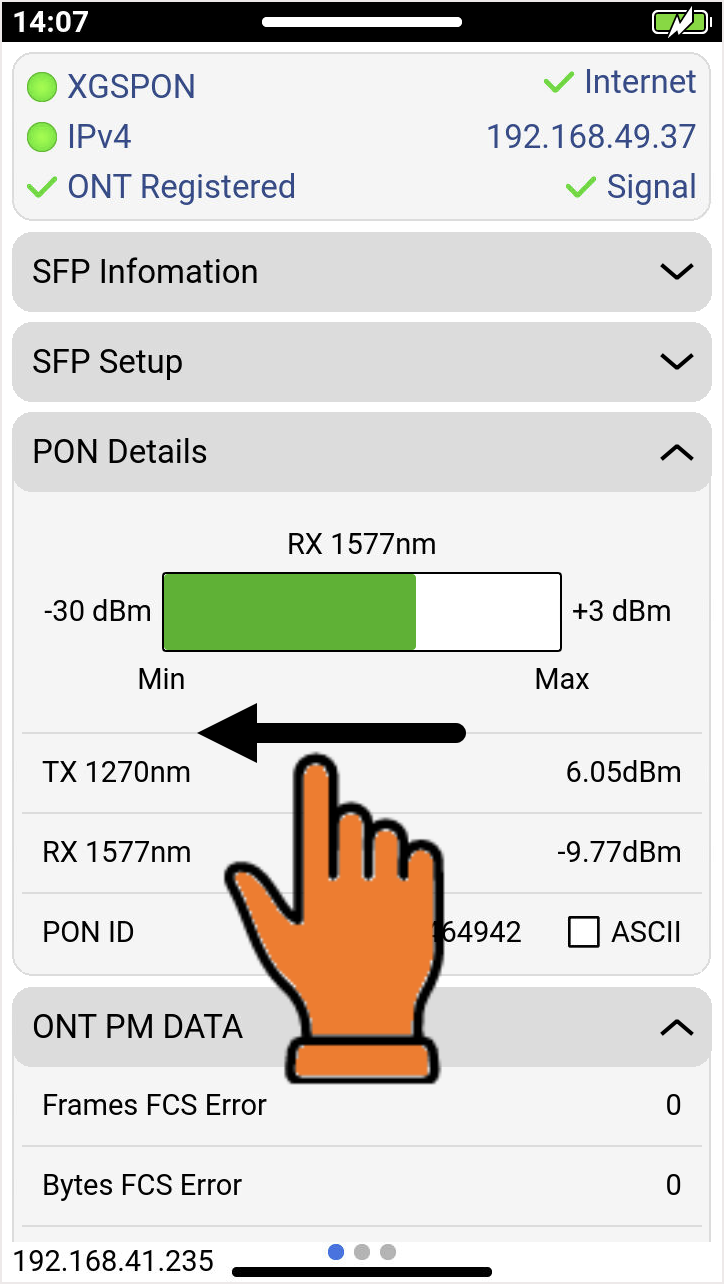
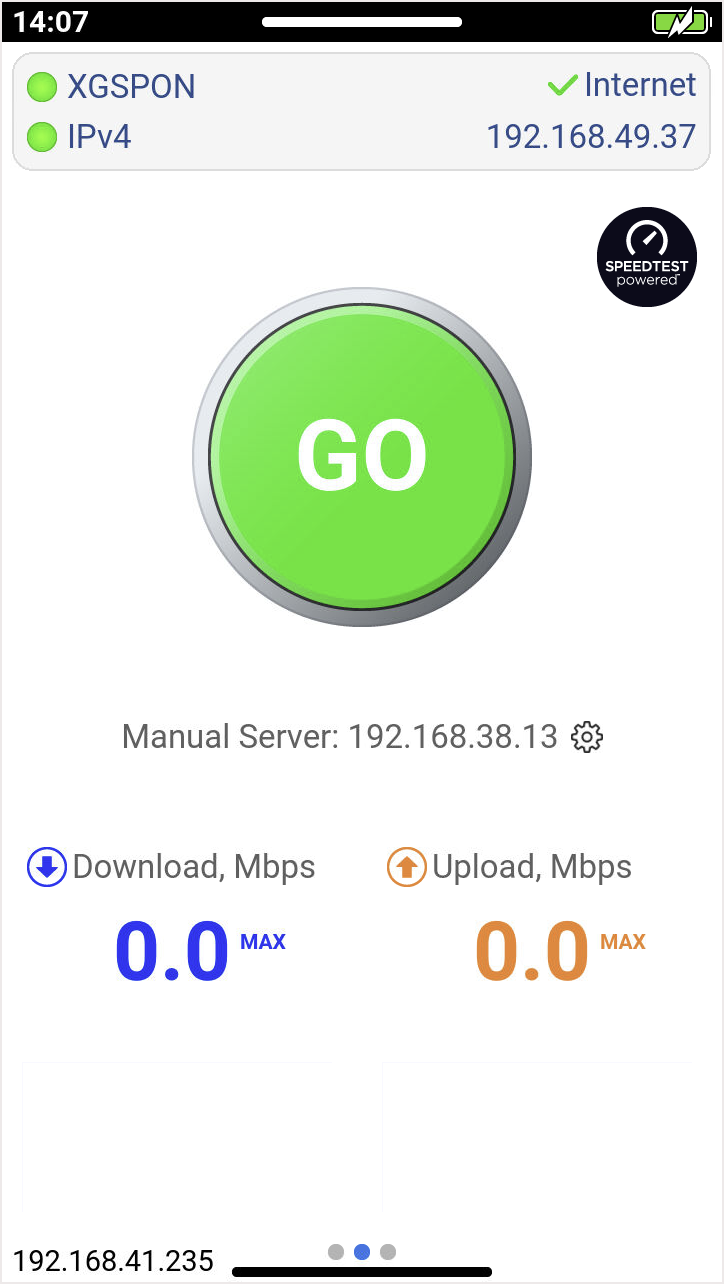
Once registration is established and transmission levels are acceptable, swipe left to begin speed tests.
Changing Emulation Mode
To set the emulation mode, swipe up to show the ONT Emulation menu and select  Config. Tap ONT Emulation and select the mode.
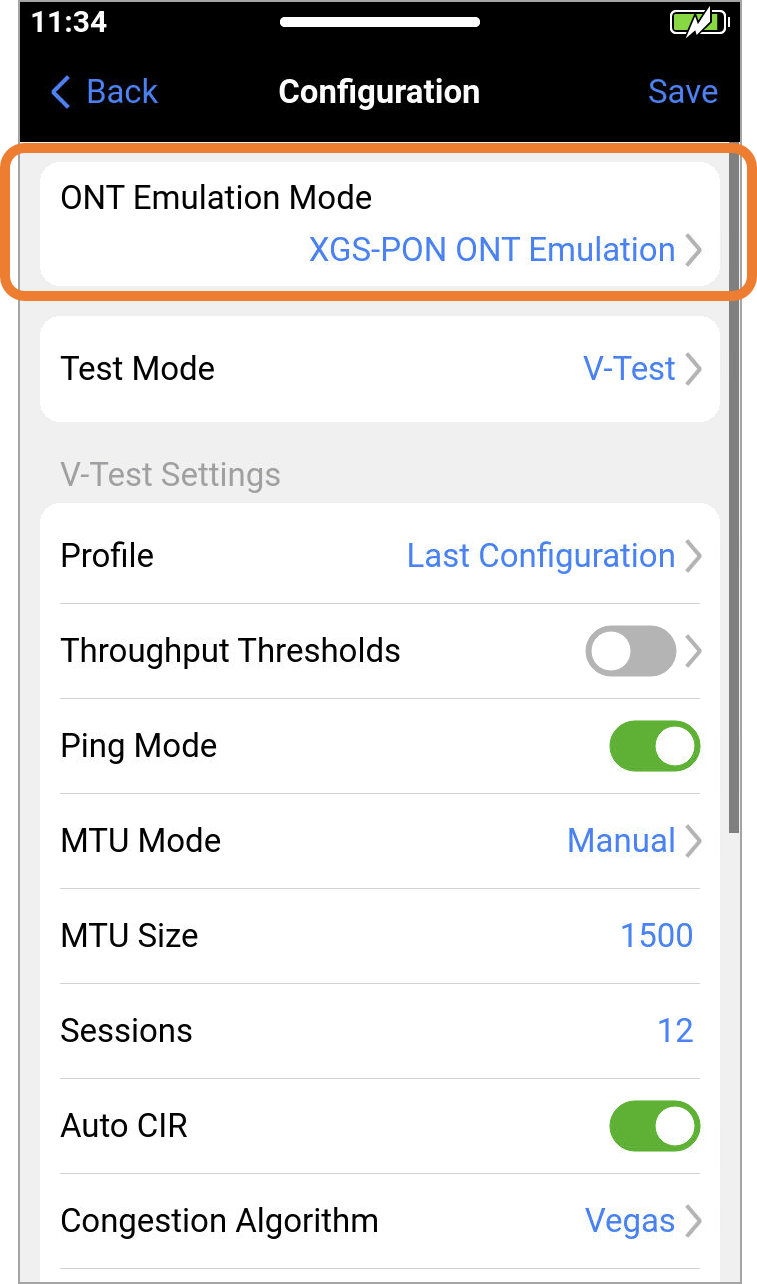
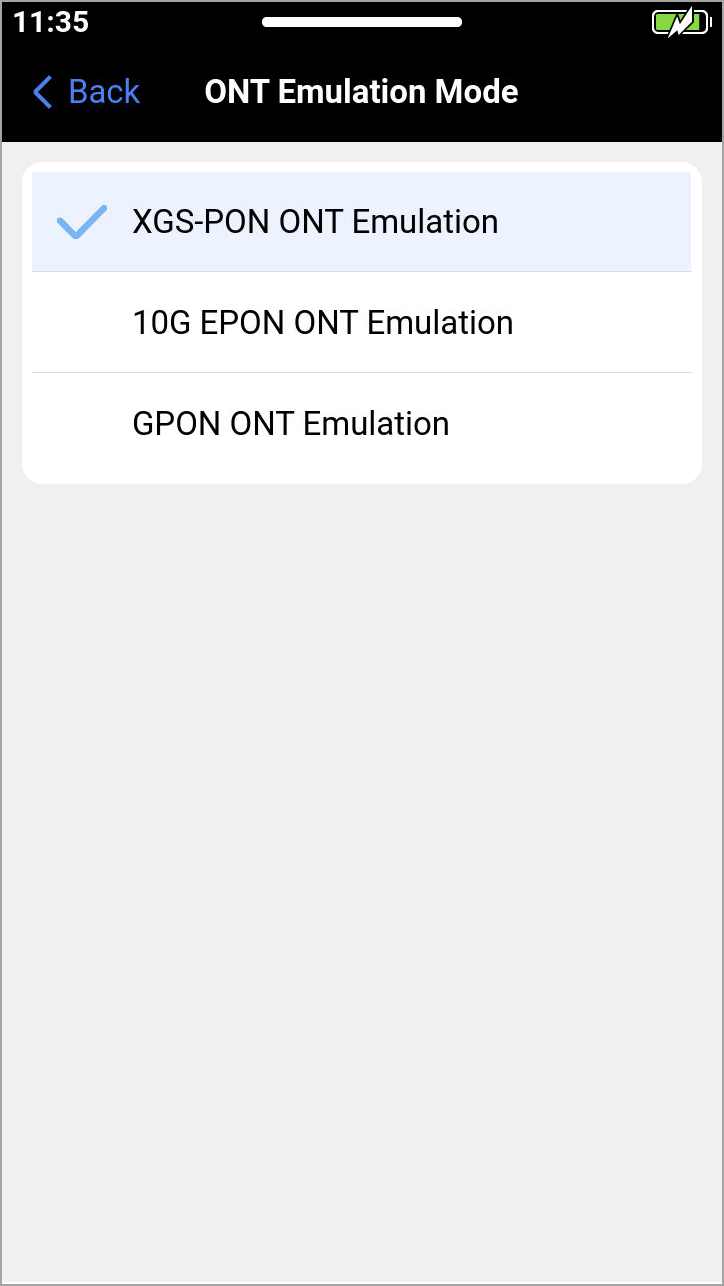
After switching emulation modes, the ONT SFP+ transceiver will reload automatically.
Setting Default Speed Test
To select the active speed test for emulation mode, swipe up to show the ONT Emulation menu and select V-TEST or V-PERF. This sets the default so the test screen appears when swiping left on the ONT Emulation screen.
To configure the settings for the speed test, select Config. The Configuration screen shows the settings for the default speed test selected.
Refer to Speed Test Configuration and iPerf Configuration for details on settings.