V-TEST Internet Access Speed Test
The V-TEST feature qualifies network TCP/HTTP protocol performance by testing against a V-TEST HTTP server. It tests Internet speeds up to full line rate, using Ookla's Speedtest.net, Netflix's Fast.com or Ubiquiti's WiFiman.com servers to verify the maximum download and upload data rates attainable by subscribers' high-speed or Multi-Gigabit Internet access services.
Perform Internet Access Speed Test
-
Connect to Wi-Fior 10/100/1000BASE-T test interface. Refer to Wi-Fi Test Application and Ethernet Settings/Connection.
-
Swipe-up from the bottom to reveal the Test Application menu.
-
Tap the
 Config button (or the Speedtest
  icon) to setup the test parameters. Refer to Speed Test Configuration.
 -
Press GO to initiate testing. The download test starts next, followed by the upload test. If Ping mode is enabled, the test set first performs a Ping test. Ping Response results will appear in the detailed results.
-
After running a test, tap the
 Save Results button to store the current test results. Users can overwrite the default File Name with a custom name, as well as add extra information such as Job ID, Node ID (Location or Site), subscriber's Account. Tap OK to save. Refer to File Manager - Results, Profiles & Screenshots.
Speedtest®
In Speedtest Powered™ mode, the test follows Ookla’s methodology and tests to the Speedtest Server Network™. In this mode, the test is compatible with Ookla’s protocol/methodology; it scans nearby servers in the local market and tests against the server with the fastest (lowest latency) response.
-
Works with wired Ethernet and Wi-Fi links.
-
Compatible with public Ookla Netgauge servers.
The Speedtest Powered™ icon will remain visible on the main test page, to remind users of the current/active Test Mode.
The main speed test screen page shows the Link Status and assigned IP Address on the top of the screen. A  or
or  Link Status icon indicates that the active test interface is Wi-Fi. The Speed Test GO (start) button may be shown in gray (not ready) or green (ready).
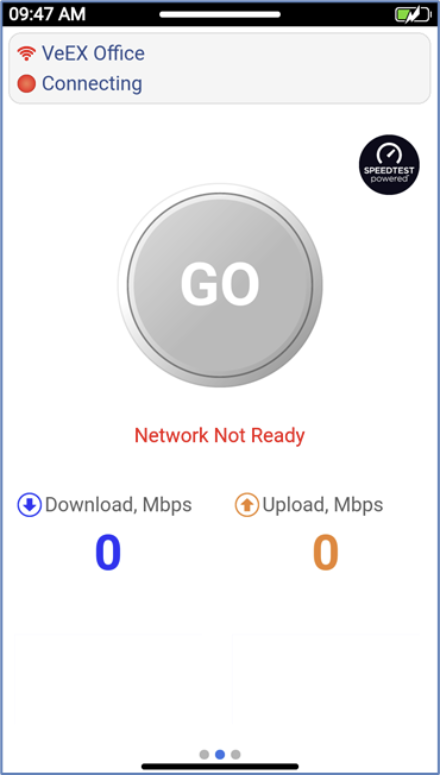
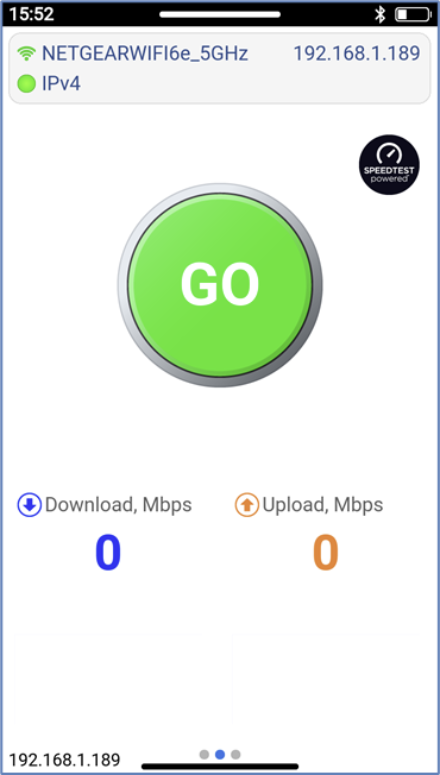
Tap the Connection Status summary box, on the top, to see more detailed information about the current Access Point being used.

Connection status summary box
 If going back and forth between Ethernet and Wi-Fi testing, these two test interfaces will have different IP addresses..
Speed Test Configuration
On the Configuration page, make sure the Test mode is set to Ookla® Speedtest® mode. The Server Selection is set to Auto by default, which uses Ookla's closest server selection algorithm. However, users can set it to Manual and select a specific target Host (server) to test against.
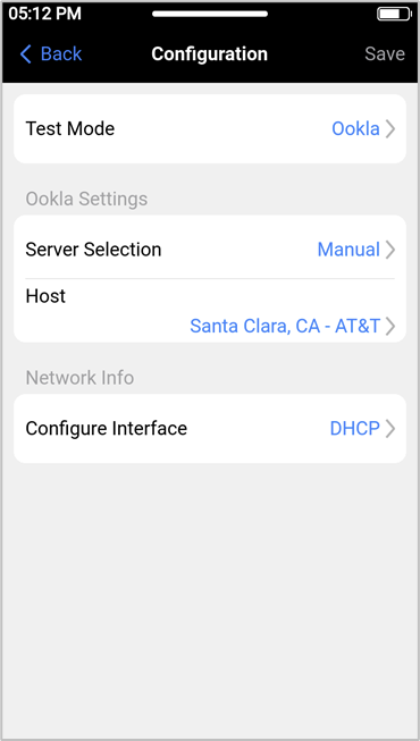
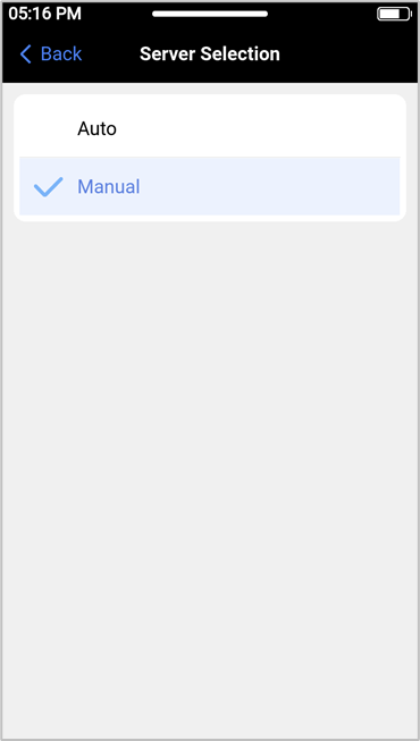
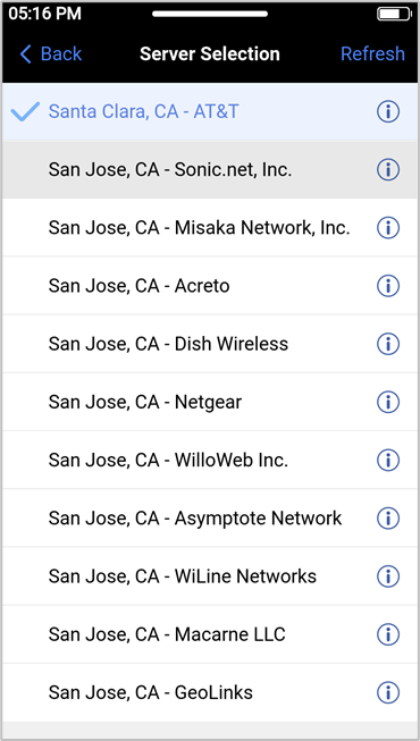
Refer to Speed Test Server and Test Selection Modes for information on other Test Modes.
Use the Configure Interface field to set the test interface's IP Address behavior, DHCP (dynamic) or Static.
Tap < Back (or swipe right) to go back to the main Speed Test page. Make sure to establish the appropriate connections, the Ethernet (LAN) or Wi-Fi (WLAN) link is active and the GO button is green. Press GO to start the test.
Speed Test Results
After pressing the GO button, the test set starts by measuring the attainable throughput speeds for the Upload (upstream) and then the Download (downstream). Each of the tests (upload and download) may take up to 15 seconds. The test duration is determined automatically and may vary depending on the server location, bandwidth, latency, etc.
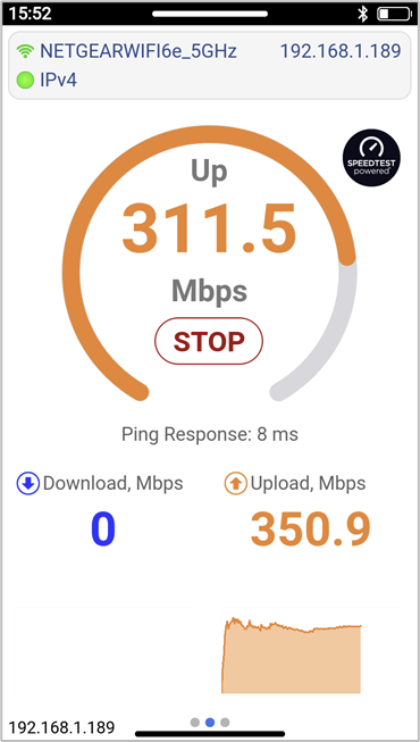
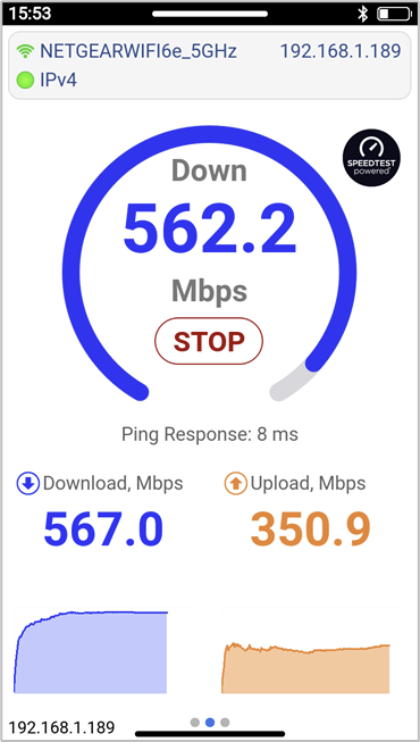
When the test has finished, it displays DONE.
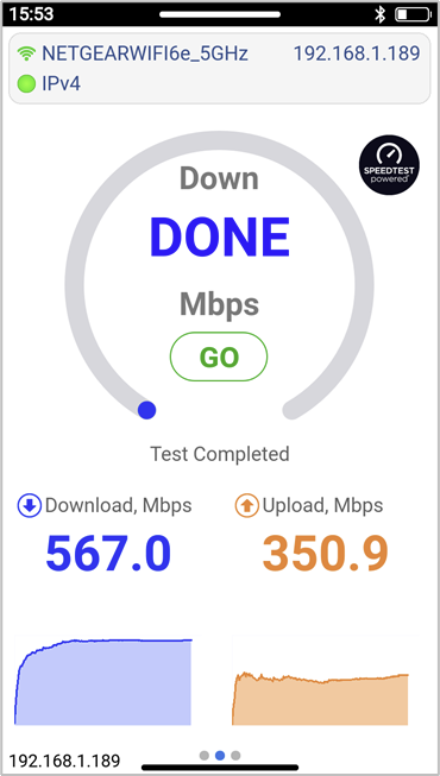
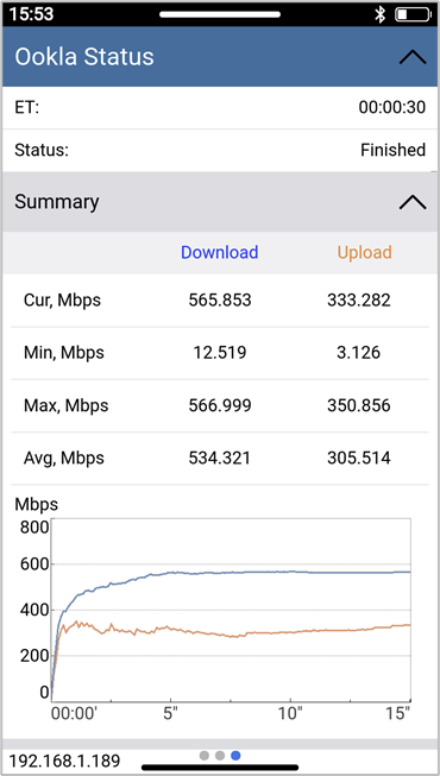
Swipe left to see the detailed Test Report. Scroll up and down to go through all the details. The different sections of the report can be collapsed or expanded, to better focus on the key performance indicators (KPI) and information preferred by the user.
Swipe up and tap the Save button to store the current test results or swipe right to run a new test.
Speed Test Server and Test Selection Modes
-
Ookla® Speedtest®
Server Selection
Auto Mode: This is the default and recommended mode, and it is also known as Speedtest Powered™ mode. It automatically selects the best speedtest.net server from lists maintained by Ookla®. It will scan nearby servers in the local market and test to the server with the fastest (lowest latency) response.
Manual Mode: Manually select a specific Server ID from a list of public Ookla® servers. A list of all nearby servers is displayed automatically. The corresponding server ID and server information (URL/IP, location, and ISP) are also provided.
-
VeEX Managed – Perform internet speed tests by manually selecting servers from lists created and maintained by VeEX. These non-public lists are created for specific customers. The Refresh button is used to update the servers' list. Internet access is required to receive the server lists maintained by VeEX.
-
Manual – Advanced users, with detailed knowledge of their Speed Test servers, can manually add their own servers, test files and maintain their own server lists. Enter the IP/URL of the server to test. If TCP port number 8080 is used, there is no need to enter a Path and File name. Port 8080 is used by Ookla® netgauge servers, therefore the proper Speedtest® handshaking will take place between the test set (client) and Speedtest® server. If TCP port number 80 is used, the correct Path and Filename need to be entered.
-
User Managed – Once servers are created in Manual mode, they can be added to a user managed server list that can be maintained independently. Servers can be added, modified, deleted under
ISP & Sponsored Server Selection Modes
V-TEST or Speedtest® verify/certify the Internet Access data rates, which are the rates advertised by the Internet (access) Service Provider (ISP), from the customer's premises to the point of entry to the Internet. For that reason, the selection of the centralized speed test server is very important.
Before starting the Download and Upload throughput tests, the test set pings nearby servers, then it generally selects the one that has the fastest ping response. However, the nearby Ookla® servers would be a combination of ISP-owned or sponsored servers, and some other servers that are hosted by independent companies, which may reside outside of the footprint of the ISP providing the service. Testing to a server that is not owned/sponsored by the ISP may not guarantee reliable test results, since the server has not been vetted by the ISP providing the service.
Turning the ISP/Sponsor Match setting ON, instructs the test set to prioritize the server search for servers that are sponsored by the ISP and select one of these servers for testing. If no ISP-sponsored servers are found, then the test set would carry out its normal search for the fastest ping-response server.
More Information
Refer to the following video for a Quick Guide on how to use the PX90/PX92/MTX90/WX90 to test Internet access speeds with Ookla® Speedtest® servers.