Port and Module Configuration
OCM IP and Network Settings
Connect Laptop or PC to RFTS-400
 Make sure to set your laptop or PC network interface IPv4 address to 192.168.100.1/255.255.254.0 for proper configuration. Make sure to set your laptop or PC network interface IPv4 address to 192.168.100.1/255.255.254.0 for proper configuration. |
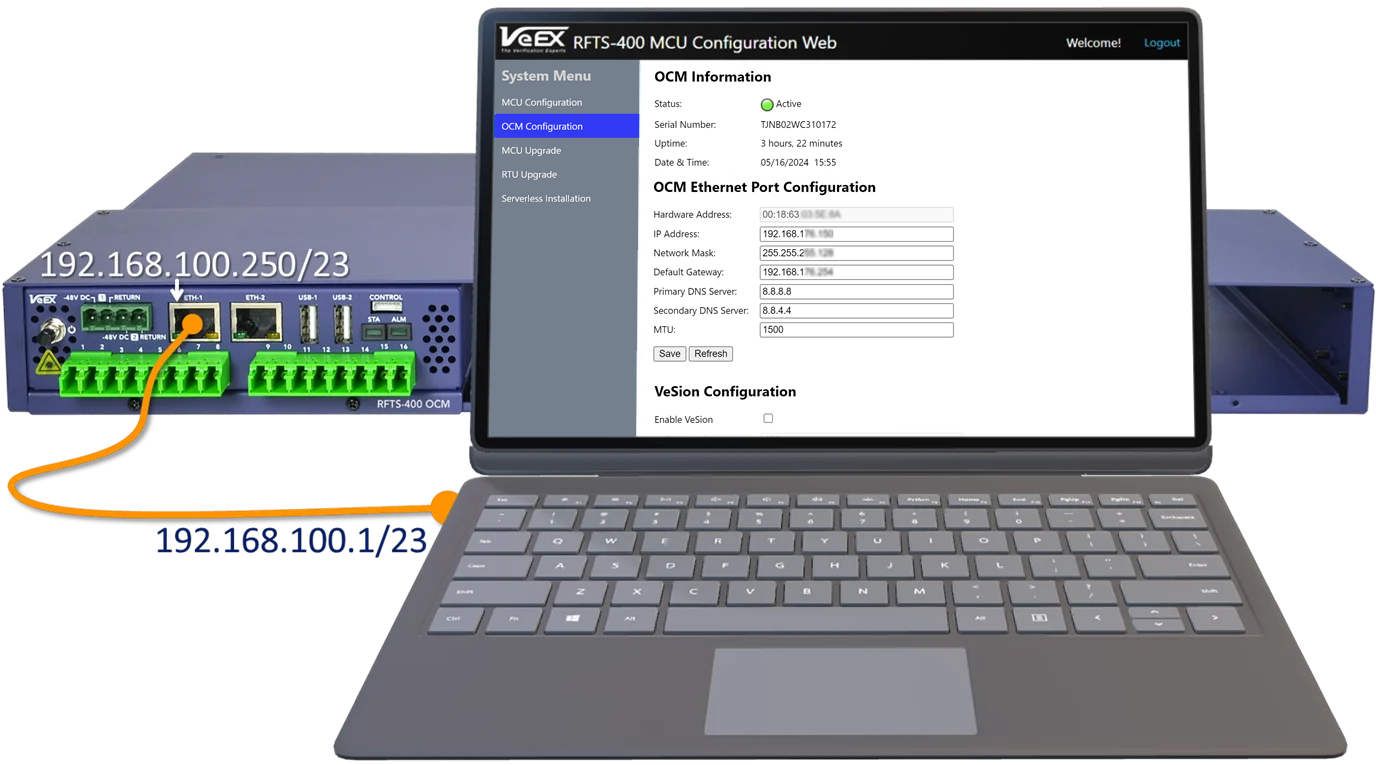
Connect a laptop or PC to the RFTS-400 OCM Eth-1 port.
Use Management Controller Unit Interface to configure the IP and Network Settings
-
Log In to the RFTS-400 MCU (Management Controller Unit).
Open a web browser and type in the IP address 192.168.100.250 in the address bar. Then, on the login screen enter your username and password, and select Login. If needed, find the default login credentials on the sticker located on the back of the OCM module. -
Modify the default RFTS-400 OCM IP Configuration and adjust the OCM Eth-2 network settings.
In the OCM Configuration section, customize the IPv4 Address, Netmask, Default Gateway, and DNS servers to align with your network setup. If the RFTS-400 OCM is connected via VPN or cellular network, set a smaller MTU value.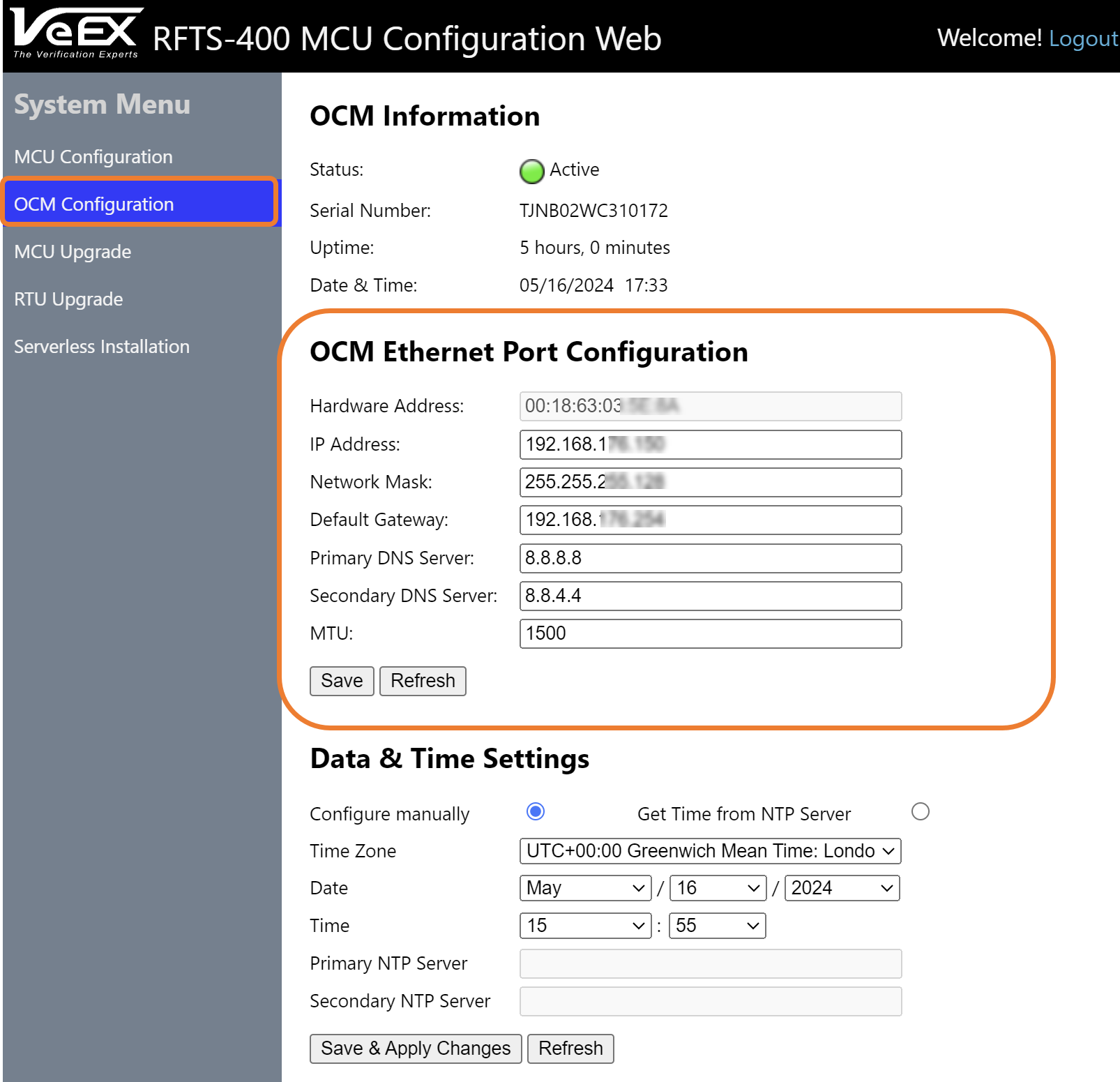
-
Click Save & Apply Changes.
 Access the OCM web interface by entering the updated IP address in a web browser. The default login credentials can be found on the sticker located on the back of the OCM.
Resetting the RFTS-400 MCU to Factory Defaults
Follow these steps to reset the MCU to Factory default settings:
-
Power the OCM OFF.
-
Press and hold the Reset button (located on the back of the OCM), and the OCM Power button simultaneously until a beep sound is heard. This procedure will reset the MCU's IP settings, Username and Password to Factory default settings.
This procedure will not affect any data or settings on the RFTS-400 OCM.