Ethernet Settings/Connection
Swipe down from the top, to open the System & Tools menu, then tap on the Ethernet button to select the RJ45 LAN interface for testing and/or connectivity. The RJ45 test interface is capable of testing full-duplex Internet access speeds up to
The test set can be connected to ONTs, modems, routers, and switches to run V-TEST (including Ookla® Speedtest®) or V-PERF to verify the link or network’s speed test performance and confirm that it has been properly installed and provisioned.
-
10/100/1000BASE-T test interface
-
Power over Ethernet (PoE) detection. (Yes/No)
-
Provides local and remote LAN management access to the test set (e.g.
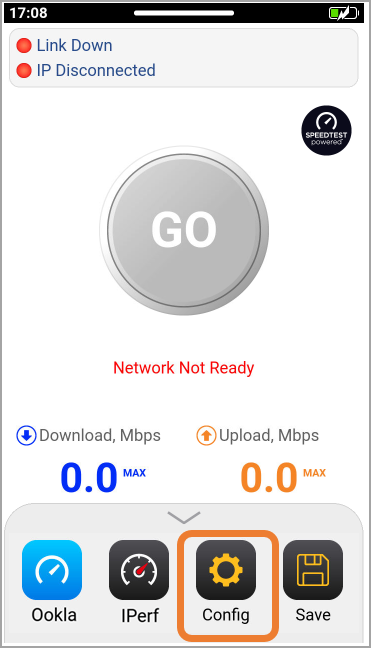
After selecting the Ethernet Test mode, the screen shows the Speed Test GUI. Swipe up from the bottom to reveal the Functions menu and tap the  Config button to setup the
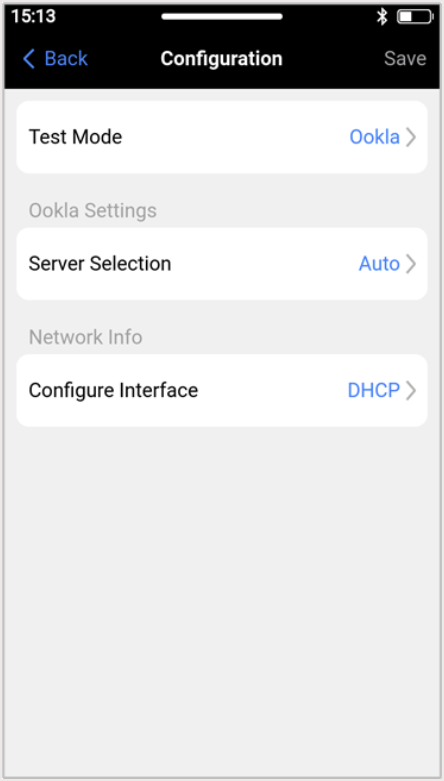
On the Network Information section, tap the Configure Interface parameter (in blue) to select the IP operation mode. Use the Protocol selector to choose the IP version/connection type for the test: IPv4, IPv6, or PPPoE.
-
DHCP for dynamic IP Address, assigned by the modem, gateway, router or the network. The Lease Time field displays the duration for which the assigned IP address remains valid before renewal is required.
-
Static to enter the designated fixed IP Address, Subnet, Gateway and DNS information. The Test Port MAC field displays the MAC address of the RJ45 test port.
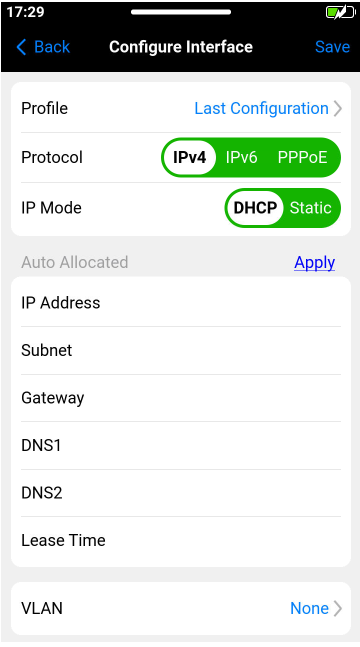
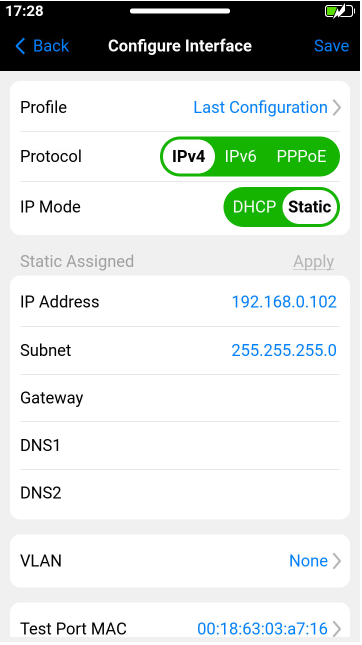
Once configured to match the link under test, connect the test set's RJ45 test port to the service under test and the IP connection will be active (in DHCP mode the appropriate IP addresses assigned to the test set will be displayed in gray). Tap < Back to go to the previous menu and select the Test Mode, between Ookla® Speedtest® or iPerf3.
The main speed test page shows the Link Status and assigned IP Address. A round  or
or  Link Status soft LED indicates that the active test interface is RJ45 10/100/1000BASE-T. The Speed Test GO (start) button may be in gray (not ready) or green (ready).
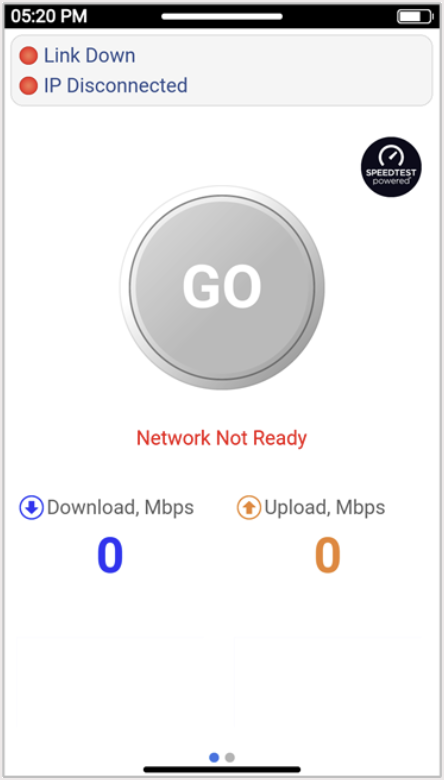
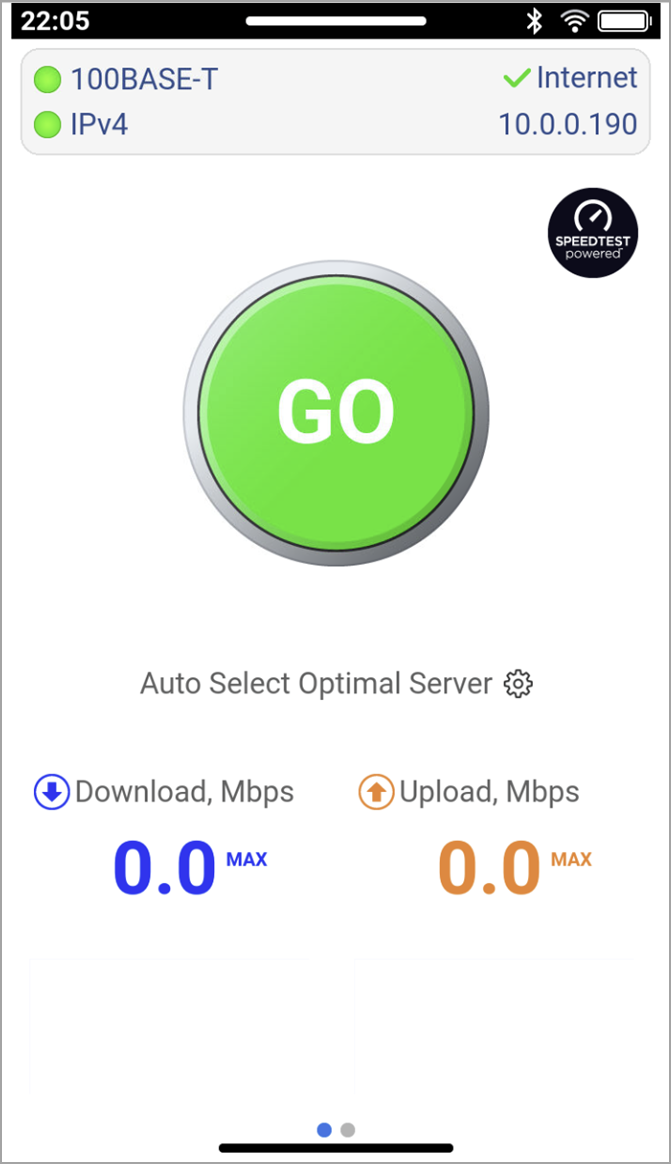
Tap the Connection Status summary box, on the top, to see more detailed information about the current LAN connection and quickly change the test port's IP configuration.

 If going back and forth between Ethernet and Wi-Fi testing, these two test interfaces will have different IP addresses.
Refer to Internet Access Speed Test for more information.