Wi-Fi Test Application
Swipe down from the top to open the System & Tools menu, then tap the Wi-Fi button to select the Wi-Fi WLAN interface for testing. Scan for available networks and view all access points’ (AP) detailed information along with SSID, signal strength, channel allocation, supported Wi-Fi standards, and maximum PHY Rates.
The test set can connect to Access Points with WEP, WPA, WPA2 and WPA3 encryption and run Ookla® Speedtest® or iPerf3 to verify the wireless network’s speed test performance and confirm that the network has been properly installed and provisioned.
-
Scans for Access Points scan and displays signal level and detailed AP information to help identify weak coverage areas.
-
Supports 2.4 GHz, 5 GHz and 6 GHz bands, for 802.11a/b/g/n/ac/ax/be networks.
-
Discovers Clients and Channel information in table format.
-
Supports WPA3, WPA2, WPA1 and WEP encryptions.
AP Scan
After selecting the Wi-Fi Test mode, the AP Scan screen displays a list of detected Wi-Fi Access Points (APs) along with basic information for each network. Use the  funnel to filter the list by SSID, BSSID, 802.11, and/or Channel and Band. Use
  to sort the list by signal strength.
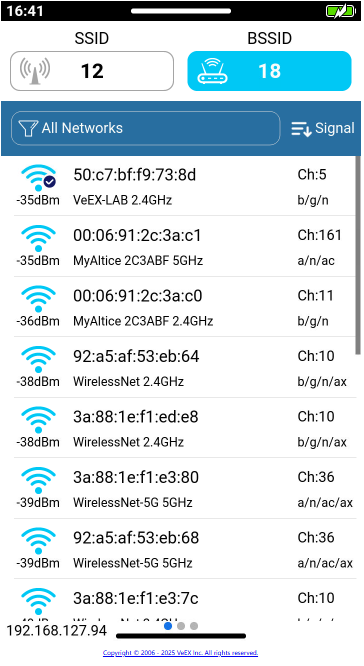
Tap the  SSID (Service Set IDentifier) button to group all access points that broadcast the same network name into a single expandable entry. Expand the SSID by clicking '+' to view all individual access points (BSSIDs) associated with that network. Tap the
  BSSID (Basic Service Set IDentifier) button to display all the individual access points available. Modern Wi-Fi routers often broadcast multiple access points across different frequency bands under the same SSID.
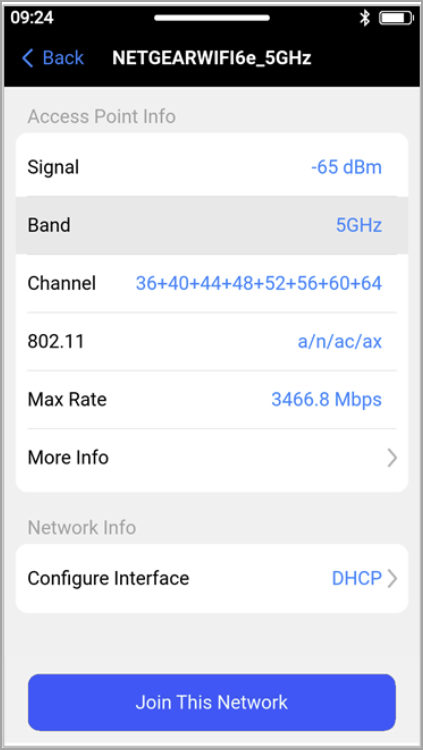
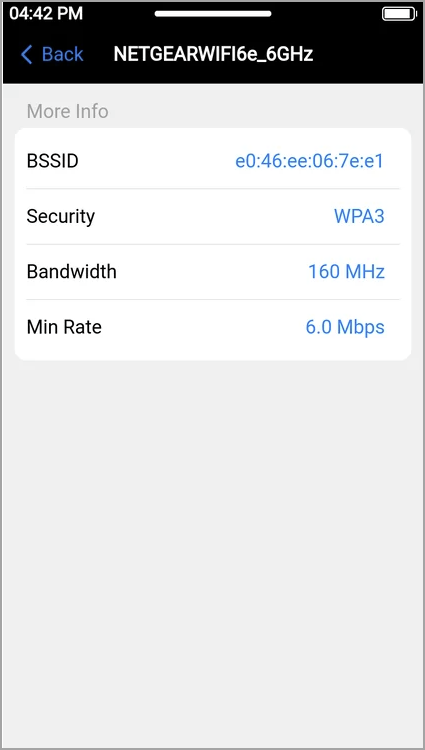
Tap the AP of interest to get its details. Tap More Information to get more details about the AP.
By default, the Wi-Fi interface obtains an IP Address automatically using DHCP. To assign a static IP address, tap Configure Interface and select Static IP Address.
To save the results of the current scan, open the Functions menu by swiping up from the bottom of the screen, then tapping  Save. Tap
  Refresh to perform a new scan.
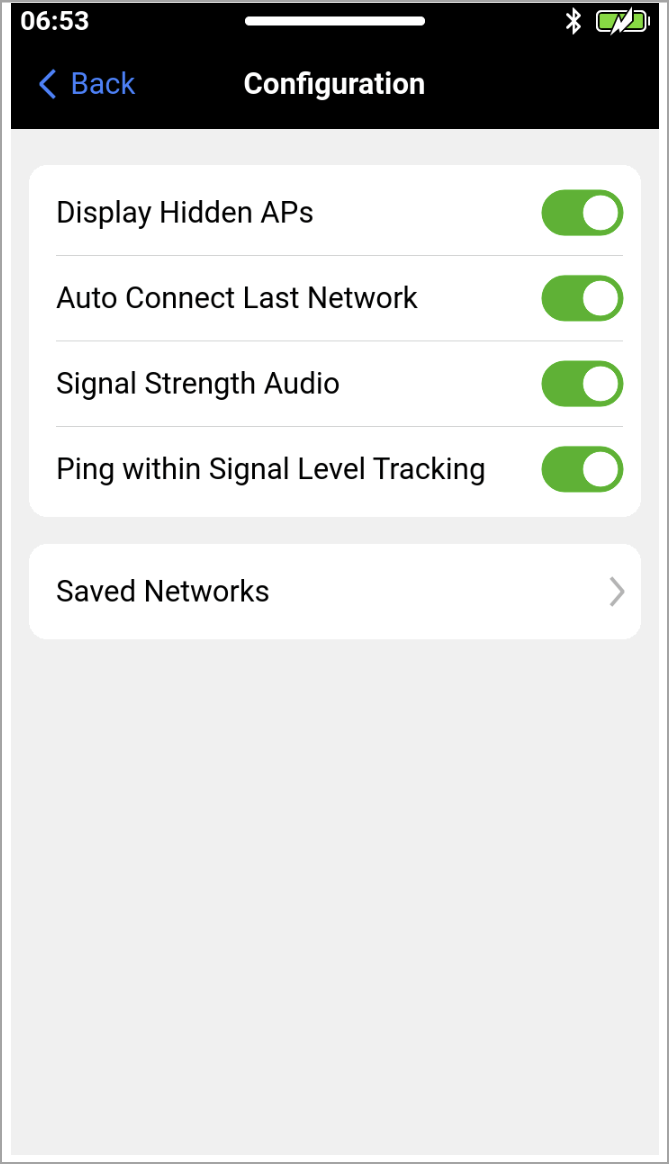
The  Config setup menu, accessible by swiping up from the bottom, allows to configure Wi-Fi scanning, connection and Signal Level View settings.
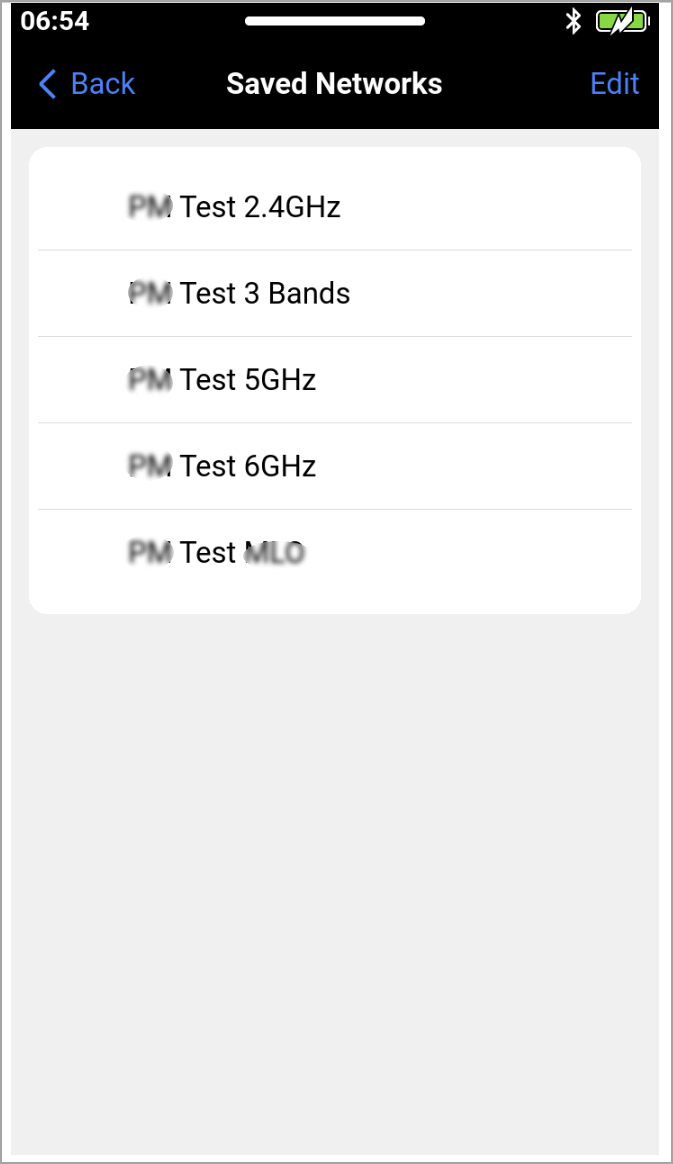
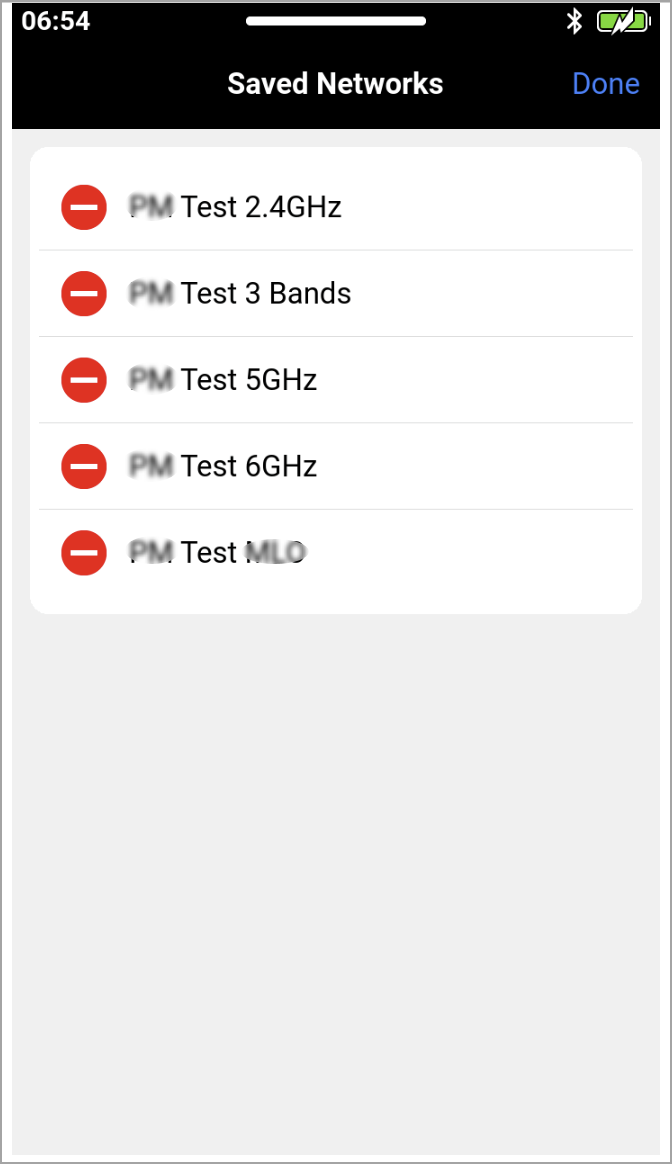
Saved Networks displays previously saved wireless networks. On the top right of the screen, select Edit to remove access points that are no longer required for regular use.
Signal Strength Audio provides an audible indication of the received signal level while performing Signal Level Tracking. The beep frequency increases as the signal becomes stronger and decreases as the signal becomes weaker.
Ping within Signal Level Tracking enables continuous ping to the default gateway of the connected Access Point while simultaneously monitoring signal strength, noise level, and signal to noise ratio (SNR). This option requires the test set to be connected to the selected Access Point. When disabled, Signal Level Tracking is in passive mode without connecting to the Access Point and monitors only the wireless signal characteristics.
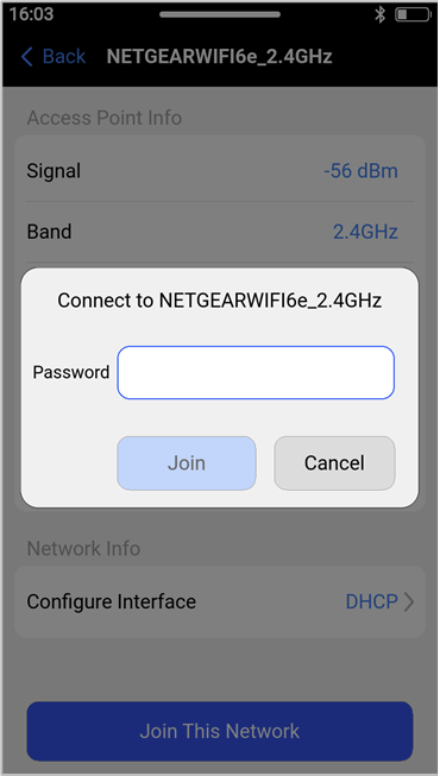
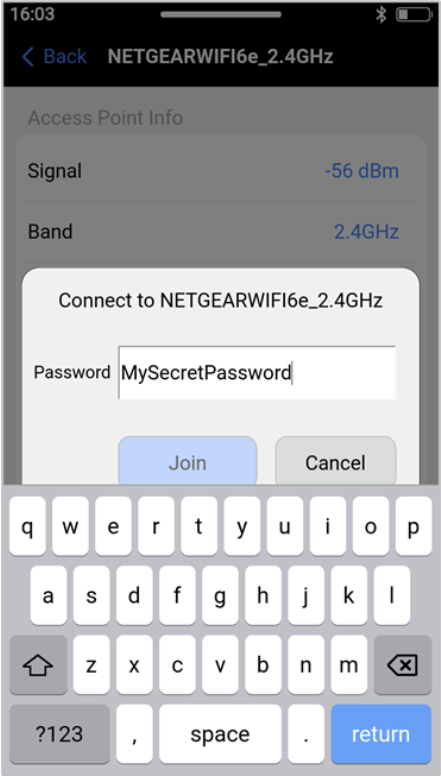
To connect to the selected Access Point, tap the Join This Network button, enter the network password in the Password field, and then tap the Join button.
AP Graph
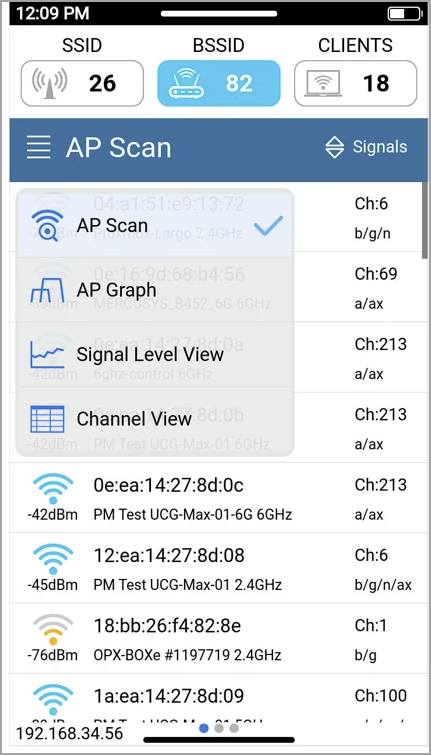
From the AP Scan Page, tap  and select AP Graphs.
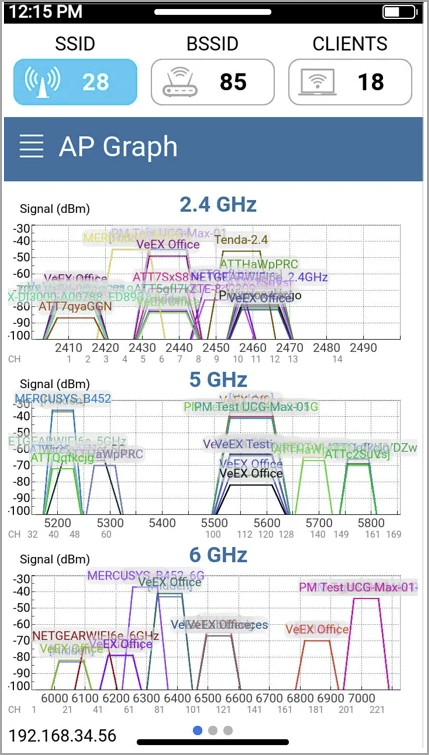
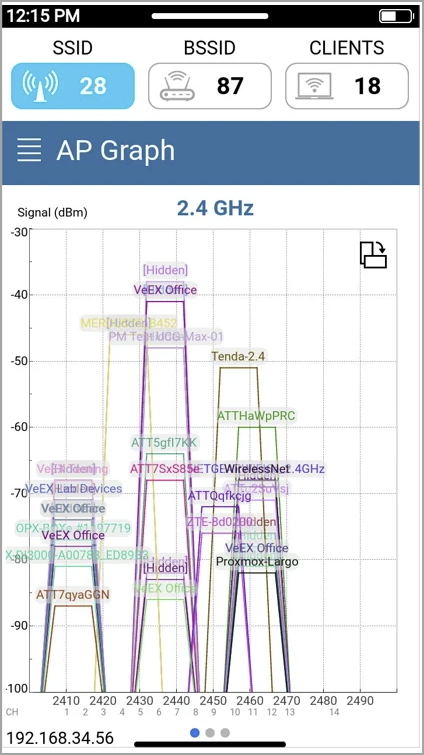
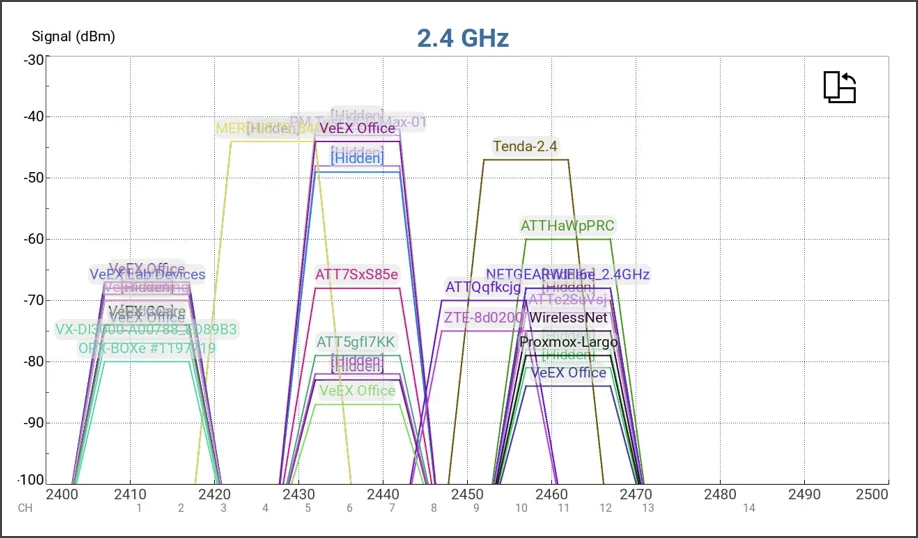
AP Graph displays detected Wi-Fi Access Points in a graphical format and updates continuously as the network scan runs. The main page presents graphs for all three bands: 2.4GHz, 5GHz, and 6GHz. Swipe left to view each band individually. Tap  to switch the graph to landscape view, and tap
  to return to the previous view.
 The Settings & Tools menu cannot be accessed by swiping down from the landscape view. Switching between the 2.4GHz, 5GHz, and 6GHz band graphs is also not available in landscape view.
Signal Level View
From the AP Scan Page, tap to get to the Signal Level View. Select an SSID from the list to start tracking its Signal Strength, Noise Level, and Signal-to-Noise Ratio (SNR) in real time. Swipe up from the bottom of the screen to open Functions menu, then tap Save to save the results. Swipe right to stop tracking and return to the AP Scan page.
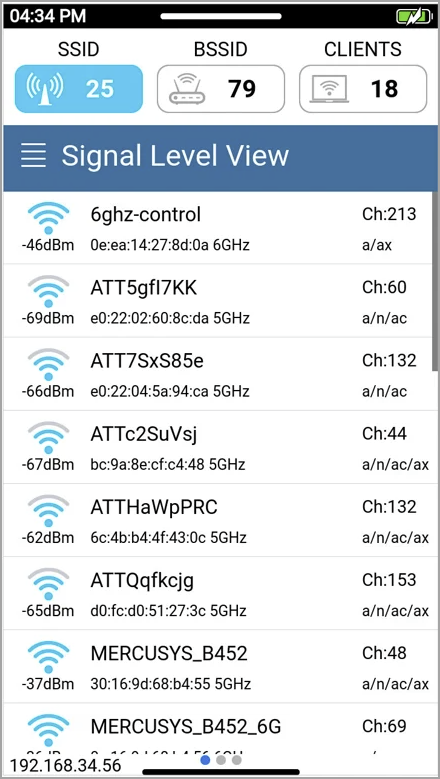
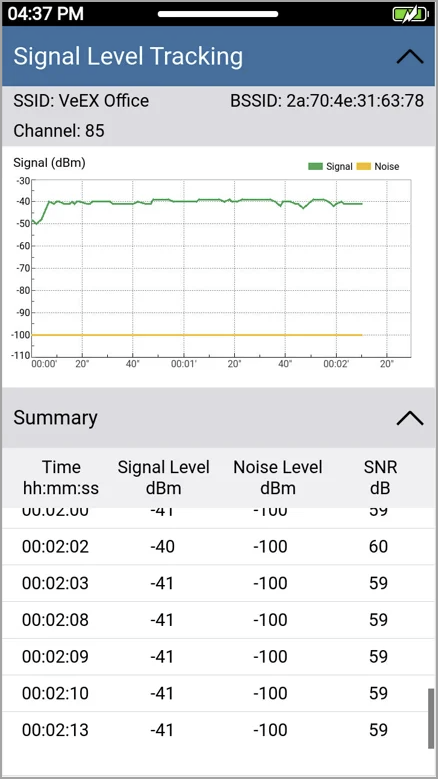
Additional Signal Level Tracking options, including Signal Strength Audio and Ping within Signal Level Tracking, are available from the Config menu.
Channel View
From the AP Scan Page, tap to get to the Channel View. The Channel View displays a summary of detected APs by channel for the 2.4GHz, 5GHz, and 6 GHz frequency bands. The results update continuously while the Wi-Fi scan is running. Tap the Band in the upper right cornet to switch to the desired band.
The table contains the following information:
-
Channel: Wi-Fi Channel number
-
Co-channel: Number of Access Points operating on the same channel
-
Best Signal: Strongest signal level received from an Access Point on that channel
-
Overlapping: Number of Access Points operating on overlapping channels that may cause adjacent channel interference
-
Max Overlap: Strongest signal level received from an Access Point on an overlapping channel.
Tap any column header to sort the channel table in ascending or descending order by the column selected. An up arrow on top of the header indicates ascending order, while a down arrow indicates descending order.
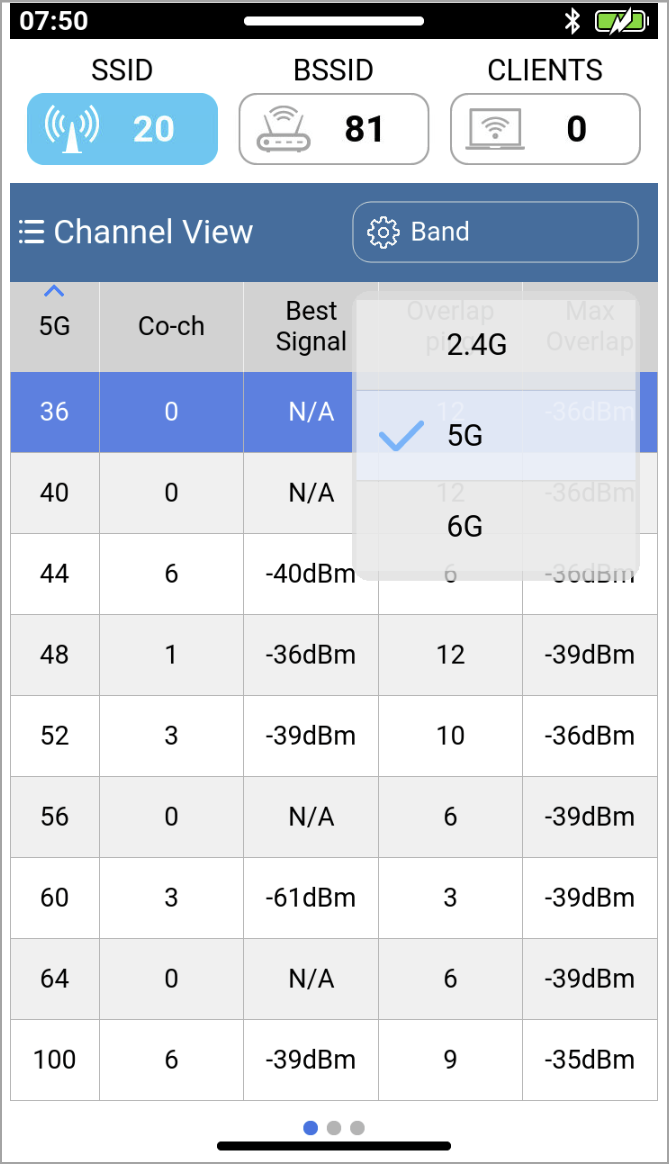
Tap any of the table rows to open the Channel Details View.
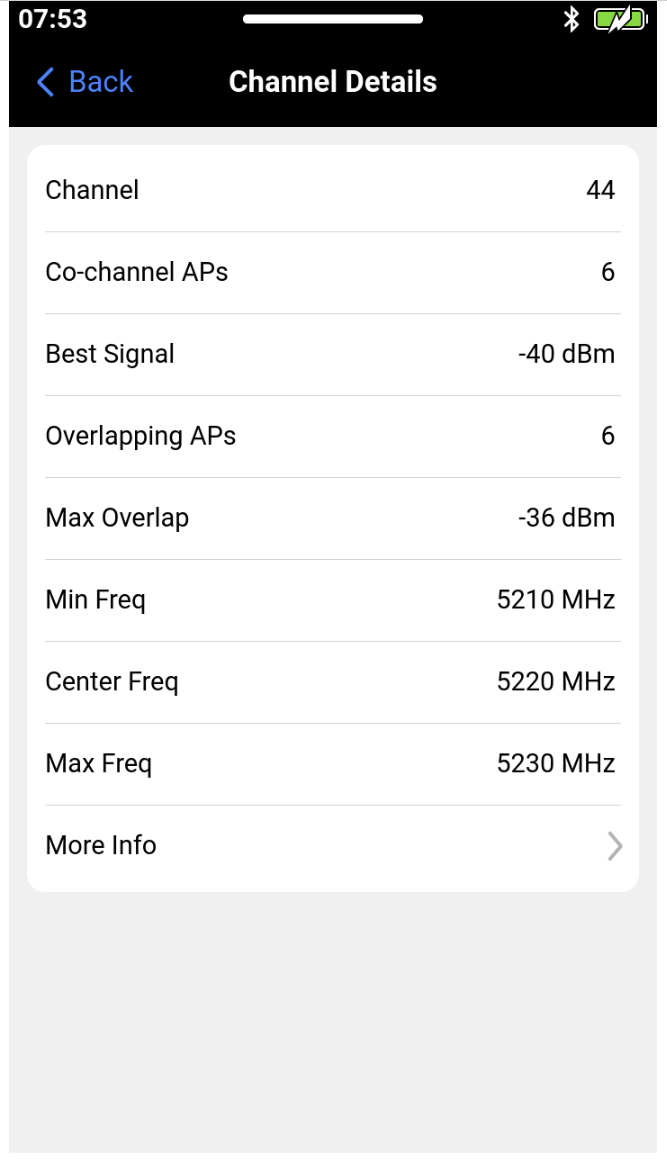
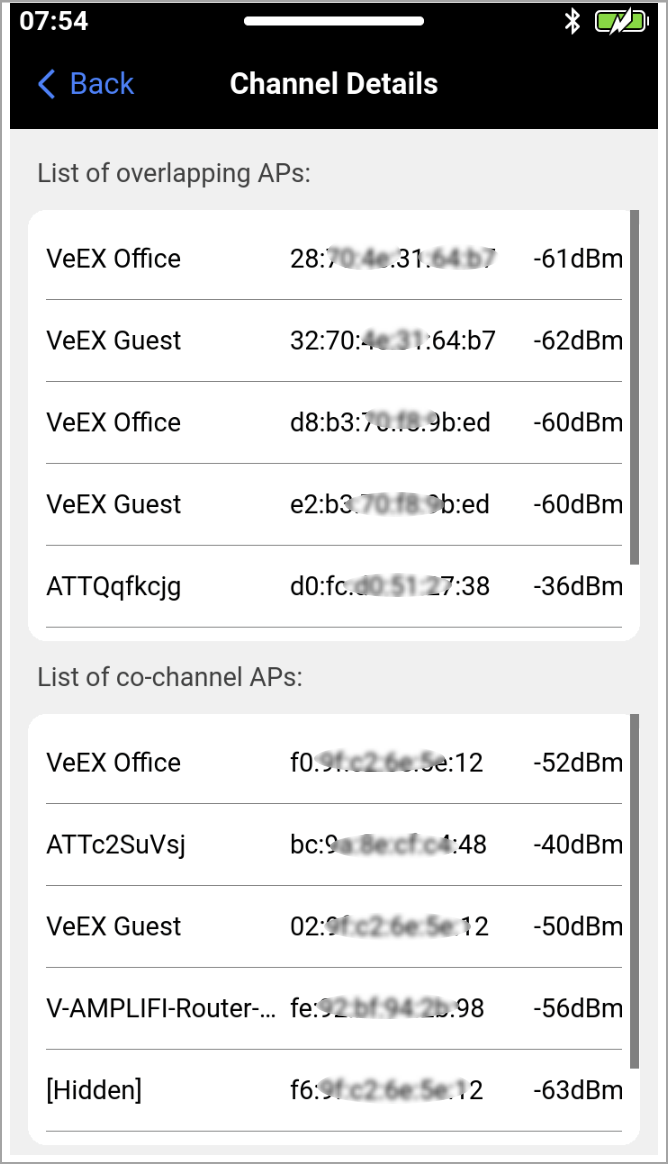
Client Scan
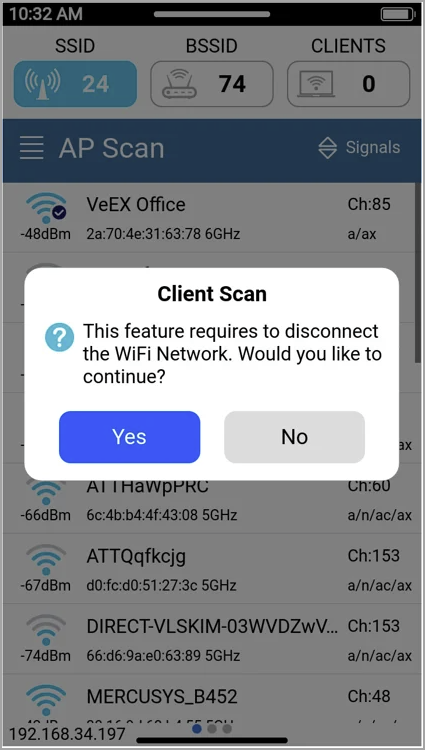
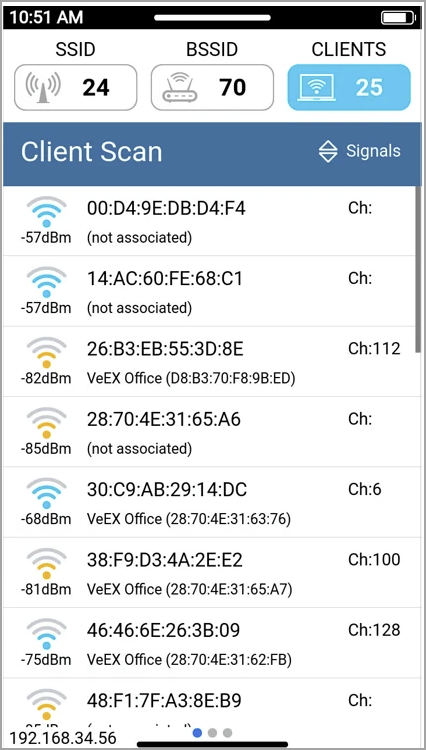
From the AP Scan Page, tap  to start the Client Scan. If the test set is currently connected to an AP, a notification message will appear requesting confirmation before disconnection. Client Scan displays the detected wireless clients, including their signal strength, MAC address, associated AP SSID, and the channel used by the associated SSID. Tap the Client of interest to view its additional details.
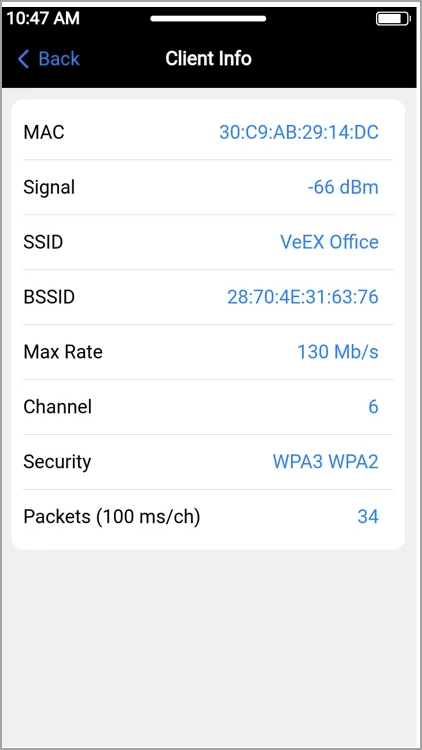
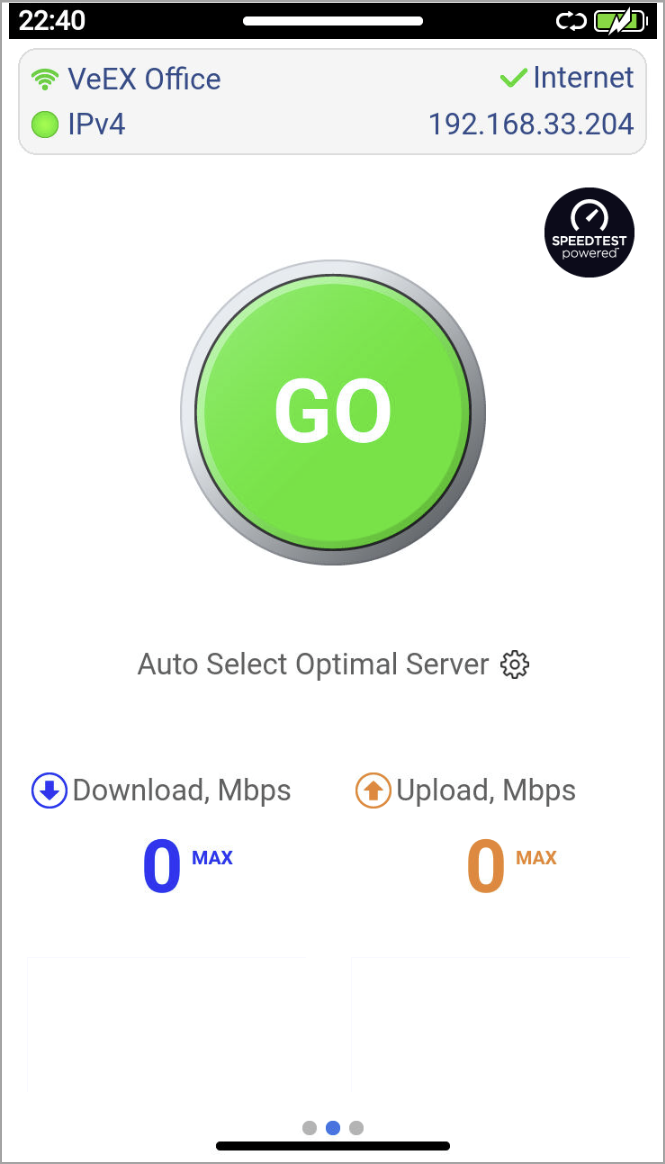
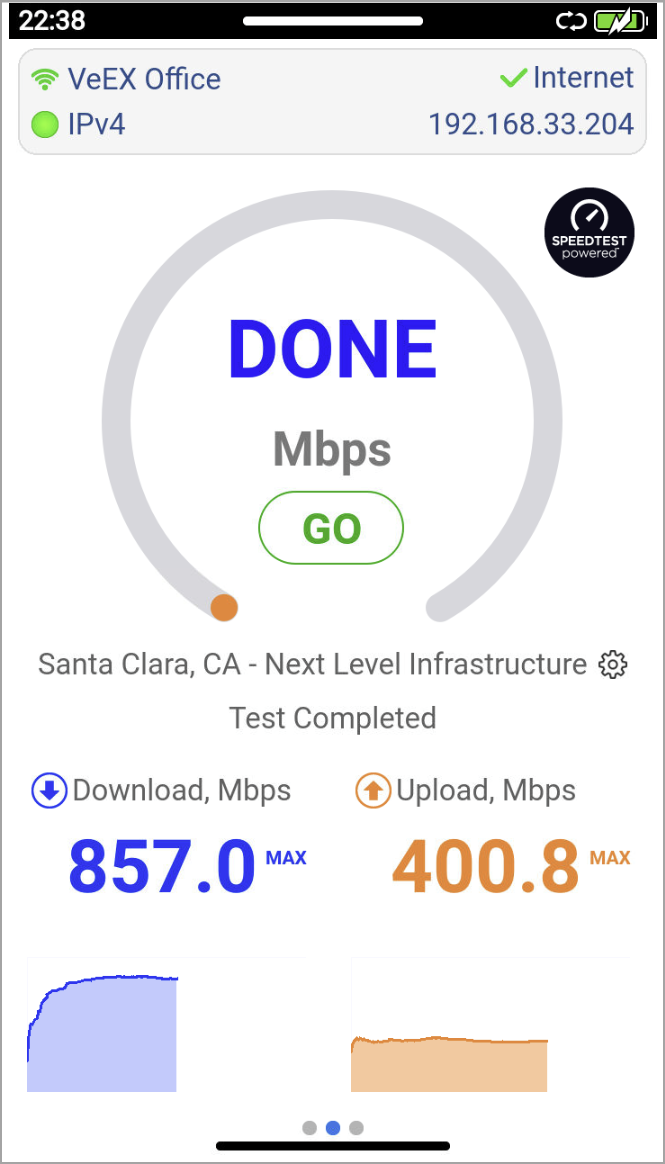
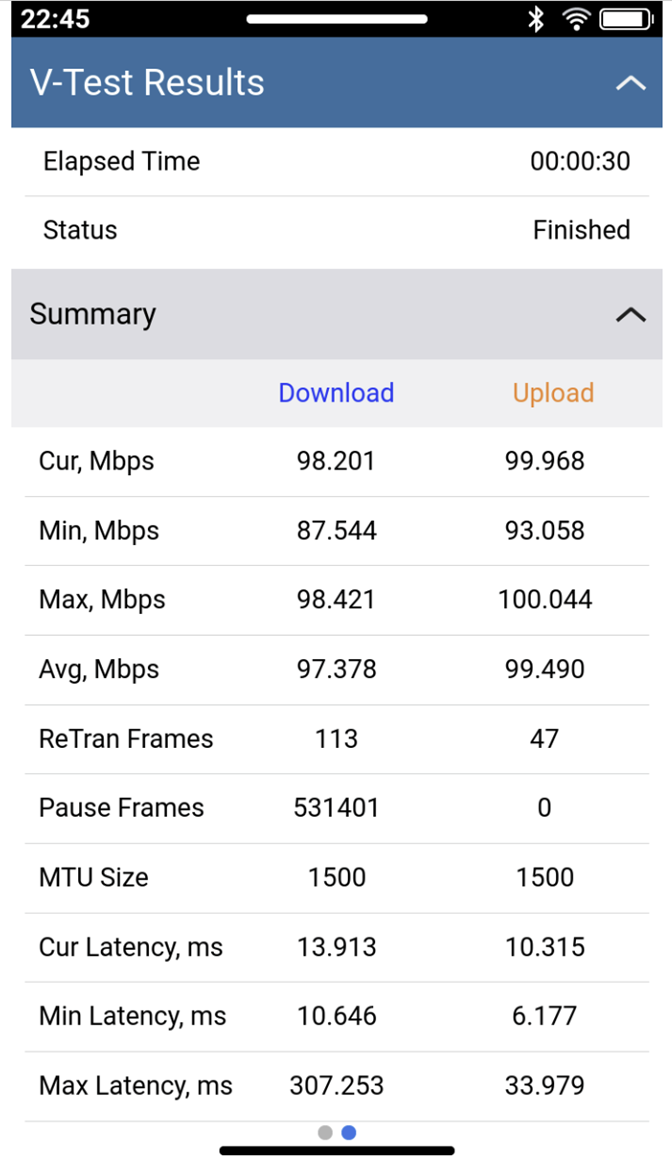
Tap < Back to go to the Scan results, swipe left to find the Speed Test page and select between Ookla®Speedtest® or iPerf3 test modes.
Test Wi-Fi Speed
To test the Wi-Fi speed, swipe left on the AP Scan page to reveal the Speed Test screen and press GO to initiate testing. Refer to Perform Internet Access Speed Test for more details about running a speed test.