Remote Access (EZ Remote/Web Remote)
There are different ways to control or access the test set and the information it contains, from a local (LAN) or remote (WAN) connected PC. EZ Remote is recommended for long distance WANs and for quick/temporary collaboration tasks. Web Remote is a better option when the test set is connected to the same LAN environment as the controlling device (or connected through VPN to a different LAN/location)
Web Remote also offers the added ability to push software updates to the test set.
EZ Remote
EZ-RemoteEZ Remote is a cloud service provided (free of charge) by VeEX Inc. for its handheld test sets. It allows users to access and operate test sets from a remote location or on a different network, for collaboration, training, mentoring, support, expert analysis, troubleshooting, etc.
Connect Test Set to the EZ Remote Service
-
Connect the test set to the Internet via Ethernet or Wi-Fi, using a USB Wi-Fi dongle and verify it gets a valid IP address. Make sure the test set gets a local IP address and the LAN/WLAN provides access to the public internet (web).
-
Tap
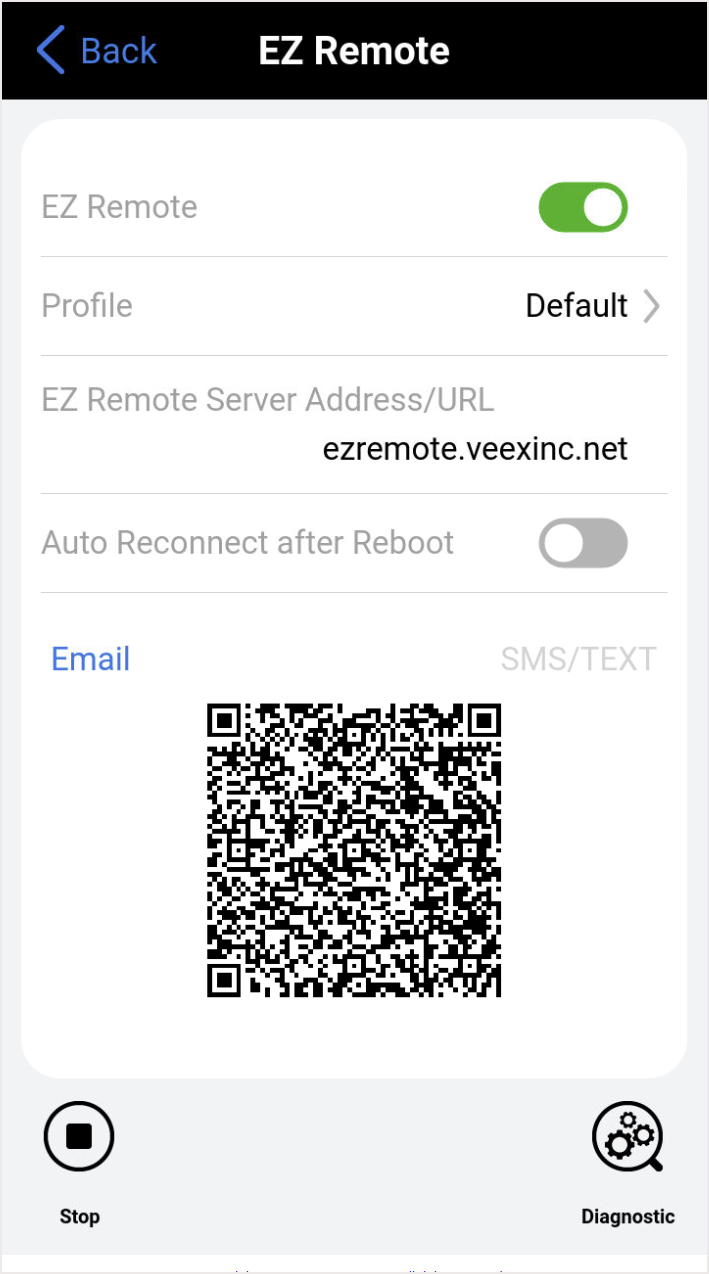
 EZ Remote and enable EZ Remote.
 -
Tap Profile to save a customized profile.
-
Press the Connect button to register the test set on the EZ Remote server (free cloud service) to make it available for others to use.
-
Scan the QR code, with a smartphone or tablet, to send an email or SMS text notification with a direct link, along with any comments and passwords edited into them, so remote users just have to click (or manually go to https://ezremote.veexinc.net/ and enter the test set's serial number and password).
Connect to the Remote Test Set
To connect to the remote test set automatically, click the link sent over email or text. The test set's serial number and password will be be embedded in the link sent from the EZ Remote server.
Manual Connection with Session ID and Password
If the session ID and password is sent outside of a link from the server, manually connect to the test set.
-
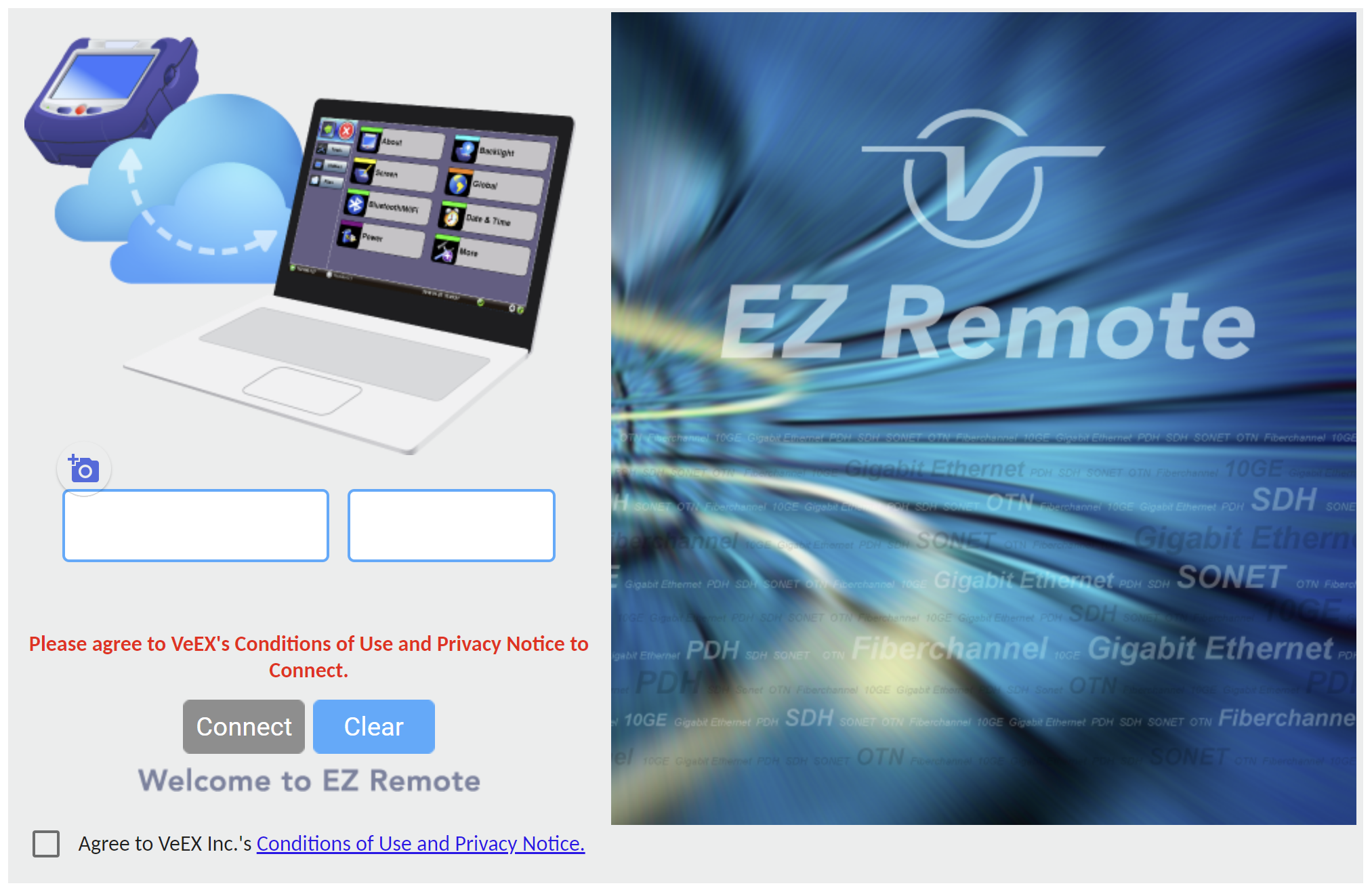
Using a browser, go to https://ezremote.veexinc.net/.
-
Enter the Session ID in the Serial Number field and the Password (case sensitive).
-
Check the box to agree on the Terms and Conditions and tap Connect. Once connected, the remote user can access and control the test set.
Web Remote
Web Remote uses a web browser to remotely control a test set within the same LAN and/or WLAN/Wi-Fi network environment. Use the mouse (PC) or touch screen (tablet, smartphone) to navigate and operate the test set as normally done locally. Access information stored in the remote test set, such as Test Results, Test Profiles, and Screenshots.
Connect to Test Set via Web Remote
-
Connect the test set to the Internet via Ethernet or Wi-Fi, using a USB Wi-Fi dongle and verify it gets a valid IP address. Make sure the test set gets a local IP address and that the LAN/WLAN provides access to the public internet (web).
 In cases where VPN access is needed, EZ Remote is recommended.
 -
Using a standard web browser on a Win/Mac/Linux PC or iOS/Android tablet or smart phone, enter the test set's IP address in the address/search bar, and a Web Remote Access page (locally hosted by the test set) will be displayed.
-
Select Remote Control, from the menu on the left, enter the Password and click OK. The mirrored test set screen will be displayed. The test set can be operated exactly as when using the built-in LCD touch screen.
The default password is pass1. It is highly encouraged to change the password. This password allows full control of the test set. A secondary password, pass2, allows users to view the content of the test set screen; however, it doesn't allow control of the test set.
|
|
 Do not leave test sets connected directly to public IP addresses, due to network cybersecurity exposure.