Port Groups
Administrators can create Port Groups to limit visibility of specific ports, so that users can view and work only with the test ports for which they are responsible. Multiple ports can be assigned to a single Port Group. The Port Group can be assigned to a user, so the user can only see those ports assigned to the Port Group. Notifications are triggered and sent only to users who can access the test ports affected by the alarm.
 Administrators can assign only one Port Group to a user.
Create a Port Group
-
On the left menu, select RFTS setup
 , then for the Platform OCM, click
  .
. -
On the top menu, select Port groups
 .
. -
Enter a name for the new Port Group.
-
All ports are shown initially. Enter the test port(s) or port label(s) to filter to the ports.
-
Turn on the port switch for the ports to assign to the Port Group.
-
Select the Create button.
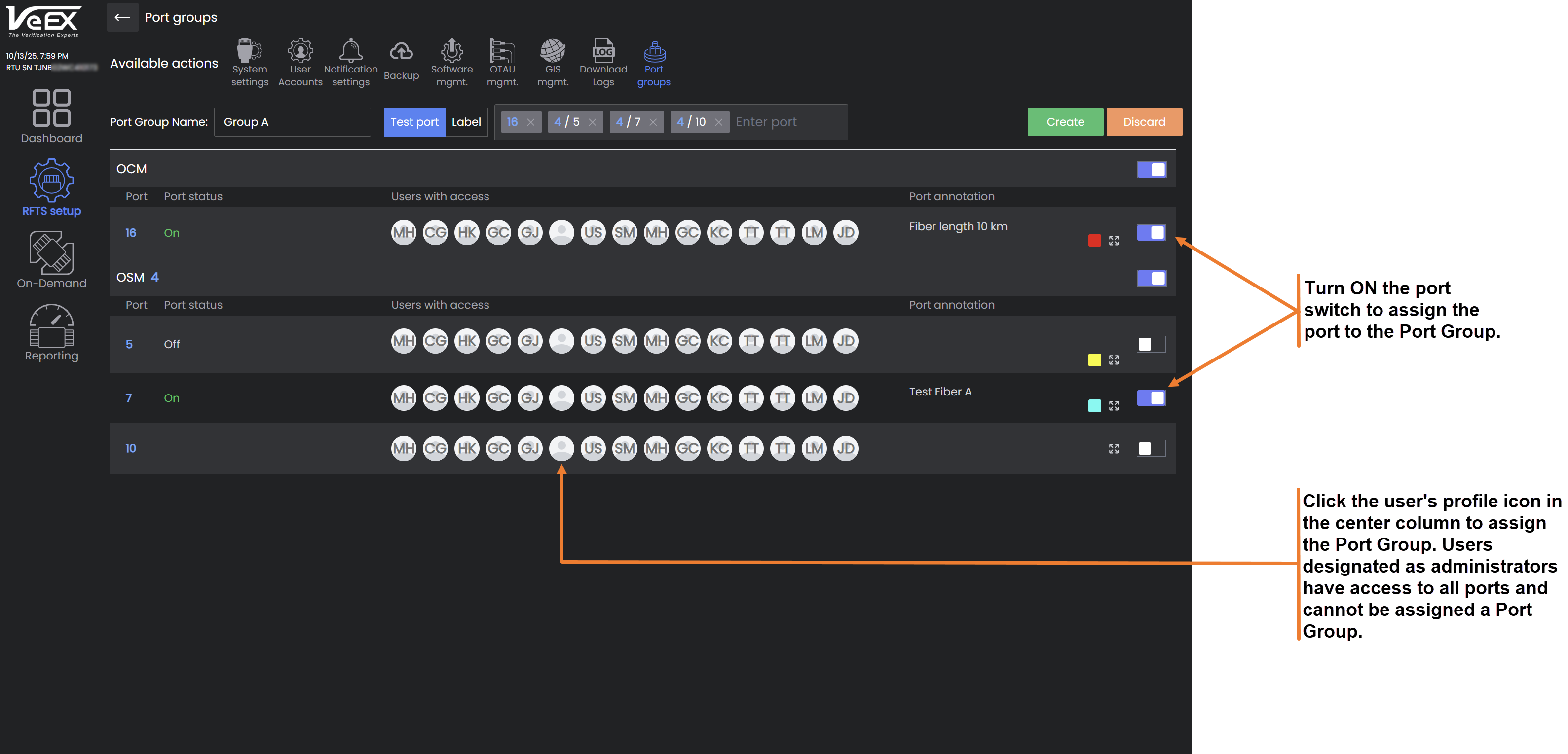
Assign the Port Group to a user so they can see only those ports associated with the Port Group by clicking the user's profile icon in the center column or from the User Accounts screen. Refer to Adding Users.
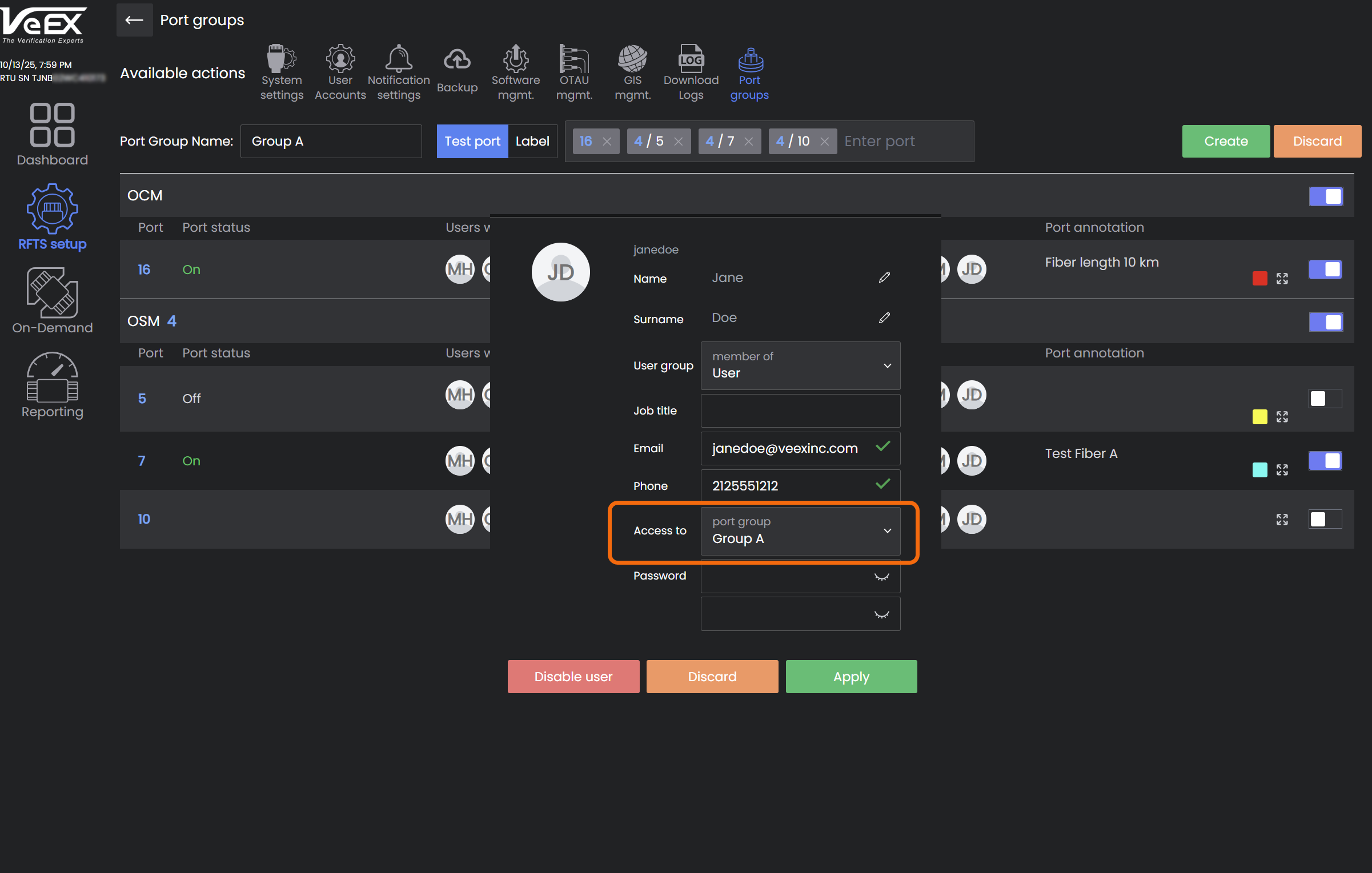
Assigning Port Group to User