Alarms
The Alarms screen shows the alarms triggered, alarm history, fiber route map, and trace.
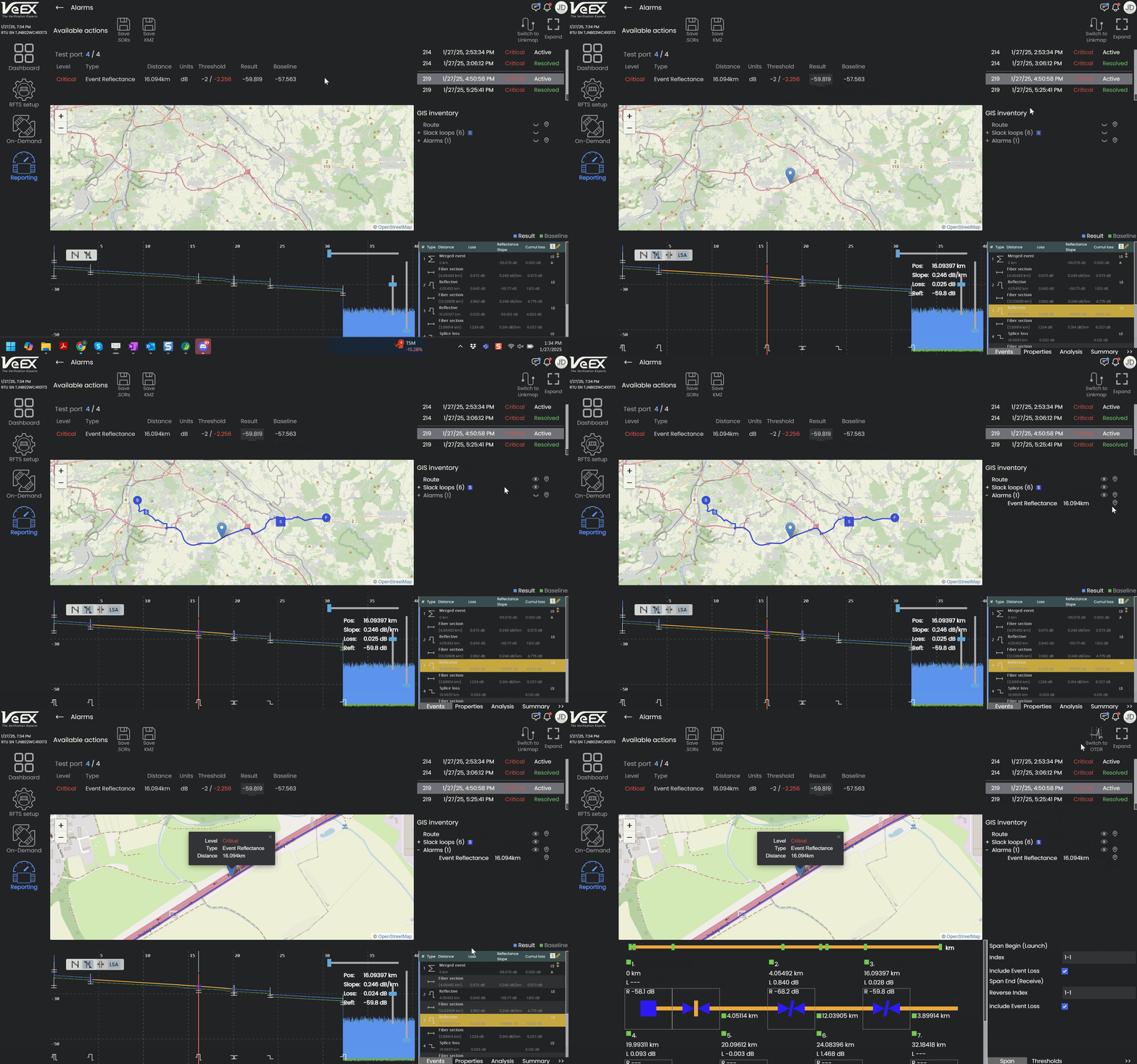
 Use Google Earth on any mobile device or PC to navigate to an alarm location.
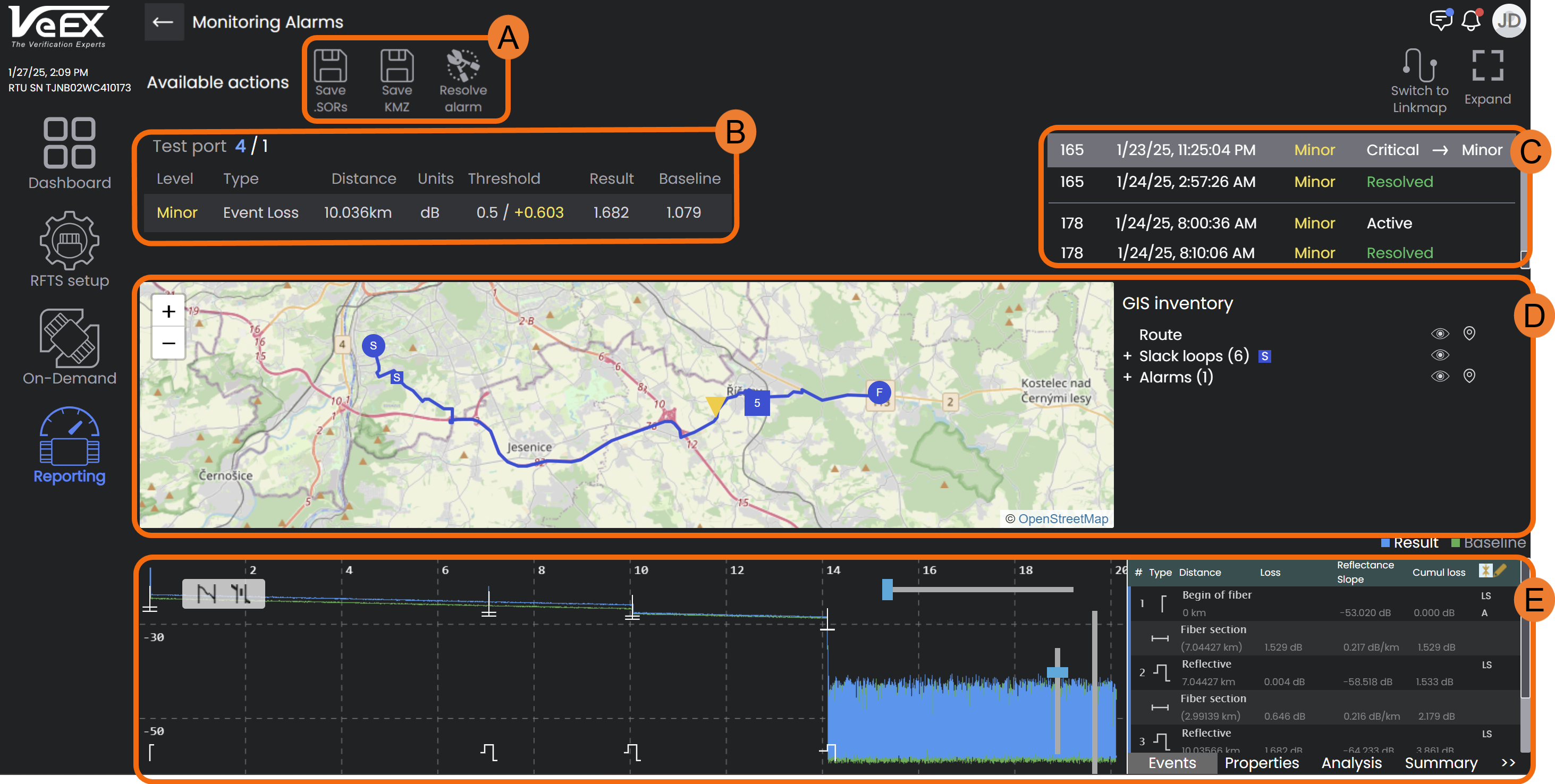
A. Save .SORs: Saves trace file.
- Save KMZ: Saves geographical location file which shows location along fiber route where alarm was triggered.
- Resolve Alarm: Labels alarm event as resolved.
B. Port alarm triggered based on alarm profile with thresholds assigned to the port. See Alarm Profiles and Thresholds .
C. History of port alarms that occurred at the same optical distance. Alarms are grouped by optical distance so a new alarm isn't generated for every incident.
In some geographic regions, ice on aerial cables might occur at night during cold temperatures. At that same fiber location, attenuation from the ice at night doesn't appear during the day when temperatures are warmer. In this scenario, the system will show all the alarms triggered when the attenuation threshold is exceeded in the history for that fiber location, but will only appear as an active alarm the first time.
D. Map of fiber route and legend of items assigned to route. Any alarm optical distance is automatically converted to the corresponding geographical distance. See GIS Management.
-
Select
 to view the event on the map.
 -
Select
 to drop a pin of the location on the map.
E. Trace with event table. See Trace Analysis.
-
At the top right of the screen, select Switch to Link map to view events in an easier to read format.