Run FiberBEAST™ Test(s)
The FX160's FiberBEAST™, a (Bidirectional Easy Analysis by a Single Technician) test suite performs automated bidirectional insertion loss (IL), optical return loss (ORL), and unidirectional OTDR measurements for up to three wavelengths via a single test port. Automated fiber certification tests are performed when paired with a remote FX160 companion test set.
Use FiberBEAST mode to initiate automated bidirectional measurements of each fiber, including insertion loss and ORL measurements for each wavelength.
Before Testing
-
Clean and inspect all fiber connectors and ports BEFORE making any connections. For more information, including video instructions on inspecting a connector end-face, go to "CLIC" - Clean to Maintain Optical Connector Quality or see Test Fiber and Initial Preparation.
-
Run Zero function on meter(s). Refer to Zero Calibration .
-
Perform referencing so meter(s) are calibrated to the Laser Source output. Refer to Referencing. Once the referencing is done, take the test sets to their respective test sites and make the necessary connections.
Running a Test
Connect the OTDR/OLTS port of the Remote test set to the desired (dark) fiber link or port under test. This is usually the site or fiber cabinet closer to the network node. For example, in the case of a PON construction verification job, the remote tester may be connected to the F1 feeder, so a field technician can then go and test all the branches at the far end (closer to the subscribers). If no AC is available at the site/cabinet, make sure the test set has a fully charged battery.
Then, move to the far end of the fiber link, connect the OTDR/OLTS port of the Main test set to the fiber or port under test, and follow the procedure below.
Select the FiberBEAST option on the Fiber Main Menu.
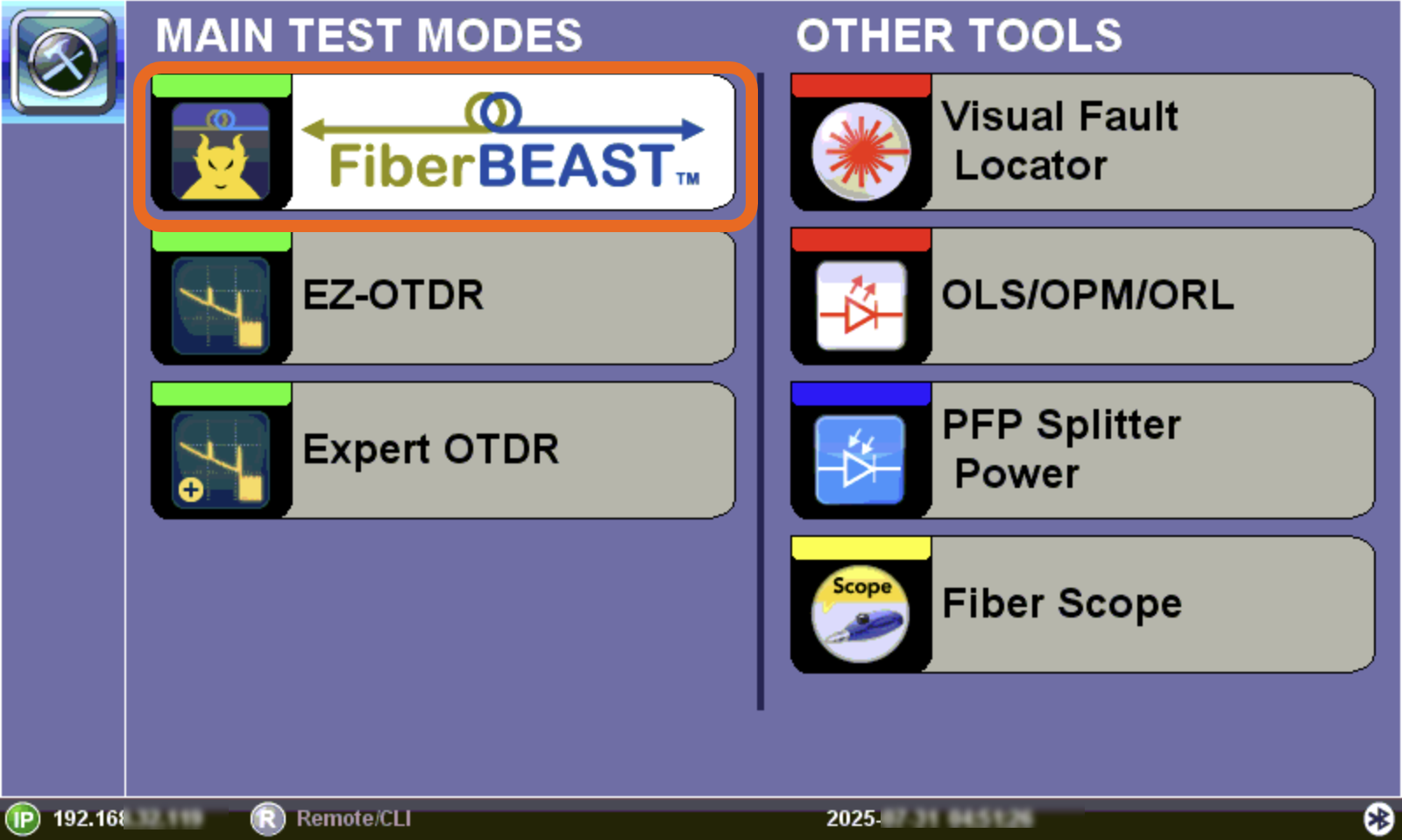
Fiber Main Menu: FiberBEAST option
On the Setup menu, select the wavelengths and tests to perform consecutively.
-
OLTS
-
ORL
-
OTDR (uni-directional only)
Each test selected will be performed consecutively and results combined into one report.
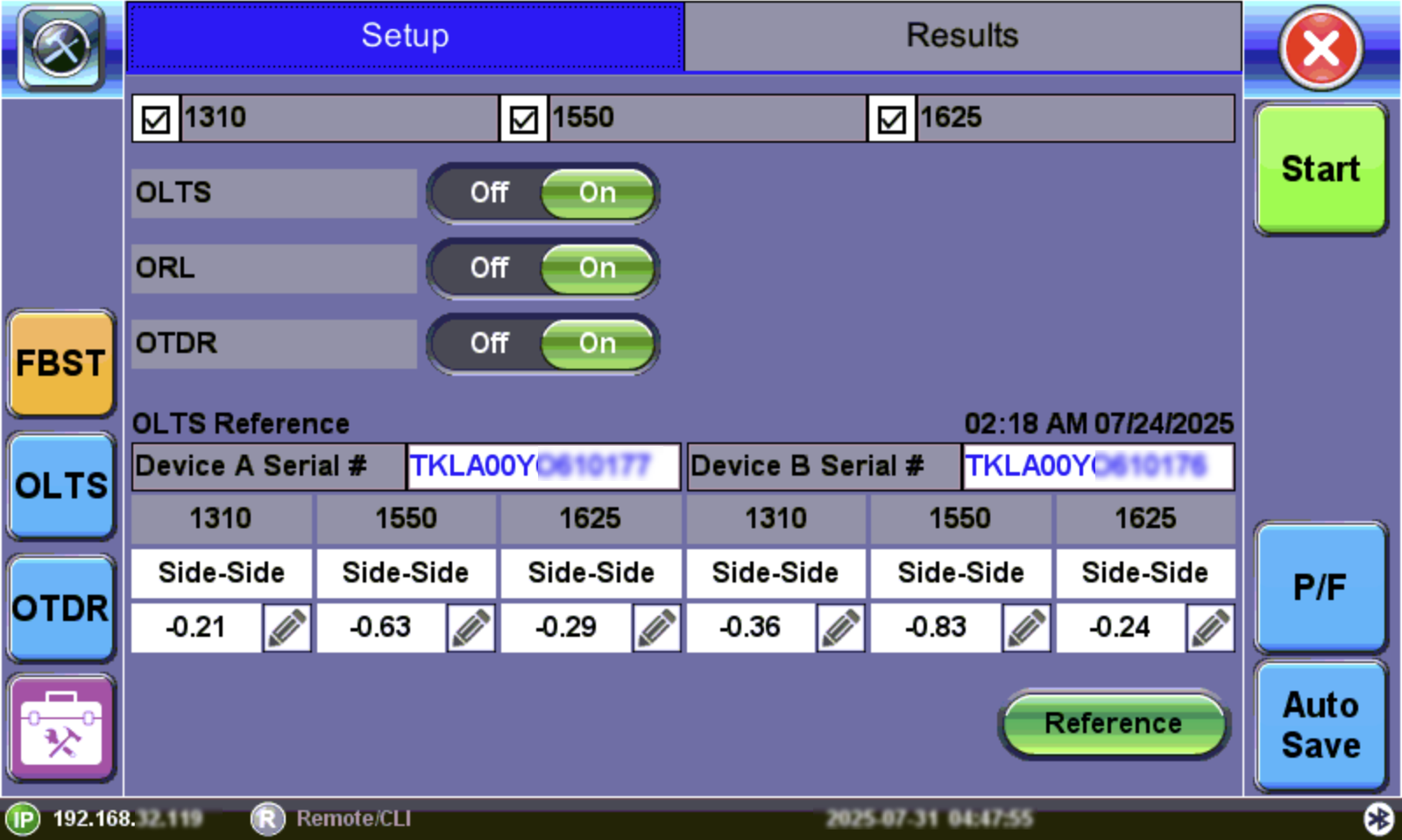
FiberBEAST Setup
|
|
 The FiberBEAST test application must be open on the Remote meter in order to perform a test. The remote unit does not require any user input or interaction.
FiberBEAST Testing Process
-
On the FiberBEAST Setup menu, select the wavelengths and measurements to perform consecutively: OLTS, ORL, and/or OTDR (uni-directional only).
-
If including OTDR in the testing, select OTDR and configure settings. Refer to Setup Screen. Select the FBST button to return to the Setup screen.
-
Select OLTS to access the ORL application, then select P/F to configure threshold settings and Autosave to enable automatic results savings. Refer to Pass/Fail Thresholds and Autosave Parameters.
-
If not already done so, open FiberBEAST on both test sets.
-
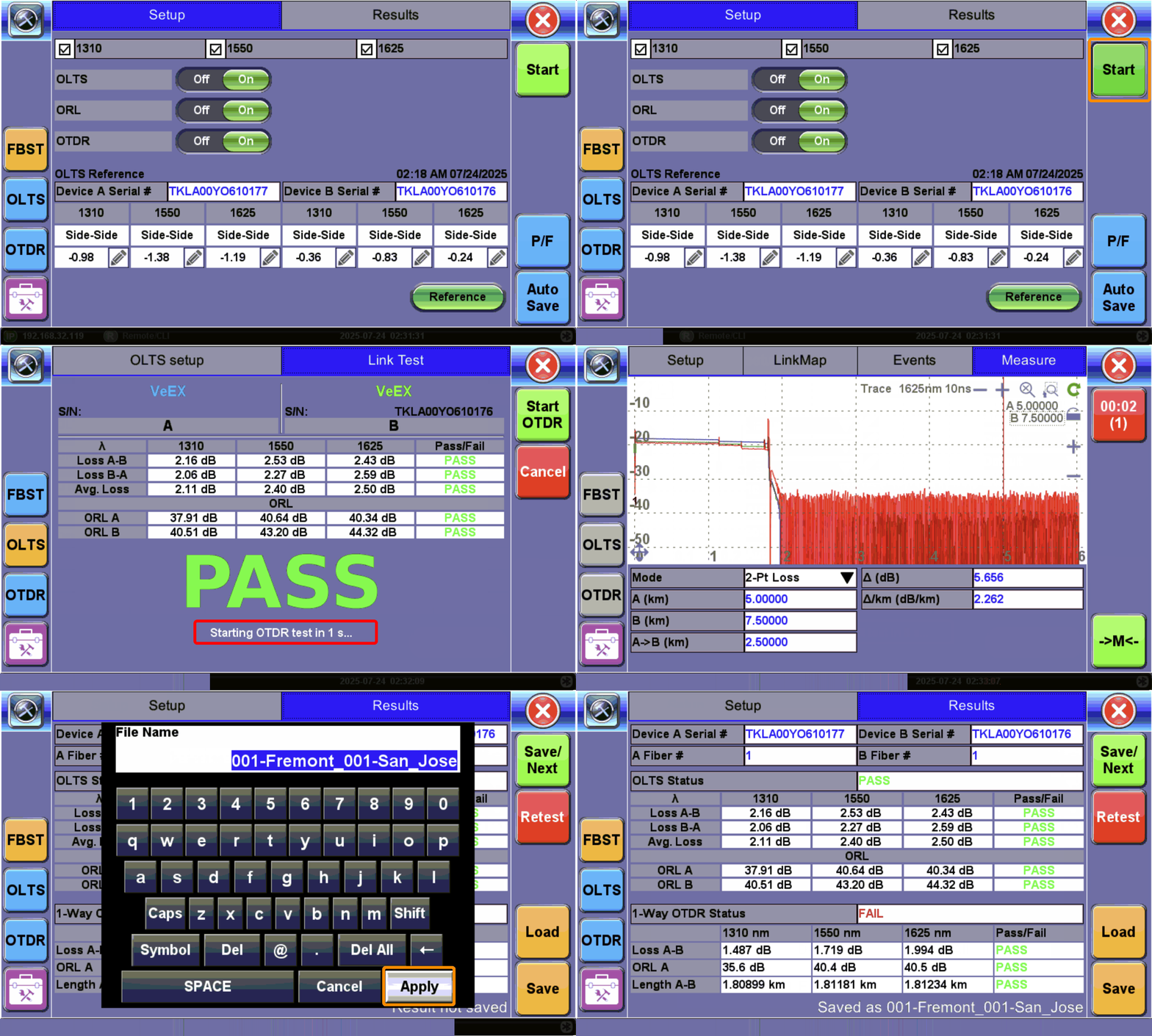
On the FX160 test set, press Start to initiate the test sequence based on test options selected. Each test selected will be performed consecutively and results combined into one report.
For bidirectional tests, the FX160 initiating the test automatically becomes the Controller and pairs with its remote test partner when connected to the fiber link under test. The FX160 Controller test set then controls communication and the test sequence with the remote FX160 test set. Serial number information and fiber reference values are exchanged before testing starts. -
After the first test is completed, a five second timer runs before the next test begins. To stop the process, press Reset. To bypass the timer, press Start OTDR.
-
When all tests are completed, the link results are displayed automatically. Refer to FiberBEAST Results and FiberBEAST Test Reports.